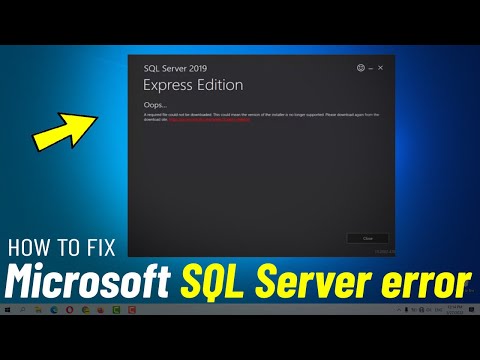
Oh man, installing Microsoft SQL Server 2019 can be a real headache sometimes, right? You know when you’re all excited to set it up and then bam! You’re hit with some weird error message. Ugh!
I mean, we’ve all been there. The thing is, these hiccups can really throw you for a loop. But don’t worry too much—you can totally sort them out.
Imagine this: You’re trying to install it on your system, feeling all techy, and then… Error 0x blah blah something pops up. What does that even mean?! Frustrating isn’t it?
But hey, before you pull your hair out or throw your computer out the window (please don’t!), let’s talk through some of the common errors folks run into during installation. Trust me, once you get past these little bumps in the road, you’ll be smooth sailing with SQL Server.
So yeah, let’s dive in and make sure those pesky errors don’t keep you from getting the job done!
Fixing Microsoft SQL Server 2019 Installation Errors
Oh boy, I remember the first time I tried installing Microsoft SQL Server 2019. It was like trying to solve a puzzle with half the pieces! You know, installation errors are just part of the package sometimes. But don’t worry, let’s walk through some common hiccups and how you might sort them out.
First off, you need to check your system requirements. Seriously, this is so important! Make sure your system meets all the necessary specifications; otherwise, you’ll be chasing errors for hours. Trust me on this one. It’s like making sure your shoes fit before running a marathon!
Here are some things to keep in mind:
- Compatibility: Ensure that your operating system supports SQL Server 2019. For example, Windows Server 2016 or later does the trick.
- Disk Space: Double-check you’ve got enough free storage space, at least around 6 GB for installation files.
- Memory: Keep an eye on your RAM; around 2 GB for minimum but more is always better!
Alright now let’s say you’ve checked all that and you’re still getting stuck with errors during installation.
A common issue is the infamous Error Code:0x84B10001. Sounds intimidating right? What happens here is often a problem with existing installations or updates interfering. Just uninstall any previous SQL components through Control Panel and give it another go.
Then there’s the dreaded.Net Framework error. Sometimes it just needs an update! Go to Windows Update settings and make sure everything’s up-to-date because outdated frameworks can really throw a wrench in things.
Another classic problem is when people run into port conflicts especially if they have other applications using similar ports as SQL Server by default (like port 1433). Changing these ports during setup can do wonders!
Follow these steps if you’re dealing with this:
- Select alternate static TCP ports:
Open ‘SQL Configuration Manager’ after installation.
Navigate to ‘SQL Server Network Configuration’ then proceed onto ‘Protocols for MSSQLSERVER.’
Here right-click on ‘TCP/IP’, pick properties finally adjusting available IP addresses under TCP Port fields.
Remember once my buddy Max spent literal days wrestling against his firewall settings without realizing rule changes needed—dotting all i’s crossing every t’:
Disabling firewalls temporarily could help determine if they’re causing issues.
Above all patience!, friendly reminder solutions aren’t guaranteed overnight yet persistence really pays off—as certain fellow claimed success after near-hair-pulling scenario James encountered back when.
Just take step by step bit release accompanying sigh relaxation knowing even experts face bumps these weary paths sharing bonded frustration insights amidst peers camaraderie holds invaluable bonds forged trials tribulations overcoming tech challenges alike no doubt worth effort endurance desires dreams triumphantly emerge intact alright?
Resolving Microsoft SQL Server 2019 Installation Issues on Windows 10
Okay, let’s dig into the world of Microsoft SQL Server 2019 and its installation hiccups on Windows 10. Been there, done that! Whew, it can get a bit tricky sometimes, right? But no worries. We’ll walk through some of the common problems and how you can tackle them head-on.
Understanding Common Errors
Imagine this: you’re all set to explore SQL Server 2019, but then bam! An error message pops up out of nowhere. Frustrating much? It often stems from compatibility issues with Windows components or missing software requirements.
Key Points to Consider
- Check System Requirements: Always start by verifying if your system meets all the requirements for SQL Server 2019. Both hardware and software specs are crucial.
- .NET Framework: Make sure you’ve got the .NET Framework version required by SQL Server. It’s like missing a piece of the puzzle!
- Windows Updates:You’ve got to keep your Windows updated. Old versions might trigger unwanted errors during installation.
Tackling Error Codes
There’s this one time I had an error code with what felt like a million numbers while setting up! Does it sound familiar? Sometimes you see codes like
Error Code 0x84B10001, indicating a setup failure tied to inadequate permissions or pending reboots.
- Error Code Solution: Can’t stress this enough: utilize an Administrator account for installations.
- Pending Reboot:If there’s any pending reboot notification from previous updates, clear that hurdle before continuing.
Simplifying Installation with Logs
Here’s something useful: Keep an eye on installation logs—they’re lifesavers when troubleshooting failed attempts!
- Log Location:The log files usually reside in C:Program FilesMicrosoft SQL Server$InstanceNameSetup BootstrapLog. Pop in here if things go south!
- Error Details:The logs often spill more details about failures than what you initially see in pop-up errors.
Whether it’s deciphering strange error messages or nudging your system settings just right—you’re not alone when facing these challenges with installing Microsoft SQL Server on Windows systems!
Fixing Installation Errors in SQL Server 2019
Oh, installation errors! They can be a real headache, right? Dealing with SQL Server 2019 install issues might feel like a maze sometimes, but trust me, it’s something that can be managed! Let’s take a look at these common hiccups together.
1. Check System Requirements
- Before doing anything else, make sure your system matches up with the needs of SQL Server 2019. It includes having enough RAM and proper disk space.
- Example: You’ll want Windows Server 2016 or newer or at least Windows 10 to run smoothly.
2. Permissions Matter
- This is often the sneaky culprit behind failed installations. Ensure you’re running as admin. No permissions can mean no installation!
- If needed, go ahead and right-click on the installer file and choose “Run as administrator”. Simple trick!
3. Antivirus Software Interruption
- Your antivirus might be a bit too protective! Temporarily disable it during the install process if you think it’s blocking any actions.
- Always remember to turn it back on once you’re done!
4. Clear Out Previous Installation Files
- If you’ve previously tried installing SQL Server and faced issues, leftover files could still interfere.
- Dive into “Programs and Features” in Control Panel to remove any old remnants.
5. Review Setup Logs for Errors
- Error messages in setup logs are like little clues! Find them in the temp folder or search for ‘SQLSetup’ logs if things go wrong.
- Tip: Understanding error codes helps pinpoint exactly what’s going haywire.
For instance, if there’s an error related to missing .NET Framework components—ensure you’ve installed all necessary updates.
6.Network Connectivity Issues
- The network configuration may sometimes play villain if you’re working with remote databases.
Make sure your firewall settings aren’t hindering any connections. - An easy test will involve checking server pings from your command line—
PING [ServerName]. If there is no response…well…there’s our sign!
As I see It happens many times – We all stumble upon technical problems every now& then….it’s okay . But understanding & tackling these roadblocks head-on makes us tech ninjas eventually !
Oh, the joys of installing new software! You know when you finally decide to upgrade or install something like Microsoft SQL Server 2019 and you’re all set for that slick new database engine. But then—bam!—error messages pop up like unwelcome party crashers. It’s happened to me, too, and it’s one of those moments where you just sigh and think, “Really? Right now?”
Imagine you’re ready with your meticulously planned installation schedule, snacks on hand—even a cup of coffee so you don’t lose steam in the middle. Then suddenly an error message flashes on the screen. Your heart skips a beat. Trust me, it can make anyone’s patience wear thin.
One common stumble is the “Instance Features” error which usually nags about some missing requirements or something off with your setup files. It’s like putting together IKEA furniture only to find out you’re missing a crucial screw, right? More often than not, it’s down to .NET Framework issues or perhaps Windows updates fighting for attention.
Then there’s the classic “Windows Firewall” block where your installation seems to freeze like it’s taking a nap on purpose just to irk you. This one’s usually about firewalls quietly doing their job too well—blocking SQL Server components from communicating properly.
And don’t get me started on permissions errors! Sometimes it feels as if computers enjoy playing the role of stubborn gatekeepers who forgot that we’re in charge here!
So what do you do? Take a deep breath before tackling these errors one by one: ensuring all updates are installed, double-checking permissions… It might sound tedious but trust me—it works wonders when done systematically.
At times like these I remind myself technology loves throwing curveballs our way; we just have to learn how best catch them without breaking anything else in process! Those little hiccups teach us more than success ever could—which buttons not press next time…or at least how remember keep snack supplies well-stocked during installations!
Who knew installing an application could turn into such an adventure?