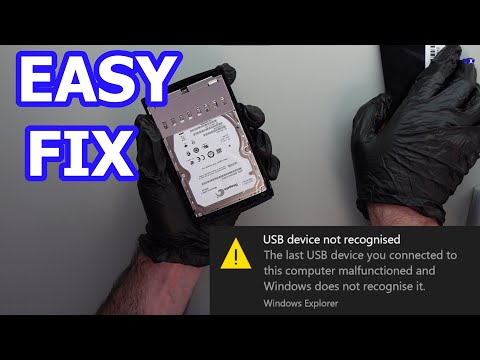
Imagine this: You’re all set to dive into some work, your favorite coffee steaming beside you, and you plug in your Seagate Mobile HDD. Annnd… nothing. Just a blank stare from your computer screen that seems to say, “I don’t recognize this thing.”
Argh! It’s enough to make anyone want to tear their hair out. And oh boy, I’ve been there too—like when I was about to finish a project for a friend. My trusty HDD didn’t feel so trusty anymore.
But before we all start panicking and calling it quits, let’s breathe for a sec.
You’re not alone with this issue. It’s more common than you’d think! Whether it’s something as simple as a loose cable (trust me I’ve done that) or slightly tangled software settings, there’s always hope yet.
So grab another sip of that coffee, get comfy in your chair—let’s figure out how we can bring your trusty hard drive back into action!
Ah, the ol’ “PC not detecting the hard drive” conundrum! It’s like when you lose your keys; they’re there somewhere, but you just can’t find them. Here, we’re talking about the Seagate Mobile HDD 1TB ST1000LM035. If your computer isn’t recognizing it, don’t worry too much. There are a few things to check.
Firstly, make sure all physical connections are snug. You know how sometimes your phone charger doesn’t work until it’s plugged in just right? Same deal here! Double-check that every cable connecting your hard drive is properly plugged into its slot.
Power Source: Ensure the power cable is connected if there’s one for an external case.
SATA/USB Cables: Make sure these are securely connected to both the drive and the motherboard or USB port.
Once you’ve confirmed that everything’s physically in place, let’s dive into what might be happening inside your computer:
BIOS/UEFI Settings: Restart your PC and enter BIOS/UEFI settings. Check if the hard drive shows up there. If it’s absent here too, maybe there’s a deeper issue with connectivity or hardware compatibility.
Disk Management: In Windows, type “disk management” in search and open it to see if your disk appears there. Sometimes drives need formatting before they show up fully usable.
– If visible but unallocated: You’ll have to format it (warning: this erases data).
– If not visible at all: Could be a driver issue or faulty hardware.
Speaking of drivers… Just like updating apps on your phone for better performance and bug fixes:
Update Drivers: Navigate to Device Manager (searchable on Windows). Under “Disk Drives,” see if an unknown device is listed—update its driver by right-clicking!
If you’re still having no luck after these tips, consider testing this drive in another PC or with another enclosure/cable setup; sometimes components fail silently without any flashing lights—or drama!
And hey, remember every gadget has its quirks – some just more hidden than others! Hopefully now you’ll have that Seagate running along smoothly again soon enough! You follow?
HDD Recognition Issues
You’re dealing with a situation where your Seagate Mobile HDD 1TB ST1000LM035 isn’t recognized by your PC, huh? That’s quite annoying, isn’t it? This kind of problem can be a real headache, but let’s go through some steps that might help you fix it.
Check Your Connections
First thing’s first. Make sure the HDD is properly connected. Sounds too simple? But trust me, I’ve seen this solve the issue more than once. Unplug the drive and connect it again, ensuring that all cables are securely attached and in their right places.
Dive into BIOS/UEFI
To see if it’s detected there. Restart your computer and press the necessary key (often it’s F2 or Del while booting up) to open BIOS settings. It should list all connected drives under “Standard CMOS Features” or similar. If it’s not visible here, something might be wrong at a hardware level.
Disk Management
If your BIOS finds it but Windows doesn’t… here comes Disk Management. Right-click on “This PC,” select “Manage,” then “Disk Management.” Sometimes drives appear here without a letter assigned to them.
If you see the drive, but no letter is assigned: Right-click and select “Change Drive Letter and Paths,” then add one.
If you don’t see the drive at all: This may indicate an issue elsewhere.
Divers Might Help!
Head over to Device Manager (right-click on Start button). See if there are any yellow exclamation marks next to any devices under “Disk drives” or “Universal Serial Bus controllers.” Those marks can signify driver issues, requiring an update or reinstall.
The Classic: Run CHKDSK
Launch Command Prompt as an administrator (just type CMD in search and hit Enter). In there type `chkdsk X: /f /r` replacing X with whatever letter represents your problematic drive—if it has one! It helps sometimes by repairing file system errors causing detection problems.
Anyway keeping these things checked could lead us closer figuring out what’s wrong with recognition part! Sometimes simply re-seating components works wonders; other instances call for new driver updates—or checking different USB/SATA ports altogether!
Hard Drive Detection on Mac Unavailable
Hey there! It sounds like you’re dealing with a tricky situation where your Mac isn’t detecting your Seagate Mobile HDD 1TB, the ST1000LM035 model. Don’t worry, you’re not alone in this. So, let’s dive into the solution.
Check the Basics
Before we go into more technical stuff, make sure of a few simple things:
Connections: Verify that all cables are securely connected to both your Mac and the hard drive. Sometimes a loose connection can cause detection issues.
Port: Try plugging it into different USB ports on your Mac. Ports can be finicky sometimes!
Power Supply: If it’s an externally powered drive, ensure it’s plugged into an adequate power outlet.
Disk Utility Inspection
Your next stop is the Disk Utility on your Mac:
You can find it by searching via Spotlight (the little magnifying glass icon) or in Applications > Utilities.
If you see the drive listed but not mounted, try selecting it and then clicking “Mount” at the top of the window.
If it’s still not showing up in Disk Utility:
You may need to check for any updates available for macOS as these updates can sometimes solve hardware compatibility issues.
S.M.A.R.T. Status Check
S.M.A.R.T stands for Self-Monitoring, Analysis and Reporting Technology—a feature that checks hard drives’ health.
Select your drive in Disk Utility and click ‘Get Info’. Look out for S.M.A.R.T status—if it’s “Verified,” that’s good news!
If it says “Failing” or is unavailable, data backup becomes crucial immediately if you have access through another device or means.
NVRAM Reset
A reset might help because NVRAM stores some settings related to disks.
The trick here is to restart holding down Command + Option + P + R keys until you hear a startup sound twice.
This often helps resolve hardware detection quirks with Macs.
Oh, the joy when you’re all set to use your external hard drive, and, oops! Your computer decides it’s taken an invisible vow. The Seagate Mobile HDD 1TB ST1000LM035 is supposed to be reliable—a little powerhouse of storage—but tech doesn’t always play by our rules, does it?
I remember a day when a friend’s face lit up as he told me he’d backed up his entire photo collection onto a shiny new external drive just like this. Memories of travels to sun-kissed beaches and snowy mountain tops were safely stashed away—or so he thought. That same excitement turned into utter confusion when his PC refused to recognize the drive. Like it had developed some form of digital stage fright.
First off, calm down if you’re in that boat too. It’s often something basic we tend to overlook. Sometimes it’s as simple as a dodgy USB port or cable causing the fuss—hey, happens more often than you’d think! Try swapping them out first.
If cables aren’t at fault, there could be settings playing hide and seek in the computer itself. Go check Disk Management; sometimes your system might see the disk but doesn’t automatically assign it a letter.
Another friend once panicked before realizing her issue was solved by updating her drivers. Yeah, those sneaky updates can make or break things sometimes.
Oh! And don’t forget about other devices—plugging the HDD into another computer can help figure out if it’s actually an issue with your original setup or just your unlucky day with tech.
Feeling baffled by technology isn’t fun—and oh boy do I know that feeling—but part of its charm is solving these little mysteries ourselves…sometimes anyway!