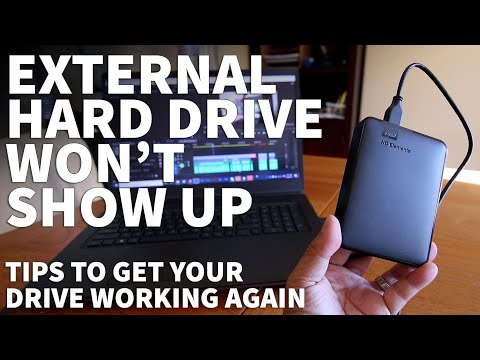
Oh man, external hard drives, right? You plug ’em in expecting them to just work, but sometimes they decide to play hide and seek instead. If you’re dealing with a wdbwlg0060hbk eesn drive that’s gone undercover, you’re definitely not the only one scratching your head. VIDEO
The other day I was hanging out at a friend’s place. She was all set to share some epic photos from her last adventure. Guess what? Her trusty hard drive decided it didn’t feel like playing nice that day. Totally frustrating!
But hey, don’t sweat it too much just yet. There are a bunch of things that could be going on—some simple, some a little more tricky—but we’ll get through this snooping mission together! Sometimes these gadgets just need a bit of TLC or one of those “try turning it off and on” moments.
Ready to take on the mystery?
Hey, it sounds like you’re having a bit of trouble with your external hard drive, huh? That pesky issue where the computer just doesn’t want to recognize it. Let’s tackle this little problem head-on and see if we can get things back on track!
Check Your Connections
Try a Different USB Port or Cable external hard drive into another USB port. A faulty cable can also mess up your connection; if you have another one lying around give it shot.
Listen for Sounds from the Drive
Device Manager Check-Up
(Isn’t Windows always a blast?) aside>
li> : Any sign of life should appear right about now… li >“` Security software interference “`
Then again many folks forget drivers need regular updates too sometimes:
Anyway,…hope everything starts operating smoothly again soon!
Ever plugged in your external hard drive and felt exasperated to see it not popping up on your computer? Don’t worry, you’re not alone! Encountering the issue where an external hard drive is detected but not visible is actually more common than you’d think.
Understanding the Basics
Main Culprits
Drive Letter Conflict: Sometimes Windows doesn’t assign a drive letter properly. It’s like having two people with the same locker number. The system gets confused!Partition Issues: If something went wrong with the partitioning of your drive, it could cause visibility problems.File System Incompatibility: Your computer may have trouble reading the file system of the disk.Cabling Problems: A faulty cable or connection can also be sneakily behind this issue.
Simplified Fixes
Let’s go through practical steps to help fix these visibility hiccups:
Check Disk Management: Open Disk Management by right-clicking on ‘This PC’ > Manage > Disk Management. Here, you should see all connected drives. Is yours there without a letter?Add/Change Drive Letter: If your drive shows up here but doesn’t have a letter assigned, right-click on it and choose “Change Drive Letter and Paths”. Assign one that isn’t being used already.Create/Format Partition: If there’s space that’s unallocated (not showing as part of a partition), right-click and select “New Simple Volume”. Follow prompts to assign size and format—it’s almost like laying out fresh tiles for data homes!Cable Check: Tried another USB port or cable yet? Doing so will rule out physical connectivity issues which can sometimes be subtle gremlins causing havoc.
=Considerations For Mac Users = B >
On Macs , using “Disk Utility” from Applications > Utilities gives similar control over discerning what ‘s working under-the-hood. Sometimes mounting volumes manually solves mysteries quietly lurking beneath Apple ‘s pristine surface interface!
Hey, I get it. You plug in your trusty external hard drive, and boom—nothing. It’s like it’s disappeared into a digital black hole! The model you mentioned—wdbwlg0060hbk eesn—not getting recognized is super annoying, right? Let’s roll up our sleeves and see what can be done.
First Things First: Check the Basics
Before diving into anything technical, make sure your drive is properly connected. Sounds obvious? Sure. But sometimes, it’s as simple as that.
Cables: Check if the cable is firmly plugged into both the drive and computer ports. Try using a different USB cable if you have one handy.Ports: Connect to a different USB port on your computer. Occasionally these ports have minds of their own!Power Supply: If your external drive has its own power adapter, ensure it’s plugged in and working.
Dive Deeper: Inspect Your Computer’s Disk Management
Alright, time to dig deeper if the basics didn’t work. Windows provides a tool called Disk Management that’s a real lifesaver for problems like this.
Access Disk Management: Right-click on “This PC” or “My Computer,” pick “Manage,” then go to “Disk Management.”Look for Your Drive: Is it listed there without a letter assigned? Or does it say something like “Unallocated”? That’s where things might need tweaking.Assign/Change Drive Letter: If it appears without an assigned letter:
Select the drive.
Right-click and choose “Change Drive Letter and Paths…”
Add or change the letter—assigning something not already used by another device helps!
Tinker With Device Manager: Refresh Those Drivers
Sometimes our systems need reminders about what’s connected.
Open Device Manager:Press “Windows + X” then “Device Manager.”
Try new ideas refreshing updates verifying whether step worked out ultimately before moves taken further like data recovery tools—last resort indeed no necessary?
Explore options additionally checking formats recognizing system preferences hoping being helpful preventing future trouble popping evermore unexpectedly surprise manner hopefully solved problem fix minor setbacks feel free sharing experiences below learning others situations happy computing journeys adventures happen again catch moments live remember always pack patience mixing techie love together smooth ride balance life tech span span !
Ah, the saga of external hard drives not being recognized—it’s like a right of passage for anyone who’s ever relied on these little boxes of magic to keep their digital lives safe. You know the feeling, right? You plug it in, expecting the usual comforting sound of it spinning to life, and then… nothing. Nada. It’s like it’s giving you the silent treatment.
I remember once buying one of those massive drives—6TB! Felt like I could store my entire life on it. Movies, photos, important documents; you name it. I was pretty excited about backing everything up securely. But guess what? The moment came when I plugged it into my computer, and there was no familiar chime or pop-up acknowledging its presence. Kind of deflating if you ask me!
First things first: Don’t panic! It’s easy to jump to conclusions thinking all your data has vanished into thin air but sometimes there’s an easier fix than you’d expect.
Let’s consider a few culprits before popping open a new tab for help—or replacement options (yikes!). Check if the power source is okay because these babies often need a little juice even when connected via USB-C or whatever port you’re using nowadays.
Next up: cables—oh boy! They might look fine at first glance but can be sneaky villains underneath with faulty connections or frayed bits hiding inside them. Who knew?
If everything seems good physically yet still nothing shows up onscreen after plugging in multiple times try playing detective by checking Finder (on Mac) or Disk Management (on Windows). Sometimes these tools reveal surprises lurking beneath layers unnoticed by our eyes initially scanning over desktops/screens aimlessly wondering why external drive isn’t responding properly!
Have patience—you never know—it might suddenly just decide “Hey there!” without warning once settings are adjusted correctly through software updates/downloads fixing compatibility issues across platforms needing patches every now again due occasional changes/updates beyond our control too late notice beforehand alas frustratingly inconvenient times absolutely always unfortunately happens least wanted arghh…
So yeah that’s pretty much gist/rundown common experiences faced encountering such instances repeatedly throughout lifetime alongside technology advancement inevitable growth journey both sides evolution hand-in-hand exploring wondrous world constantly striving better improve features usability ease access overall users’ interaction everyday activities smoother serene manner possible thanks incredible minds working tirelessly behind scenes making dreams come true reality everything seamless efficient more power fingertips reach unimaginable yesterday tomorrow brighter future ahead yay exciting possibilities abound boundless imagination limits finite attainable goals limitless creativity ingenuity combined collaborative efforts outstanding results achieved collectively genuinely wonderful magical moments shared loved ones cherished memories forever hold dear lasting impressions embedded hearts minds eternally remembered fondly look back fond nostalgic times past celebrate past present future endless potentials await discovery unfold marvel enjoy fullest extent imaginable available us today tomorrow beyond horizons expand horizons awaits…