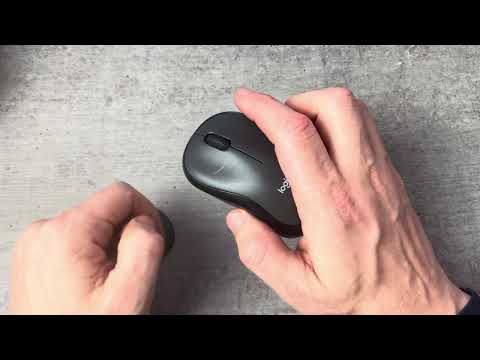
So, you’ve got this nifty Logitech M600 mouse, right? And everything’s supposed to be smooth and easy with it. But then BAM! Out of nowhere, it’s like your mouse decided to take a nap and refuses to wake up on Windows 10. Ugh, frustrating!
Imagine you’re all set for a productive day. Coffee in hand, work playlist ready—and then you realize your cursor is just stuck there. Yep, been there! It’s like the universe is testing your patience.
Before you start pulling out your hair or chucking the mouse out the window (please don’t!), let’s see what’s going on here. Sometimes it can be something super simple that’s messing things up.
Let’s face it, tech is great… when it works. But when it doesn’t? Not so much fun. So let’s navigate these waters together and see if we can get that little rodent running again!
Fixing Logitech Mouse Responsiveness Issues
Ah, the joys of working with technology, right? That moment when your trusty Logitech M600 mouse decides to act like it’s on a break—on Windows 10 no less. Let’s try and get your mouse back in action!
It can be super frustrating when your mouse doesn’t respond how you’d like it to. It’s almost like trying to drive a car with no steering wheel! But don’t worry—even though it’s tricky at times, we can likely fix it.
Step 1: Check the Basics
- Connections: Make sure that your USB receiver is snugly connected. Sometimes they wiggle out just enough to cause trouble.
- Batteries: Fresh batteries can work wonders. Just pop in a new pair; it could be that simple.
Step 2: Update Drivers
You know how computers are—they need everything up-to-date all the time! First, go ahead and check if there’s an update for your Logitech drivers:
- Open the Device Manager. You can right-click on the Start button and select it from there.
- Find “Mice and other pointing devices” and click to expand that section.
- Right-click on your Logitech device (it should say something like “Logitech M600”) and choose “Update driver“. Then follow those steps!
Step 3: Remove Radio Interference
Wireless devices sometimes get moody if they’re too close together or near metal objects.
- If possible, keep other wireless devices away from the USB receiver.
- Avoid using it directly on metal surfaces—a piece of paper or notepad underneath might help!
Step 4: Re-pairing the Device
Sometimes a fresh start does wonders for tech gadgets:
- You might have software installed called “Logitech Options Software“. Open it up if you do; otherwise, consider downloading it from Logitech’s site.
- This software helps in re-pairing or troubleshooting further issues catered specifically to their hardware.
This isn’t some magical potion but following these suggestions helps many users solve their problems quickly!
If All Else Fails…You might be facing hardware malfunctions beyond mere glitches—annoyingly enough sometimes mice just wear out over time 😔. Checking warranty information provided by Logitech could offer additional solutions if replacements are necessary.
Remember each step shares knowledge ensuring both potential fixes along learning experiences—keeping technical mishaps way less terrifying than they initially seem 😅 !
Mouse Malfunctions in Windows 10
Ah, the good ol’ computer mouse… It’s such a simple device but can be utterly frustrating when it decides not to play nice, especially if it’s the Logitech M600 and you’re using Windows 10. I’ve been there too—you’re scrolling through your documents or trying to click something vital, and nothing happens!
So, let’s figure this out together. Why might your Logitech M600 Mouse misbehave on Windows 10?
- Connection Issues: The first thing to check is if there’s a communication problem between your mouse and the computer. Wireless devices can sometimes lose their connection. Ensure that the battery of your mouse isn’t low—grab new batteries just in case.
- USB Ports: If you’re using a dongle to connect wirelessly, it could be a faulty USB port. Try plugging it into another port on your computer.
- Driver Problems: Your drivers are like translators between the hardware and software. If they’re outdated or incompatible with Windows 10, you might have trouble! Update them by going to Device Manager—just right-click on ‘Start’, then go for ‘Device Manager’. Find ‘Mice and other pointing devices’, click on yours, and choose ‘Update driver.’
- Interference: Other wireless devices can interfere with the signal from your mouse. Move these away temporarily to see if that makes any difference.
- Software Glitches: Bugs happen! Restarting Windows often resolves temporary glitches that affect connected devices. It’s like giving everything a fresh start!
You know, once upon a time I was caught debugging similar issues late at night before an important presentation—I couldn’t even move my cursor! After checking the steps above (and realizing I had placed my wireless router too close), voila! It was working again.
If these tricks aren’t doing it for you though, you may want to check out any manufacturer-specific updates from Logitech or look into compatibility issues specific only after updates have been made within either firmware installed onto newer machines by their creators.
There’s nothing worse than wanting simplicity but getting complexity; hopefully one of those suggestions helps get things back-clicking smoothly without headaches operating under stress given unexpected surprises arising every now-and-then especially during moments requiring complete concentration!
Feel free try each suggestion until finding which best suits current circumstances since every situation unique requiring different approaches fixing pesky technical difficulties encountered daily worldwide among fellow tech enthusiasts alike!
Logitech Mouse Reset Button Location
Sure thing! Let me walk you through what might seem like a mysterious little adventure with your Logitech M600 mouse and where exactly that elusive reset button is hiding.
First off, if your Logitech M600 mouse isn’t responding on Windows 10, it’s super frustrating, right? I’ve been there too—staring at my screen, wiggling the cursor that just wouldn’t wiggle. Before jumping to conclusions about what might be wrong, let’s check out an easy first step: resetting it.
Now, you might be wondering where this sneaky little reset button is located. Well, here’s the thing: many modern mice from Logitech don’t actually have a designated reset button like gadgets used to back in the day. It’s sort of hidden in plain sight.
- The power button: Surprisingly enough, this can also function as your reset button!
- Batteries: Another way to reset it is by removing and reinserting the batteries. That acts as a soft reboot for your mouse.
Here’s how you can try to bring your non-responding friend back to life:
- Power cycle: Flip that power switch on the bottom of your mouse off and then back on again after waiting for a few seconds.
- Batteries out: Take those batteries out (no need for Hulk strength here), wait a minute or two. Then put ’em back in snugly.
While you’re at it—and if things still aren’t looking up—you may want check if there are any driver updates available. You know how technology loves its updates:
- Device Manager: Go over here in Windows by right-clicking on Start menu and selecting it.
- Mice category:Select your Logitech M600 listed under “Mice and other pointing devices.”
- “Update driver”:Straightforward stuff—click “Update Driver” and follow whether anything needs sprucing up or not!
Sometimes these simple tricks can hit home runs; who would’ve thought! If none work though don’t lose hope just yet—it might take something deeper than DIY tactics but at least now you’re armed with knowledge behind why (potentially) this tech glitch powers down stubbornly… To happy resetting adventures ahead!
Oh, the joys of technology, right? You’re just in the middle of something important and your trusty Logitech M600 mouse decides to stop responding on Windows 10. It’s like that time when I was submitting a paper back in college. Just five minutes to deadline, and bam! My computer decided it needed an update. Anyway, I totally get the frustration.
First thing I’d do? Check if that little dongle is securely plugged into the USB port. Trust me, sometimes it loosens just a tad. It’s easy to overlook but makes all the difference.
Another thought: have you checked if another USB port makes a difference? Ports can be moody! Also worth looking into is your battery situation; it can be sneaky how quickly they run out without us realizing.
And let’s not forget software updates or drivers; they might be waiting quietly for their moment in the sun somewhere on your PC settings or through Logitech’s website. Ah, technology—always keeping us on our toes with these things.
Touch wood, but usually after giving everything a quick once-over this way, things snap back into action nicely. And hey…if only our lives had such straightforward “drivers” for when we’re running low!
Hope this helps make sense of what might be happening with yours—and soon enough you’ll have that M600 whizzing around like nothing happened!