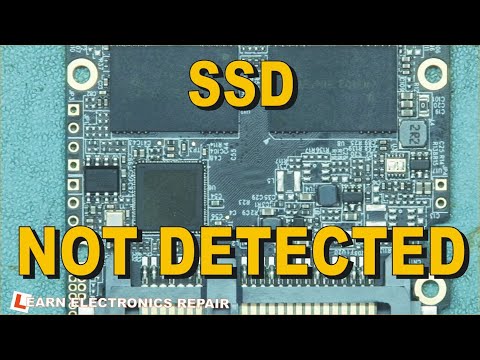
You know that feeling when your computer just won’t cooperate? You’re all set to work or game, cup of coffee in hand, and boom! Your SSD has disappeared again. It’s like it vanished into the digital ether.
Honestly, that little piece of tech can be a real diva sometimes. You plug it in one day; it’s all smiles and recognition. Next day? Not even a nod from BIOS. It’s like it’s giving you the silent treatment!
Why does this happen? There’s more than one reason, my friend—sometimes it’s a loose cable; other times, it’s BIOS playing hard-to-get with outdated settings.
But hey, don’t sweat it too much! There are ways to get your SSD and BIOS back on speaking terms without wanting to pull your hair out. Let’s explore some fixes together!
BIOS Fails to Recognize SSD
Sure thing, let’s tackle this issue of when your BIOS is being bothersome and decides not to acknowledge your SSD. That’s frustrating, right? But don’t worry—I mean, that’s what I’m here for!
Whenever a computer’s BIOS doesn’t recognize an SSD, it’s like trying to direct someone who’s already forgotten the map at home. There might be several reasons for this hiccup. You know, technology is just like people—sometimes it has its quirks.
1. Check the Physical Connections
It’s super simple but essential to ensure that all cables are properly connected. Just imagine if someone forgot their headphones were unplugged while they wondered why there’s no sound! It’s that basic.
- SATA Cable: Make sure it’s snugly plugged in on both ends.
- Power Cable: Similarly, check that the SSD’s power cable is secured.
2. Verify BIOS Settings
So now you’ve got those cables checked, it’s time to see if the BIOS itself needs some tweaking.
- Check for SATA Mode: Jump into the BIOS settings and ensure that the SATA mode isn’t set incorrectly. Sometimes switching from IDE to AHCI can work wonders.
- Rescan Drives: Most BIOS interfaces have an option to manually rescan or refresh attached devices—and believe me—it sometimes does wonders!
3. Update the BIOS
In a world where staying up-to-date with things like phone apps or game consoles feels normal, computers need similar treatment.
Bios updates can fix recognition issues! Head over to your motherboard manufacturer’s site, download the latest update for your model number (that part’s super important), and follow installation instructions carefully.
A Personal Anecdote?
You know how sometimes when you move houses everything gets relocated except one box of your old stuff? My friend had something similar happen with his PC after moving—it turned out he hadn’t seated his drives securely! So yeah…it felt silly afterward but reconnecting solved everything (and took away lots stress).
Anywayyy…there are more complex reasons such as driver incompatibilities within operating systems related general crashes/data corruption—but honestly starting simple saves headaches later!
M.2 SSD Not Detected in BIOS
: Causes and Solutions
Hey there! I know how frustrating it can be when your shiny new M.2 SSD just won’t show up in the BIOS. It’s like buying a brand new car and not finding the keys! But don’t worry, I’ve got some insights that might help you resolve this.
Possible Causes of an Undetected M.2 SSD
- Improper Installation: Sometimes it can be as simple as not seating the drive properly in its slot. Those tiny screws can be tricky, you know?
- Compatibility Issues: Not all motherboards support every type of M.2 drive, so double-check if yours is compatible with your SSD model.
- BIOS Settings: The BIOS might need a tweak to detect newer hardware components like an NVMe drive.
- Outdated BIOS: An old version might not have the necessary updates to recognize newer storage devices.
Troubleshooting Steps
Feeling stuck? Here are some things you can try:
– **Recheck Physical Connection:** Make sure your M.2 SSD is snugly fit into its socket on the motherboard and that the securing screw is tight enough to hold it but not too tight to damage it.
– **Check Compatibility:** Review your motherboard’s manual—it’s often overlooked but contains valuable info on supported devices.
– **Reset or Update BIOS:** Accessing the BIOS settings might require hitting a key like Del or F2 during boot-up—listen for those gentle clicks! Once inside, check if there’s an option to enable M.2 slots or update your BIOS version through a simple USB flash drive process.
– **Switch Slots (if available):** If you’ve got more than one M.2 slot, try installing it into another one—sometimes they possess distinct capabilities for different kinds of drives (SATA vs NVMe).
It’s funny—I once spent hours scratching my head over a non-detecting SSD, only to find out I’d missed an update prompt in my email from the manufacturer! Experience stuff firsthand makes knowledge stick better sometimes!
If All Else Fails…
Okay, so if none of these tips seem to help, consider reaching out directly either through online forums where fellow tech enthusiasts hang out or seeking professional assistance from someone who deals with this regularly—they’ve definitely been down similar roads countless times before!
So there ya go—some straightforward pointers designed specifically without turning things into jargon slingers straight off Mars!
SSD Not Detected Fix Steps
Ah, the worry of an SSD not being detected by your BIOS! It’s like that unsettling feeling when you’ve lost your keys, isn’t it? Let’s explore why it happens and what you can do.
Check the Connections
You know how sometimes things just don’t fit quite right? An improperly connected cable is a common culprit. Look at all connections between your SSD and motherboard. Make sure they’re snug as a bug in a rug! Loose connections can make your SSD go invisible to the BIOS.
Enable SATA Port
Sometimes SATA ports are disabled in BIOS settings for some reason. Go into BIOS settings (usually pressing Delete or F2 during startup works). Once there, look at the SATA Configuration. Ensure all ports are set to Enabled. Like turning on a light switch!
Update Your BIOS
Outdated firmware could be like trying to read an old map with missing roads. Check if there’s an update for your motherboard’s BIOS on the manufacturer’s website. Follow instructions carefully while updating—it’s a bit like performing surgery, precise but necessary.
Try Another Port or Cable
Sometimes it’s hard to tell which part is causing the hiccup. Try switching cables or moving the SSD to another port. It’s like musical chairs but with hardware!
Look At Drive Initialization
If you’ve recently installed it and it hasn’t been initialized yet, Windows might not recognize it either! Use Disk Management (type `diskmgmt.msc` into Windows search) and see if it’s listed there. If so, right-click and initialize it.
I hope these steps bring that sneaky SSD back to life for you!
Ah, the things technology throws at us sometimes, right? Picture this: you get that shiny new SSD, all excited to boost your computer’s speed. You’re like a kid on Christmas morning. But then, when you go to install it and boot up your machine—nothing. The BIOS doesn’t recognize it. Honestly, it’s one of those pesky moments that can really make you scratch your head.
Now, why does this happen? A few reasons come to mind. First off, there’s the whole connection issue—maybe the cables aren’t firmly plugged in or perhaps they’re just faulty. I remember once fiddling with a particularly stubborn SATA cable for what felt like an eternity during a similar installation process! And let me tell ya, it’s more common than you’d think.
Another usual suspect could be outdated BIOS firmware. Sometimes these updates hold crucial tweaks for hardware compatibility—including SSDs. It’s like when your phone apps need updates; they won’t run smoothly until you’ve hit that update button.
What if you’ve checked all of that and you’re still outta luck? It might be worth delving into the configuration settings of your hard drive interface mode—like AHCI or RAID settings—in BIOS itself. Back in the day when I first encountered this issue with my own setup (boy was that annoying!), toggling between these modes made all the difference.
And hey—a word of hope—incompatibility is rare with most modern hardware since manufacturers want things as plug-and-play as possible these days; but older motherboards may not always play nice without some persuasion.
Just remember—solutions often lie within simple steps: checking cables to updating BIOS firmware and tweaking configurations if needed You’ll likely have everything up-and-running faster than expected! Here’s wishing you smooth sailing on fixing yours or someone else’s tech glitch next time around!