Oh, the joys of technology, right? Just when you think everything’s running smoothly, bam! You get hit with this strange error code. It’s like an unwelcome guest crashing your party. Ever seen “Error Code 0x800700b7” on your Windows screen and thought, what on earth is that? You’re definitely not alone.
Let me tell you a little secret. I’ve been there too. My computer once decided to surprise me with this error in the middle of something important. Talk about terrible timing! I remember just staring at my screen wishing it would magically fix itself.
Look, errors like these can pop up for various reasons—updates gone wrong, software conflicts—you name it. The thing is, they’re usually not as scary as they seem once you know what’s causing them and how to tackle them.
So let’s chat about what’s really behind this pesky error and the simple steps you can take to get things back on track.
Procedure to Resolve Error Code 0x8007000b
Hey there! So you’ve bumped into this error code 0x8007000b, huh? It can be quite a pesky one. It’s related to something about the file system not being able to find the right path, or something along those lines. Let’s try to unravel it in a simple way and see how we can set things straight.
Causes of Error Code 0x8007000b
The thing is, error codes like this one generally pop up when there’s a path issue or some file that’s not behaving as it should during specific operations. Imagine if your computer’s trying to take an invisible path; that’s no fun!
Fixing Error Code 0x800700b
Here is what you could try:
- Check File System Path: Ensure the folders and directories you’re working with genuinely exist. It’s like checking if the lights are on before entering a room.
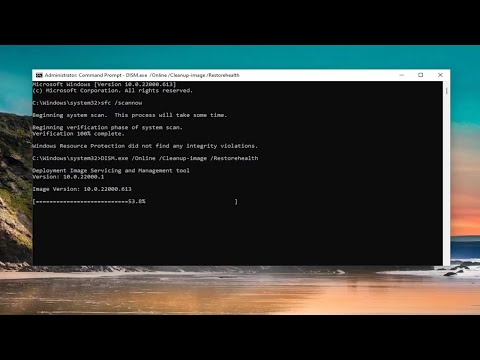
- Run the System File Checker (SFC): This is basically asking your computer to take out its magnifying glass and check for problems itself. To do this, type “cmd” in your search bar, right-click Command Prompt, and select “Run as administrator.” Then type:
sfc /scannow
And hit Enter. It might feel like watching paint dry but hang tight—it could fix things up! - Use DISM Tool: If SFC doesn’t do it alone, we call in reinforcements with DISM (Deployment Imaging Service Management). Open Command Prompt again as an admin and type:
Dism /Online /Cleanup-Image /RestoreHealth
Another command that sounds like a secret spell! - Tweak Windows Update Settings:If everything else fails, opening Windows Update settings and giving them a tweak sometimes acts like shaking the dust off your old record player.
Make sure updates aren’t stuck in purgatory by pausing them briefly; then start afresh by resuming. - User Permissions:This one sometimes gets overlooked! Like missing keys under your doormat—make sure user permissions are properly set on relevant folders or files needing access.
Look at that! A little know-how can turn frustrating error codes into stories of triumph over tech glitches! So whether its pathways not being found due some sneaky reasons or just irritable update cycles causing havoc—now maybe you’ve got enough ideas under belt handle these issues calmly from hereon-out!
Oh—and don’t forget grandma’s advice: standby backups come handy when least expected! Happy troubleshooting my friend.
Error Code 0x800700b7 During Windows 10 Installation
Installing or updating Windows 10 is usually a smooth ride for most folks. But then, there’s that occasional bump in the road, like Error Code 0x800700b7, which can throw you for a loop. It’s a bit annoying, right? Imagine planning your day around setting up your computer only to get stopped by an error code that makes absolutely no sense at first glance.
What does this error mean?
This little piece of digital frustration often pops up when you’re trying to update or install Windows 10. It’s like your computer is telling you it’s got a duplicate entry or something’s already in use when it shouldn’t be. Sort of like trying to park where someone else already parked, if you catch my drift.
Possible reasons for Error Code 0x800700b7:
- There’s another process running: Sometimes, two processes are clashing and messing with each other.
- Corrupt system files: These mess up the whole installation flow.
- Antivirus software getting in the way: Yeah, the thing that’s supposed to protect you sometimes gets overprotective.
How do we fix this?
You’d be surprised how a few simple tweaks can set things right:
- Run the Windows Update Troubleshooter:
- Temporarily disable antivirus software:
- SFC Scan (System File Checker):
- Certain Cleaning Tools Might Help Too:
Just type “Troubleshoot” into the search bar and select it. Choose “Windows Update” and let it do its magic.
It might sound dangerous turning off protection but don’t worry; it’s just temporary. Check if that’s what’s causing issues.
Open Command Prompt as an administrator and type `sfc /scannow`. It’ll hunt down corrupt files and repair them for you.
Tools like Disk Cleanup clear out unnecessary stuff that’s cluttering your system.
There’s this one time my friend Sarah was tearing her hair out because she kept seeing that same blasted error every time she tried updating. After using these steps—especially the troubleshooter—her system finally got on board with the update plan.
Well there you go—a handy heads-up on tackling Error Code 0x800700bb7 during Windows 10 installation! Have a go at these tips next time you’re stuck staring at that pesky message again and hopefully smooth sailing will follow!
Error Code 0x800700b7 in Windows 11
Oh, the infamous Error Code 0x800700b7. It can be a real headache when you’re getting ready to do something on Windows 11, right? You’re not alone, trust me. This error usually pops up when there’s a hiccup in the system updates or during backups. Imagine being all set to get that update going, and bam! Error code flashes on your screen. What’s going on?
Why does this happen? Sometimes the system is trying to execute multiple tasks at once and ends up tripping over itself. Think of it like juggling too many balls—eventually one falls. Here are some reasons behind this pesky error:
- Corrupt System Files: If some important files are corrupted or missing, they might start acting out.
- Software Conflicts: Especially with antivirus programs—sometimes they’re overprotective!
- Registry Issues: An incorrect entry can really mess things up.
Anyway, let’s dive into some things that could help sort it out.
Tackling
First off, you might try running the built-in Windows troubleshooter. Like how you’d call a friend who’s good with tech stuff when you’re stuck—it doesn’t hurt to have a little help.
1. Go to Settings, then pick Update & Security.
2. Tap on Troubleshoot, and then choose Additional troubleshooters.
3. Select whichever option fits—like “Windows Update” if that’s where the problem started—and let it work its magic.
But maybe you’re feeling adventurous—or just fed up—and want more control? You could also take a look at these steps:
- SFC Scan: Open Command Prompt as an admin by right-clicking the Start button and selecting “Command Prompt (Admin)”. Type in `sfc /scannow` and hit Enter.
- Edit your registry:This one’s tricky so proceed carefully! (Always back up your registry first!)
– Press Win + R keys.
– Type `regedit` and press Enter.
– Navigate through: `HKEY_LOCAL_MACHINESOFTWAREMicrosoftWindows NTCurrentVersionProfileList`.
– Check profiles carefully; make sure it’s neat without duplicate entries causing confusion!
This will scan for any corrupt files and attempt repairs automatically.
Ever had that moment where you think restarting will resolve everything? Sometimes fresh boots clear minor glitches away instantly!
When all else fails though—reinstalling can be another way out if persistent errors haunt often—but make certain crucial data gets backed-up somewhere safe beforehand!
Hope these tidbits help shed light upon frustrating experiences shared commonly alike nowadays dealing daily alongside computers overall nowadays…
Ah, error codes! Ever had one pop up and just stand there staring at it with a mix of confusion and frustration? I mean, you’re in the groove, getting stuff done on your computer, when suddenly—bam! Error Code 0x800700b7 decides to join the party. If this hasn’t happened to you yet, count your blessings. But if it has—or if you’re just curious—let’s chat about what this little nuisance is all about.
Error Code 0x800700b7 is like one of those cryptic messages we sometimes get from our devices. It’s telling us something went wrong during an update or installation process. This could mean your Windows Update tried really hard but somehow tripped over its digital shoelaces. Or maybe you’re trying to back up your files and it’s causing a ruckus because of some software clash.
Now add to this the feeling of urgency when you realize that updates are failing and time keeps ticking without a solution in sight. It’s like being stuck in traffic when you’re late for an appointment—no fun at all.
Quite often, what causes this error is leftover data from a previous installation that decided it wanted to stick around longer than invited. Sorta like that guest who never leaves after dinner! Other times, it might be conflicting software or even something as pesky as corrupted files messing things up in the background.
So what do you do? Well—for starters—you’ll want make sure there’s no unwanted baggage left on your system from past installations by cleaning up those temporary files. And hey, taking a peek at any security software you’ve got running might help too since they can sometimes block updates thinking they’re bad guys trying sneak into town.
If needed—and only if you’re comfy with it—you might venture into turning off certain services while dealing with updates; just turn them back on later so everything runs smoothly afterward again!
Honestly though: remember patience here is key—it could take some tinkering before finally hitting upon solution land where everything works again as intended… ahhh sweet relief!
Lastly remember not going through any of this alone helps immensely; forums filled with good folks probably already battled these gremlins & emerged victorious willing share tips or even lend moral support when necessary…you got this!