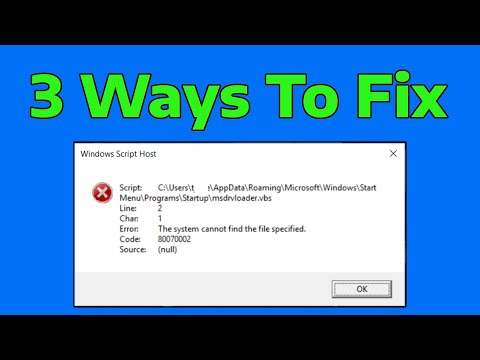
Oh man, startup errors can be such a pain, right? You just want your computer to boot up smoothly. But then—bam! You’re hit with that annoying Windows Script Host Error. It’s like your PC is playing a little prank on you when you’re least prepared!
It’s not the end of the world, though. I mean, we’ve all been there, scratching our heads and wondering what on earth is going on. The good news? With a few tweaks here and there—hey, don’t worry, nothing too technical—you can get things back to normal.
Let’s face it: those error messages are about as welcome as stepping on a Lego brick barefoot. But stick around and we’ll get through this together. By the time we’re done, you’ll know exactly how to make that pesky error disappear for good! You ready?
Script Error Resolution Steps
Dealing with a Windows Script Host Error at startup can be quite a headache, right? It’s like your computer’s having a little tantrum and needs your help to calm down. But don’t worry, I’ve got you covered with some basic steps you can take to sort it all out.
Understanding the Error:
You know when your friend tries to tell a story and gets all mixed up? That’s kind of like this error. The Windows Script Host is what lets scripts run on your computer. Sometimes, though, things get jumbled up due to malware infections or incorrect registry settings.
Step-by-Step Solutions:
- Check for Malware: First things first, let’s make sure there are no unwanted guests causing trouble behind the scenes. Use an antivirus program—maybe something you’re already comfy with—to scan for any sneaky viruses or malware.
- Edit the Registry: Ok, I know “registry” sounds intimidating! But really it’s just where your system stores important settings. Press Windows + R, type
regedit, and hit Enter. Navigate through:HKEY_LOCAL_MACHINESoftwareMicrosoftWindowsCurrentVersionRun
If there’s anything suspicious that doesn’t seem quite right—like gibberish or unnamed entries—it might need removing.
- Scripting Engine Check: Guess what? Sometimes files from Windows get misplaced or corrupted (oops!). Reinstalling the scripting engine might help:
– Go to Microsoft’s official website and download the latest version of Windows Script (just double-check you’re getting it from a legit source). - User Account Control Settings:: Navigate over to User Account Control and check those settings aren’t blocking scripts unintentionally.
- Create Another User Account:: Here’s another neat trick: create a new user account! This helps see if the issue is specific only to your current profile.
It can be pretty satisfying once you’ve managed to fix this glitch all by yourself—you feel like an IT hero! If it’s still being pesky though, maybe consider reaching out for more technical support from professionals.
And there you have it! Hopefully now you’re more familiar with how these script errors work—and how best you can tackle them head-on without breaking much sweat!
Causes of Windows Script Host Error on Startup
Ah, the mysterious Windows Script Host error on startup. It’s like that buzzing noise your car makes only when you’re not at the mechanic’s. Both daunting and annoying! Let’s dig into what usually causes this and how you can banish it from your life.
First off, the Windows Script Host (WSH) is a nifty tool used for scripting automation tasks in Windows environments. But if it’s throwing errors during startup, that’s definitely not what it should be doing!
- Malicious Scripts: Sometimes malware or unwanted scripts sneak in and try to run at startup. These scripts can slip past unnoticed until BAM—errors pop up.
- Registry Issues: Now, this sounds like a fancy term, doesn’t it? Essentially, if your registry—a sort of control center for system settings—has incorrect entries pointing to non-existing scripts or corrupted files, you’ll see those pesky errors.
- Corrupted System Files: This can happen due to a failed update or improper shutdowns. When your system files aren’t playing nice with each other… well, errors are inevitable.
- Scripting Hosts Disabled:If someone (or some app) disabled WSH as a security measure, then anything requiring WSH will obviously fail to run correctly; cue those scary-looking errors!
To give you an idea of how sneaky these things can be: I once helped my friend whose cat decided that her keyword needed some “rearranging.” Not suprisingly after “Mr.Paws’ intervention,” she started experiencing random script errors related precisely to registry mishaps!
At least now when you encounter this issue next time around—hopefully kitty-free—you’ll have solid knowledge on what’s likely causing those irritating pop-ups lighting up every bootup!
Causes of Windows Script Host Error on Startup
Hey, encountering a Windows Script Host error when your computer starts can be frustrating, right? Let’s break down what might be causing this issue and what you can do about it.
First off, what exactly is the Windows Script Host (WSH)? In simple terms, it’s a technology that allows scripts to run on your Windows system. These scripts help automate tasks or run certain programs. But sometimes they act up when something’s not quite right.
Common Causes of the Error:
- Malware Infection: One of the most common culprits! Malware can mess with script files and try to execute them at startup without permission. This unwanted activity triggers those annoying errors.
- Registry Issues: If there’s incorrect information or broken links in the Windows Registry—the database that stores all kinds of settings—it might cause troubles at boot-up.
- Corrupt Scripts: Scripts themselves could be corrupt or have syntactical errors from an improper installation or misconfiguration of software. This is like having a typo in a recipe that ruins your dish!
- Task Scheduler Problems: Sometimes tasks meant to execute scripts are misconfigured within Task Scheduler—Windows’ tool for automating jobs.
I remember once my aunt called me in sheer panic because her computer wouldn’t stop throwing these errors at startup. After some probing together over coffee, we found out it was an old unused app she’d installed just before these glitches started happening.
Now back to our current matter: understanding these causes helps make sure we’re targeting the real problem instead of going in circles trying different fixes!
A solution? While each issue might require its own fix, scanning for malware and carefully checking any changes made recently is always step number one—you follow me? And if you’re not comfortable poking around registries or analyzing scripts (they can look like gobbledygook), reaching out for professional help isn’t such a bad idea after all!
Remember folks—computers are complex systems but by tackling one possible issue at a time calmly; you will likely get things running smooth again soon enough!
You ever had one of those mornings where everything just seems to go wrong? Like, you spill your coffee, step on a Lego piece, and then boot up your computer only to be greeted by an annoying Windows Script Host error. Yeah, not the best way to start the day!
Now, let’s get into what might be causing this pesky error message. In simple terms, Windows Script Host is just a tool that lets scripts run on your Windows system. It’s like the stage manager in a theater production—I mean it makes sure things are working smoothly behind the scenes. But sometimes things go haywire.
One common culprit is malware or malicious software sneaking its way onto your computer and messing with startup scripts. Think of it like an unwanted guest rearranging all your furniture! Running a full system scan with your antivirus software can often flush out these party crashers.
Then there’s incorrect script file paths—it’s kind of like when you’re trying to call someone but you have the wrong number saved in your contacts. Your computer tries to run a script that’s not where it expects it to be, and boom: an error pops up.
Registry issues can also throw a wrench in the works. Imagine registry entries as little notes around your house reminding you where everything is; if they get messed up, chaos ensues! Cleaning them up carefully might help sort things out.
A buddy of mine recently faced this issue after installing some new software—turns out, the installation muddled up his script settings. It took him some trial and error but tweaking startup programs did wonders for him!
Lastly: if you’re manually editing or running scripts yourself and see this error—you may want to check for spelling or syntax errors within those scripts because we all make typos now and then!
So yeah… dealing with tech hiccups isn’t fun but understanding why they happen helps make fixing them less stressful! Just take small steps toward resolving each potential cause until sweet relief finally graces upon that screen once more!