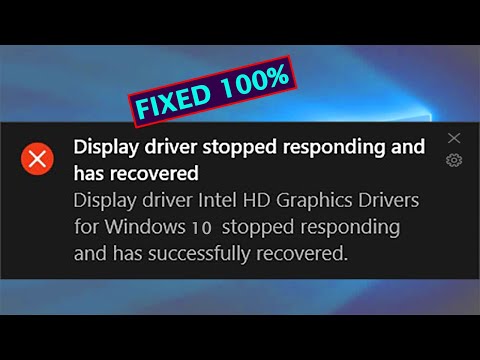
Ah, the good ol’ GTX 1060. Reliable, sturdy—like an old buddy who’s seen you through countless gaming marathons. But then, just when you’re about to defeat that big boss or dive into a new world—bam! The display driver decides to take a little nap. Annoying, right?
You know what I’m talking about. You’re in the middle of something super intense and suddenly your screen goes blank. You might even feel your heart skip a beat or two because hey, who wouldn’t panic? It’s like your graphics card decided it needs a vacation at the worst possible moment.
But don’t worry! We’ve all been there. Like when my grandma used to say her sewing machine had “a mind of its own”—I totally get it now with computers too.
Let’s try and sort this out so that pesky message becomes a thing of the past. And maybe you’ll be able to dive back into your game without any hiccups—fingers crossed!
Display Driver Timeout and Recovery
You ever been knee-deep in a gaming session or working on something important, and suddenly your trusty computer throws a tantrum? Yep, that’s when the screen goes black, and you see that pesky “Display Driver Stopped Responding and Recovered” message. It’s frustrating, I know! But let’s chat about how to deal with it, especially if you’re using an EVGA GTX 1060 6GB.
What causes this issue?
It’s quite common. The display driver can stop responding for a few reasons. It could be because of an overloaded system where too many tasks are running at once, or maybe the graphics card’s settings aren’t working well with certain software. Sometimes it’s just about needing to update drivers or tinkering with Windows settings to keep things smooth.
Here’s what you might want to try:
- Update Your Drivers: First things first—make sure your graphics card drivers are up-to-date. Head over to NVIDIA’s website and download the latest drivers for your GTX 1060.
- Adjust Graphics Card Settings: Open the NVIDIA Control Panel (just right-click on your desktop). Under “Manage 3D Settings,” set “Power Management Mode” to “Prefer Maximum Performance.” It helps in keeping the card under check during intensive tasks.
- Tweak Timeout Detection: If you’re feeling comfortable doing some tweaks in the registry (and I mean very careful), increasing TDR (Timeout Detection and Recovery) delay might help you avoid those blackouts. Just open Registry Editor and navigate to HKEY_LOCAL_MACHINESystemCurrentControlSetControlGraphicsDrivers. Create a new DWORD value called TdrDelay and give it a value between 8-10 seconds.
- Reinstall Graphics Driver: When nothing seems to work, consider reinstalling the graphics driver completely. Use a tool like Display Driver Uninstaller (DDU) in safe mode for a clean uninstall—trust me; it makes a difference!
- Monitor System Temperature:If your system is overheating, that could lead to trouble too… Use software like MSI Afterburner or HWMonitor just keep an eye on those temps.
- Check Power Supply Unit (PSU): Sometimes power supply issues can affect performance too; ensure it’s delivering consistent power needed for gaming sessions!
There was this one time when my friend thought his computer was possessed because of how often this error popped up during their online gaming matches! But after adjusting some settings following these tips above—never had another blackout again!
Graphics Driver No Display Fix
Oh no! Your screen goes black mid-game, and you’re left wondering what happened. “Display driver stopped responding” is a common issue with many graphics cards, including the cherished EVGA GTX 1060 6GB. Let’s explore how you can fix this pesky problem.
For starters, it’s a good idea to update your graphics driver. Outdated drivers are often like those old shoes you haven’t worn in ages; they’re just not doing the job right anymore. Here’s what you’re going to do:
- Visit the NVIDIA website: Head over to their site, find the driver section, and look for your specific card model.
- Download the latest driver: Make sure it’s compatible with your OS version.
- Install it carefully: Follow prompts on-screen—nothing too fancy here!
Sometimes though, even after updating drivers problems persist. This could be because of overheating. It’s like when you’re jogging in sweltering heat and suddenly need a break—your GPU feels that way too! Check if dust is clogging vents or fans aren’t spinning correctly.
Additionally, tweaking power settings can help prevent these errors:
- Power management mode: Go into NVIDIA Control Panel. There’s an option called “Prefer maximum performance” under Manage 3D Settings that provides more consistent power delivery to your card.
Disabling overclocking might also aid stability. Overclocking pushes components beyond their designed limits; great for speed but sometimes makes things unstable! Revert settings back using software tools like MSI Afterburner if necessary.
Another useful thing involves checking system files by running system file checker:
SFC /scannow: Open Command Prompt as administrator—we’re talking right-click type command prompt action—and type that baby in! It’ll scan all protected system files replacing corrupted ones with correct Microsoft versions (phew).
Finally notice any changes made recently? Rolled out Windows updates lately? They occasionally throw a spanner into works messing up compatibility between software versions installed already—believe me happens more than you’d imagine!
Implement these tips one at-a-time till issue resolves itself hopefully before frustration mounts higher than Everest itself 😉 Happy troubleshooting journey ahead friend…
Understanding DDU Compatibility Requirements
Alright, let’s chat about this topic: DDU Compatibility with your EVGA GTX 1060 6GB. It’s one of those things where you really need to know what’s going on behind the scenes to fix display driver issues. You got this beautiful piece of hardware, but sometimes you just hit a snag, right? Let’s see what you can do.
First things first! When your display driver keeps stopping and you’re using a GTX 1060 card, it can be super frustrating. We’re talking screen freezes or even crashes at the worst times. The hero in our story is DDU – Display Driver Uninstaller.
DDU Compatibility: This tool helps to completely remove GPU drivers from your system without leaving traces that could cause conflicts later on. It’s particularly handy when your graphics drivers act up or simply refuse to update properly.
- Confirming Compatibility: Before running DDU, make sure it’s compatible with both your system and the GTX 1060. Most recent versions should be good to go with Windows operating systems up through the latest updates.
- Safe Mode Usage: To use DDU optimally, boot into Safe Mode! Why? Because it minimizes potential conflicts and ensures all those pesky little driver bits are removed.
- NVIDIA Drivers: After using DDU, you’ll want to download and install fresh NVIDIA drivers for the GTX 1060 from their official site.
The Steps Involved:
You may wanna ensure your data is saved before proceeding, just in case anything unexpected comes up!
1. **Download DDU:** Grab it from a reputable site – check their official page.
2. **Boot Into Safe Mode:** Restart with Minimal Safe Mode.
3. **Run DDU:** Select ‘Clean and Restart’ option for NVIDIA products.
4. **Reinstall Drivers:** Install new ones straight after rebooting normally.
Now imagine someone who didn’t restart their computer in safe mode after cleaning? It sounds like a tiny detail but that could lead them straight back where they began—those old remnants might still wreak havoc later!
Once everything’s back up again beautifully next time you have video games or multimedia tasks planned (or both), relish how smooth things run now without those pesky interruptions caused by unstable graphics-drivers… Feels better right?
You know, there was a time when I would sit at my desk, ready to dive into an evening of gaming, only to be thwarted by that annoying little pop-up: “Display driver stopped responding and has recovered.” Yikes. I had an EVGA GTX 1060 6GB, a card that was supposed to deliver smooth performance. But sometimes technology has its little hiccups.
I remember feeling a bit puzzled, wondering why my trusty graphics card was throwing tantrums just as I’m about to hit that epic boss battle or enjoy a movie in high definition. The good news? That error is kind of like your computer’s way of saying it needs a little TLC.
First off, check if you have the latest drivers installed from NVIDIA’s website. This sounds basic but updating them can solve weird glitches. Just seeing the new version numbers gave me this odd sense of satisfaction—you know what I mean?
Next up is ensuring your system runs cool enough. Overheating can cause all sorts of chaos with graphics cards. Make sure there’s good airflow in your case and maybe give it a quick dusting every now and again.
Another trick? Adjusting the TDR (Timeout Detection and Recovery) value in your computer’s registry settings can help too! It’s like giving your card just enough time to recover before Windows steps in with its recovery magic.
And during all this process? Take breaks! Don’t stress too much if things don’t go smooth right away—these things happen even to tech pros sometimes.
Oh! And always remember safety first—back up important data before tinkering with system settings, okay? It’s amazing how these tiny adjustments can bring back some sanity when dealing with unpredictable tech gremlins!