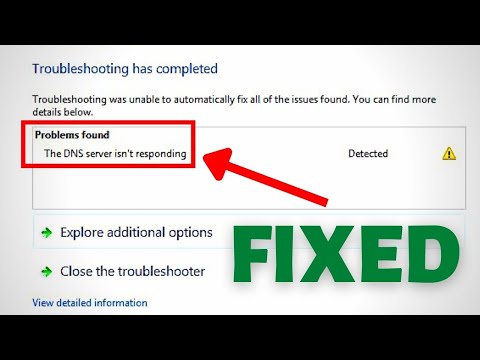
Ugh, there’s nothing more frustrating than trying to browse the web and that annoying “DNS Server Not Responding” message pops up. Like seriously, what’s up with that? If you’ve ever been there, you know it’s like being stuck in digital quicksand. You just wanna scream at your computer!
Okay, breathe. I promise it’s not as bad as it seems. Sometimes your network just needs a little love and care to get back on its feet. Think of it like when your car refuses to start because you forgot the lights on—annoying but fixable.
And while it sounds super techy, it’s usually just a few simple steps away from being sorted out. Ready to dive into this mystery together? Let’s see what we can do here!
Primary DNS Server Not Responding Error Fix
Oh, the dreaded “Primary DNS Server Not Responding” error! It’s a bit like trying to call someone who doesn’t pick up the phone. Frustrating, right? Let’s stroll together through some practical fixes to get you back online.
What is the DNS?
First, relax and let’s unravel this. DNS stands for Domain Name System. It’s like your internet phone book. When you type in a website, the DNS server translates that into an IP address—sounds techy but think of it as understanding where to direct your request.
Check Your Internet Connection
Before anything else, make sure your device is connected properly.
- Restart Your Router: Turn off your router for about 30 seconds and then switch it back on.
- Test With Another Device: If another gadget connects with no problem, it’s not your network—it might be just this one device acting up.
Change Your DNS Server Manually
Sometimes switching things manually can do wonders.
- Go To Network Settings: Open settings related to internet connections.
- Select Properties: Find TCP/IPv4 (or TCP/IPv6) in this list.
- Enter New Server Addresses: Use Google’s Public DNS: Primary – 8.8.8.8 and Secondary – 8.8.4.4.
Troubleshoot Using Command Prompt
Get ready for some keyboard action! Pop open Command Prompt with administrative privileges (or ask someone comfy with these).
- : This clears out old or cached information from past hiccups.
: This refreshes essential info without rebooting everything!
You’ve got a solid chance now! Keep trying if required—don’t give up easily!
If all appears grim despite efforts above… try contacting support from whichever provider runs things upstream; they often assist best during trickier situations since often they need put hands directly on configurations requiring specialized expertise beyond ordinary user level tasks tackled here previously together :).
Checking DNS Server Configuration
Hey, so you’re dealing with a DNS server issue? Don’t worry; lots of people have been there. You see, checking your DNS server configuration can feel a bit like solving a mystery. But, it’s easier than you might think. Let’s walk through it together, step by step.
What Exactly is DNS?
Think of it as the internet’s phone book. You type in a website URL and the Domain Name System (DNS) translates that into an IP address, letting your browser actually find the site.
Why Check Your Configuration?
Having issues like “Primary DNS Server Not Responding” might mean your settings are off. Sometimes they just need a little tweaking to work properly again.
Steps to Check Your Configuration:
- Access Network Settings: Open ‘Control Panel’ and find ‘Network and Sharing Center.’ If you’re on Windows 10 or later, search for ‘Network Status’ via the start menu.
- Select Your Connection: Click on the connection you use—could be Wi-Fi or Ethernet—and then choose ‘Properties.’
- Locate TCP/IPv4: Find and select ‘Internet Protocol Version 4 (TCP/IPv4),’ then click on ‘Properties.’
- DNS Server Settings: You’ll see two options: obtain an address automatically or use specific ones. If it’s set to automatic but not working? Try entering some well-known public DNS addresses like Google’s (8.8.8.8) or Cloudflare’s (1.1.1.1) instead.
The Ping Test:
Open Command Prompt and type `ping [any website]` (e.g., `ping google.com`). If replies return error messages? It may be indeed related to those pesky DNS settings.
And hey, remember my friend Sam struggled with this last week! He spent hours before realizing it was his router needing a quick reboot—crazy how often restarting fixes things!
- A Quick Restart: As simple as turning off your router/modem for a minute does wonders sometimes—it’s worth trying!
So yeah! Hopefully now checking that mystical world of DNS configuration feels less daunting!
Resetting Your Primary DNS Server
Sure thing! Resetting your primary DNS server can feel like a daunting task, especially if you’re not quite sure what DNS is. But don’t worry, it’s easier than it sounds! Let me share an example for you: I once had a friend who thought her internet was down because every website she tried to visit just wouldn’t load. Turns out, there was just an issue with her DNS server settings.
So now, let’s dive into it step-by-step using HTML tags to make things easy to follow:
Step 1: Understanding DNS
DNS stands for Domain Name System. Think of it as the phonebook of the internet—translating those easy-to-remember website names into IP addresses that computers use. When your primary DNS server isn’t responding, it’s like your phonebook disappeared and you’re left guessing numbers in the dark!
Step 2: Checking Connections
Before resetting anything, double-check your connections:
- Make sure all cables between your modem and router are secure.
- If you’re on Wi-Fi, try switching to a wired connection temporarily.
Step 3: Resetting the Router
Sometimes the simplest solutions are overlooked:
- Unplug your router and modem.
- Wait about 30 seconds—enough time to grab a quick snack maybe?
- Plug them back in and wait for them to reboot fully.
Step 4: Flushing DNS Cache
Your computer keeps a small stash of IP addresses of frequently visited websites called the “DNS cache”. Occasionally flushing this cache can help resolve connectivity issues.
- On Windows, open Command Prompt (you can search ‘cmd’ from Start Menu).
- Type in:
ipconfig /flushdns - You should see a message confirming that it’s been flushed.
Step 5: Manually Setting DNS Servers
If resetting doesn’t solve things up, manually enter new DNS servers:
- Go into Network Settings on your device.
- Select IPv4 properties and choose ‘Use the following DNS server addresses’.
- A common choice is Google’s Public DNS with these addresses:
- You could use others like Cloudflare’s too (1.1.1.1), just as reliable!
Preferred: 8.8.8.8; Alternate: 8.8.4.4
A final note:, sometimes tweaking technical stuff on computers makes people nervous—and that’s perfectly normal! Mistakes happen but we learn from them right? Resetting your Primary DNF Server doesn’t need fancy qualifications or equipment—you’ve got this covered already…
You know, there was this one time when I sat down ready for a binge-watching session of my favorite series—popcorn and all. But lo and behold, my internet wasn’t cooperating. Turned out, it was a “Primary DNS Server Not Responding” issue. A bit of a bummer, right? But hey, these things happen!
So what do you do when your trusty DNS server seems like it’s taking a day off? Well first things first, don’t panic. This is more common than you’d think. Usually, the problem stems from the DNS settings on your device or maybe even with your internet service provider (ISP).
Now let’s tackle this puzzle step by step (without going too technical). First up: restart the router. Sounds pretty simple but can work wonders! You’d be surprised how many tech problems a good old reboot resolves.
If restarting doesn’t hit the spot, checking your DNS settings might be next on the list. Sometimes they’re just set wrong by mistake or during some update that happened without you realizing it.
And if you’re feeling adventurous, switching to public DNS servers like Google’s can sometimes solve the problem almost magically.
And—this one’s key—always make sure your network cables are snug and tight because they sneakily get loose sometimes.
I mean who knew that trying to watch TV would take me on an unplanned IT adventure? But isn’t it kind of satisfying when you finally see those connection bars lighting up again? Anyway remember: You’re not alone in this maze of tech glitches; everyone faces them once in awhile!