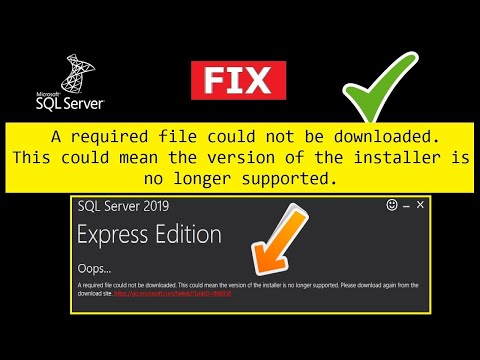
You know that feeling when you’re all set to install SQL Server 2019 Express, and then… BAM! Errors pop up out of nowhere. Ugh, right? It’s like when you’re all excited to bake cookies, and suddenly, you realize you’re out of sugar. Total buzzkill!
SQL Server is like the brain of your data universe. And when it decides not to cooperate during installation? It feels like your whole plan is coming undone. But hey, don’t worry too much.
I mean, who hasn’t faced tech hiccups? It’s pretty common stuff. We’re going through ways to get past those pesky errors that’ll make you wanna pull your hair out. A few tweaks here and there might just save the day! Stick around; we’re in this together!
SQL Server 2019 Express Installation Error Solutions
Installing SQL Server 2019 Express can sometimes feel like tackling a puzzle, you know? You’re all set to dive into some data management magic, and then boom—a pesky error message pops up. But don’t stress! I’ll walk you through some common errors and how to handle them.
Let’s jump in:
1. Check System Requirements:
First off, make sure your system can actually run SQL Server 2019 Express. Sounds basic, right? You’d be surprised how often this comes up! Windows 10 or later is good—the newer, the better.
2. Admin Privileges:
Having admin rights during installation is key here. Without it, it might cause an error that halts the whole process. Sometimes just running the installation file as an administrator solves unexpected hiccups.
3. .NET Framework Issues:
SQL Server needs a happy and healthy .NET Framework—at least version 4.6 for this one! If you see errors related to .NET Framework, go ahead and download the latest version from Microsoft’s website.
4. Windows Updates:
It’s tempting to hit “remind me later” on those updates (guilty!), but outdated Windows components might mess with your SQL server installation—make sure everything’s current!
- Error Code 0x84B10001: This could mean insufficient disk space or wrong account permissions.
- Error Code 1406: Registry problems could be barking up your tree here. Try cleaning your registry using trusted tools.
5. Security Software Conflicts:
Your beloved antivirus might decide SQL server setup looks suspicious (go figure!). Maybe try disabling it just while installing?
An example of a friendly fire moment: I remember once when my antivirus threw a fit as I tried to install something simple—it took ages before realizing what was blocking things!
Don’t forget after all this—you’ll restart that computer of yours… just in case there’s any residual funkiness hanging around making life difficult for new software!
Anyway hope at least one of these tips helps get everything working smoothly again—good luck!
SQL Server 2019 Express Installation Error Causes on Windows 10
Installing SQL Server 2019 Express on Windows 10 can sometimes be a bit of a roller coaster, you know? You might be all excited to get started with your database projects, then boom—unexpected errors pop up out of nowhere. It’s like planning a nice meal only to discover your stove won’t turn on! Anyway, let’s dive into some common issues and figure out what might be tripping you up.
1. Insufficient Permissions
You need administrative privileges to install SQL Server 2019 Express properly. If you don’t have the necessary permissions, it’s like trying to unlock a door with the wrong key, nothing happens! So make sure you’re logged in as an administrator or have administrative rights.
2. Windows Updates
Outdated system files can throw some serious wrenches into the installation process. It’s crucial to have all necessary updates installed on Windows 10 before starting the SQL Server setup. This can prevent compatibility issues that might otherwise halt progress faster than you’d expect!
3. .NET Framework Issues
Now here’s one that gets people stuck more often than you’d think: missing or incompatible .NET Framework components. SQL Server relies heavily on certain versions—mainly .NET Framework 4.x. Make surely oyu’ve got it installed.
4. Previous Installations Interference
Picture this: remnants from an older installation are like ghosts haunting the new setup—causing conflicts and hiccups all over the place! Clear any previous incomplete attempts or uninstalled versions using tools like “Add or Remove Programs” in Control Panel.
- Use Microsoft’s Removal Tool: If manual removal fails.
- Check Registry: Residues in registry entries sometimes cause problems too.
5. Corrupt Installation Media
Sometimes it comes down simply bad luck with downloading an incomplete or corrupted installer file itself! Re-download from Microsoft’s official site; trust me, getting it direct helps skip potential pitfalls.
Bizarrely enough these little gremlins tend to mess things up right when everything seems perfect… But hang tight—with patience and some fiddling around using these pointers—you’ll conquer this hurdle eventually!
SQL Server Express 2022 Installation Error
Oh boy, SQL Server Express 2022 installation errors, right? Sometimes they can be a real puzzle. But don’t worry—you got this! Let’s explore what might be going wrong and how you can fix it.
When you’re setting up SQL Server Express 2022, you could run into some hiccups similar to the ones that appeared with the 2019 version. These issues can really make you scratch your head, but hey, it’s not the end of the world! Here’s how we can tackle them.
- Check System Requirements: First things first. Make sure your system meets all necessary requirements. It’s like trying to fit a square peg in a round hole if they don’t match! Double-check your OS version and hardware specs.
- Permissions Issues: SQL Server installation needs specific permissions. If you’re running into access denied errors, check if you have admin rights on your machine. It’s like trying to enter a VIP club without an invite!
- Previous Installations: An old SQL Server installation lingering on your system might interfere with new installations. Hunting down those old files and getting rid of them might do the trick.
- Error Logs: Always check error logs for detailed information about what went wrong during installation. Look under C:Program FilesMicrosoft SQL Server for those pesky logs.
- .NET Framework Issues: Ensure that your .NET Framework is up-to-date because SQL loves hanging out with .NET like peanut butter does with jelly!
- Firewall Configurations: Sometimes firewalls block SQL connections even before they’re set up properly. So, peek into those settings if connections are being stubborn.
One time I was helping a friend install SQL on his laptop for a school project—everything seemed fine until we realized his space was running low… Who knew cleanup utilities would save our day by giving enough room for that massive install?
Anyway, keep these tips in mind when tackling those stubborn errors during setup. And remember, sometimes just taking deep breathes and stepping back helps clear things up too!
If this doesn’t resolve everything you hoped—don’t worry! There’s always someone out there who’s had similar bumps along their road—forums or Microsoft Support might offer additional enlightenment!
With patience (and maybe some coffee), you’ll get through it—all setups have their quirks!
Ah, SQL Server 2019 Express installation errors. Just saying that brings back memories of long nights at the computer, doesn’t it? You’re all set to install this lightweight version of SQL Server, ready to get your hands into some data management magic, and wham! You’re hit with an error message that’s as welcome as a cold shower.
I remember this one time—I was setting up SQL Server on my laptop for a project due the next day. Everything seemed fine until the installer threw me an error. My heart dropped. Ever felt that panic when technology doesn’t just work like it’s supposed to? Yeah, that’s what I’m talking about.
But hey, these hiccups aren’t the end of the world! If you’ve got one of those “missing prerequisites” messages popping up, it might be because your system isn’t quite ready for what SQL Server needs. It’s kind of like trying to bake a cake without enough sugar—it just won’t rise properly.
Often issues come down to things like Windows updates not being current or even something simple like needing administrative privileges—that little key icon is more important than you think sometimes! Checking for those basic system requirements can save a ton of head-scratching later on.
Now let’s not even start on compatibility problems if you’re juggling older operating systems or software versions; it’s almost like trying to fit a round peg in a square hole—frustrating and tricky!
And if you’ve ever run out of disk space mid-installation? Ha… been there too! It’s always good practice to double-check that you have enough room before launching into big installations.
Anyway, don’t let these errors discourage you. A bit of patience and some detective work can often sort things out neatly—and sometimes all it takes is just reading an online forum where someone else has faced the same chaos you’re dealing with.
Eventually I did manage mine—and oh boy—getting past those hurdles feels like such a victory doesn’t it? You learn from each little bump along the way; makes solving future glitches easier—or at least less stressful!
At end day isn’t IT all about persistence riding alongside innovation?. One’s bound tackle technical roadblocks here there—but overcoming them?… That’s where real joy lies—you know what mean?.