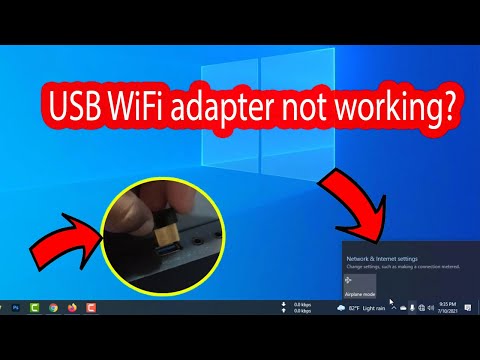
You know that moment when you’re all set to binge-watch your favorite series, but the WiFi just won’t cooperate? Ugh, so frustrating! One minute everything’s fine, and then boom, your TP-Link USB WiFi decides to play hide and seek with Windows 10. Not ideal, huh?
Yeah, been there! It’s like having a ghost in the machine. You plug it in thinking it’s going to work perfectly like always – but nah – it gives you the cold shoulder instead. Oh boy.
But don’t sweat it too much. We’ve all faced tech gremlins messing with our fun time. And guess what? There’s usually a way to get that connection back on track without pulling your hair out.
So grab a cup of coffee—or maybe something stronger—and let’s see what’s up with this WiFi saga together. Who knows? The solution might just be easier than you’d think!
USB Wi-Fi Adapter Connection Issues
Hey there! It looks like you’re having a bit of trouble with your USB Wi-Fi adapter, particularly the one from TP-Link not connecting to Windows 10. I know it can be frustrating when you’re trying to get online and things just won’t work. Let’s see if we can figure this out together.
Check the Basics First
Sometimes it’s the simplest things that trip us up. Make sure your USB Wi-Fi adapter is properly plugged into a working USB port on your computer. You might even want to try switching ports or trying it in another device just to see if they recognize it.
Driver Issues
A common hiccup with USB adapters not working is outdated or missing drivers. These little software tools are what let Windows talk to your hardware.
- Go to Device Manager. You can get there by typing “Device Manager” into your Start menu search bar.
- Look for “Network Adapters” and click the little arrow next to it.
- If you see a yellow triangle next to your TP-Link adapter, there’s probably a driver issue.
- Right-click on the TP-Link device and select “Update Driver“. Then choose “Search automatically for updated driver software.”
If this doesn’t work, you may need to manually download drivers from the TP-Link website.
Troubleshooting Network Settings
Sometimes Windows settings might be off-kilter:
- Network Reset: Go into Settings > Network & Internet > Status, then scroll down and click on “Network reset”. This puts everything back at default.
- If connected but no internet:
– Right-click your network icon in system tray & select “Open Network & Internet settings”.
– Click “Change adapter options”. Find your adapter, right-click, select “Properties”, then double-check “Internet Protocol Version 4 (TCP/IPv4)” has both IP address and DNS set automatically.
Tweak Power Settings
Windows sometimes tries saving power by disabling USB devices:
- Edit power plan:– Type “Edit Power Plan” in start menu
– Click on “Change advanced power settings”. Locate “USB settings” and make sure it’s set to “Disabled” for selective suspension
Every time my friend uses his laptop for more than Netflix binges, he runs into similar frustrations where stuff suddenly doesn’t seem compliant enough 😅 And guess what? He always finds out it’s usually these basic checks that do wonders!
It’s like finding that missing sock under furniture…Oh boy! Anywayz… hang tight!
PC Incompatibility with TP-Link Device
Hey, are you finding yourself scratching your head over a TP-Link USB WiFi adapter refusing to connect with your Windows 10 PC? Let’s see what’s going on with this tricky situation!
First things first, let’s get a handle on the basics. There’s nothing more frustrating than tech not playing nice together, right? It’s like getting ready for an amazing dinner and finding out you’re missing the main ingredient. But don’t worry too much—there might be a simple explanation!
- Driver Issues: This is usually the top of the list. Drivers are like translators between your hardware and software. If those drivers are outdated or corrupted, it’s no wonder they’re not speaking the same language!
- Compatibility Mode: Sometimes your trusty device wants things its way. Running it in compatibility mode can be like giving it its comfort settings.
- USB Port Problems: You know those connection slots? They can get dusty or even stop working properly. Just imagine if every time you plugged something in, it was just looking at you saying ‘nope’!
Troubleshooting Steps:
1. **Check Your Drivers:**
Head over to Device Manager and peek into ‘Network adapters’. Does the TP-Link show up there? If so, right-click and update that driver! Sometimes an online search pulls surprise updates released by manufacturers.
2. **Use Compatibility Mode:**
Go to the properties of your WiFi adapter’s driver setup file. Under compatibility settings, set it for an earlier version of Windows—it might slap some sense into that rebellious technology!
3. **Inspect Physical Connections:**
Test other USB ports if one doesn’t work; maybe even try on another computer (if possible) to rule out issues with specific ports.
4. **Network Settings Review:**
Dive into Network & Internet settings in Windows 10, check if you accidentally toggled airplane mode or disabled network adapters—hey happens to everyone!
5. **Software Conflicts Check:**
Are there third-party antivirus or firewall programs installed? Sometimes these love blocking innocent devices without letting us in on their paranoia routine.
Having once been perplexed by my own stubborn router during finals week—yeah—I totally get why this needs quick resolution without any added stress! So give these ideas a whirl; chances are high something will click back into place soon enough!
TP-Link USB WiFi Windows 10 Connectivity Issue
Oh, the frustration when your TP-Link USB WiFi isn’t connecting to Windows 10! Don’t worry; lots of folks have been there. Let’s sort this out together.
First things first, check if your USB port is working properly. Sometimes it’s the simplest thing that can cause the biggest headaches! Try plugging another device into the same port and see if it works. If not, try another port on your computer just to rule that out as a problem.
Alright, if those USB ports are behaving, move on to checking the drivers for your TP-Link USB adapter. Drivers are like translators for computer hardware and can be finicky if they’re outdated or corrupted.
- Go to Device Manager. You can find it by typing “Device Manager” in the search box.
- Look under “Network adapters” for something like “TP-Link Wireless USB Adapter“. If you see a yellow triangle with an exclamation point next to it, that’s a sign of trouble!
- Right-click on it and select “Update Driver“. Follow the wizard to search automatically for updated driver software.
If updating doesn’t help, or maybe Device Manager couldn’t find anything useful, you might need to hit up TP-Link’s website. They usually have fresh drivers available that might be newer than what your computer finds automatically.
Now let’s discuss something that’s often overlooked: the power settings on Windows 10. These settings can impact how your hardware behaves—especially notorious for causing trouble with connected devices going into some sort of sleep mode.
- Go back into Device Manager.
- This time right-click on your adapter again but choose “Properties“. Head over to the “Power Management” tab.
- Deselect “Allow the computer to turn off this device to save power“.
- Mismatched security settings:Your network is set up with specific security settings (like WPA2), but somehow there’s a mismatch! Double-check these details in Network & Internet Settings under WiFi properties against what you’ve set up on routers too.
- The right frequency should match;(2GHz vs.5GHz)The modern routers dish out both frequencies at once nowadays–but do make sure which one matches better with TP links capabilities before assuming—fiddling around never hurts!
This option sometimes saves energy by booting devices offline temporarily—bad news for maintaining a WiFi connection!
Your network glitches might also stem from some quirky settings in network configurations.
Finally—and I cannot emphasize this enough—restarting everything involved never goes amiss: Computer/Routers/USBs & all those tangled wires need restarts!!! Sounds cliché’, huh? But miracles happen!!
Anyway—I hope these suggestions bring back harmony between technology realms!!
Ah, the joy of setting up new tech, right? Everything is supposed to make life easier, but then reality hits hard when your TP-Link USB WiFi adapter just won’t dance with Windows 10. Frustrating! Picture this: You’re ready to stream your favorite series or maybe join an important Zoom call, and then—boom—no Internet. Talk about a buzzkill.
Now, this might sound all too familiar if you’ve been in this situation. Here’s the scene: You plug in that TP-Link USB adapter with high hopes. Maybe you’ve even got coffee in hand, ready for some productive hours—or just serious chill time—and nothing happens. No connection whatsoever. Trust me, we’ve all been there.
The first thing I’d do is check the basics (you know?): make sure the adapter’s snugly fit into your computer’s port—it’s a bit like checking if you turned the stove off when you’re having one of those “aha” moments. Then there are those pesky driver updates with Windows 10 that can sometimes mess things up without so much as a warning.
Ever notice how sometimes devices struggle after updates? It’s like they have their tantrums too! If your WiFi’s not cooperating after a recent update, rolling back that update can be an option if everything was working fine before it.
And then there’s always possible interference from other electronic devices or even walls acting like stubborn barriers between you and smooth streaming heaven. Just moving your computer closer to your router may surprisingly resolve things quicker than you’d think.
Oh! And don’t forget about firewall settings—they’re supposed to protect us but sometimes they’re downright moody and block stuff they shouldn’t.
If none of these options work, sometimes uninstalling and reinstalling drivers helps; giving them a fresh start often does wonders—it reminds me of rebooting my brain with my morning coffee!
Anyway, dealing with tech hiccups can be maddening at times—but remember—you’re totally not alone in these battles against rogue internet connections!