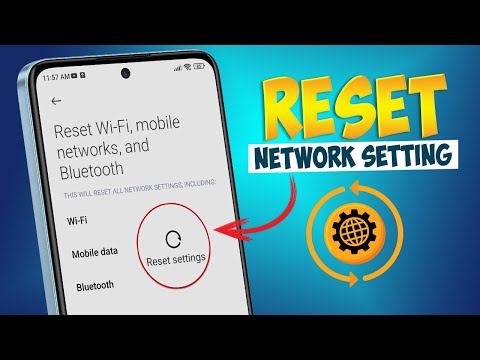
So, you’ve got a Xiaomi device and something’s up with your network. Maybe Wi-Fi’s being a bit of a diva or mobile data’s just throwing a tantrum. I get it, tech can be a handful sometimes.
Remember that time I was stuck outside my grandma’s house because my phone refused to play nice with the Wi-Fi? Yeah, not fun. But once you know how to reset those network settings, things get way smoother.
It’s kind of like giving your phone a fresh start without being all drastic. Just tweaking its memory about how to handle connections. Ready to make peace with your device? Let’s sort it out together!
Effects of Resetting Network Settings
Resetting network settings on your Xiaomi device can be like hitting the refresh button for your internet and connectivity problems. It’s a practical step when you face Wi-Fi issues, Bluetooth troubles, or even weird mobile data hiccups.
When you reset network settings, several things happen:
- Wi-Fi Connections: You know those Wi-Fi networks you’ve saved? Well, they’re all going to be erased. The next time you want to connect, you’ll need to enter the password again.
- Bluetooth Pairings: Similar deal here. Any devices paired via Bluetooth will need to be set up anew. So if you’ve got wireless earbuds that took some fiddling to connect, prepare for a redo.
- Mobile Data Settings: Your mobile data settings will go back to default. If there were any custom APN configurations you used for accessing the internet, they might vanish too.
- VPN Settings: If you’re using any virtual private networks (VPNs) for secure browsing, you’ll notice these settings revert as well. You’ll have to configure them from scratch afterward.
Why would someone want to do this? Imagine you’re having one of those days where your phone stubbornly refuses to connect to Wi-Fi or Bluetooth just won’t sync with anything! Resetting everything can be a simpler solution compared than trying random fixes.
But hey! It’s important not forget that resetting means losing saved info related networks and connections. Like when my friend Sarah reset hers by mistake and couldn’t remember nor retrieve her favorite coffee shop’s Wi-Fi password until after caffeine withdrawal hit hard…
The good side is you’ll often see improvements post-resetting; connectivity might even become faster or more stable because lingering bugs get cleared out by starting fresh.
Just remember before jumping into this reset adventure make sure important passwords are at hand especially if you frequently rely on different network connections throughout your day—that way it won’t become an annoying hassle after all’s done!
Would I recommend doing this regularly? Not necessarily—only use it whenever truly needed since setting everything up afterward takes time… but then again doesn’t every neat refresh begin with putting things back together once more?
Understanding Network Settings Reset Function
Ever been stuck with wonky network settings on your Xiaomi device? It can sure feel like you’re locked out of the digital world. Don’t sweat it, though! The Reset Network Settings function might just be your golden ticket.
Imagine this: You’re trying to connect to Wi-Fi, but no matter what you do, it just won’t play ball. It’s as frustrating as when you’re running late and can’t find your keys—right when you need them the most! This is where resetting those network settings comes in handy.
- What does Reset Network Settings do? You’ve probably wondered if hitting reset is some sort of magic fix. Well, basically it restores all network-related settings to their original defaults. That means Wi-Fi passwords, mobile data preferences, and Bluetooth connections all go back to factory settings.
- Why consider resetting? Over time, devices accumulate configurations that may conflict or cause connectivity issues. Maybe you’ve entered a wrong setting somewhere—or apps have altered things without you noticing.
- How to access this feature: On a Xiaomi device, head over to your phone’s ‘Settings’. From there navigate to ‘Connection & Sharing’ and you’ll find the option at the bottom: ‘Reset Wi-Fi, mobile networks & Bluetooth‘. Ain’t it neat having everything bundled under one roof?
- Main drawbacks: Okay here’s something important—you’ll lose saved networks (so wave goodbye to those Wi-Fi passwords). Can’t stress enough how crucial backing up like life depends on it could save your day!
- The silver lining: But hey! After performing this reset function usually smoothens out niggling bugs consistently affecting connectivity by flushing pre-existing problems down south.
Life echoes back what we give; restoring these fundamental components typically greases cogs wonderfully again—you’ll feel lighter knowing things are configured perfectly once more!
Resetting Redmi Network Settings
Alright, let’s tackle resetting the network settings on a Xiaomi Redmi device. Whether it’s Wi-Fi being wonky or Bluetooth acting up, this can help get things back in shape.
Why Reset Network Settings?
Sometimes your network connections just play tricks on you, right? You might find that your Wi-Fi stops connecting or maybe mobile data isn’t flowing like it should. It’s like when my friend Sarah’s phone refused to connect to any hotspot no matter what she tried! Resetting those settings can make a world of difference.
Before You Begin
Make sure you’re connected to mobile data if pure reliance is on Wi-Fi. Resetting will clear all stored networks and passwords, so keep those in mind.
Here’s how you can do it:
- Go to Settings: First off, head over to the “Settings” menu on your Redmi.
- Select Additional Settings: Scroll down till you see “Additional settings” and give it a tap. This is where you’ll find lots of handy things.
- Troubleshooting Zone: Under additional settings, you’ll find “Backup & reset” or sometimes directly “Network settings reset”. Choose that option.
- Confirm Reset: Tap “Reset Wi-Fi, mobile & Bluetooth.” A confirmation prompt will pop up asking if you’re sure. Go ahead and confirm!
Once you’ve done these steps, the phone resets its network configurations. It’s like giving it a fresh start! You’ll need to re-enter your saved passwords for Wi-Fi networks and pair Bluetooth devices again—kinda like reintroducing new friends at a party after forgetting their names!
A Quick Heads Up
After resetting, double-check that airplane mode isn’t accidentally turned on—Sarah made this mistake once too! If issues persist even after the reset, there could be another underlying problem like an OS update needed or some minor bug which might require extra attention.
Anyway, hope everything goes smooth with your Redmi now! Let me know if anything’s still bothering ya with network stuff; tech troubles shouldn’t stop us from having fun online!
Oh, resetting network settings on a Xiaomi device. Let me tell you, that’s one of those things that can really save your day when you’re having Wi-Fi issues or your mobile data’s just acting up. I remember this one time when I was at a cafe, trying to connect to their internet. My phone just wouldn’t cooperate! You know how frustrating that can be, right?
So there I was fiddling with my phone and thinking maybe it’s time to bless this device with a fresh start. Resetting the network settings is like giving your phone a clean slate in terms of connections—forget all the Wi-Fi passwords and paired Bluetooth devices, essentially anything networking-related goes back to its original state.
Here’s how it generally works: You dig into your settings app and look for “Connection & sharing” or something similarly named. Tap on it and there should be an option saying “Reset Wi-Fi, Mobile & Bluetooth.” Tap that option, confirm it—minding all important data is safely stored elsewhere—and voila! It’s done!
Granted, typing in all those saved Wi-Fi passwords again later might seem like a hassle. But believe me when I say it’s worth the inconvenience if it means smoother sailing going forward.
Isn’t technology both fascinating and puzzling? A little reset every now and then can do wonders for keeping things running smoothly—like giving your digital life a breath of fresh air!