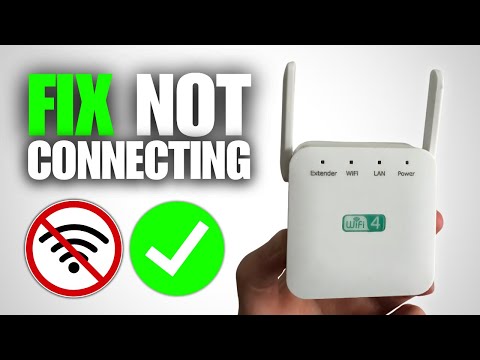
You know how it is, right? You’re all cozy on the couch, ready to stream your favorite show, and bam! Your WiFi’s got other plans. That red buffering wheel is staring you down like a bad joke.
I’ve been there too. Remember last weekend? I was literally watching a suspense thriller when the internet just vanished! My WiFi extender wasn’t playing nice with the network. What a nightmare!
Anyway, if your WiFi extender isn’t connecting—no worries. Let’s dig into why that might be happening and see what we can figure out together. Trust me, you’re not alone in this struggle!
WiFi Extender Compatibility with Cox Panoramic
Alright, let’s chat about WiFi Extender compatibility with Cox Panoramic. You know how it is when you’re all set to stream your favorite show, only to discover that one room in your house has zero signal? Super frustrating! A WiFi extender can help, but getting it to work with the Cox Panoramic can sometimes be a bit tricky.
Understanding Compatibility
WiFi extenders are like little signal boosters for your home network. They pick up your existing WiFi signal and amplify it, helping fill those pesky dead zones in your house. Now, the thing with Cox Panoramic is that it’s designed to cover a large area with its own strong signal. But if you still need extra reach, make sure the extender you pick supports dual-band frequencies (2.4 GHz and 5 GHz) since routers typically operate on both.
- Check Bands: Ensure that both the router and extender use similar frequency bands.
- WPS Button: Look if both devices have a WPS button; this makes connection super easy—just press two buttons.
Common Connection Problems
Sometimes extenders just don’t want to play nice. There are usual suspects when connections fail.
- Incorrect Placement: If an extender is too close or too far from your router, connectivity might suffer.
- Password Problems: Make sure you’re using the right network password when setting up the extender.
- Firmware Issues: Routers and extenders need updates occasionally to keep them working smoothly together.
Troubleshooting Tips
If you’re stuck scratching your head wondering why things aren’t connecting as they should be, consider these simple tricks:
- Move the extender midway between your Cox Panoramic and that pesky dead zone—kind of like a communication bridge.
- Tinker around in settings: factory reset both devices if they’re not communicating well after initial setup attempts.
To wrap things up here’s a handy tip: Always check brands’ websites for compatibility lists or user forums discussing their experiences specifically with Cox Panoramic connections—they can offer real-world fixes beyond manuals!
So next time buffering interrupts family movie night… remember these pointers!
Potential WiFi Interference from Extenders
Hey, let me tell you a little story! I remember setting up a WiFi extender for my aunt. She was super excited to get rid of those annoying dead spots in her house. But then, she called me saying that her internet was acting weird. Turns out, WiFi extenders can sometimes cause more trouble than they solve!
So yeah, let’s chat about these potential disturbances from WiFi extenders.
Understanding the Issue
Sometimes WiFi extenders don’t exactly play nice with your existing network. You’d think they’d just boost the signal and that’s it, but interference is a common hiccup. What happens when your appliances start arguing like siblings? It gets messy!
- Frequency Clash: Extenders usually use the same frequency as your main router, often 2.4GHz or 5GHz. If they’re not properly set up, they could clash and cause interference.
- Overlapping Channels: Some houses have multiple WiFi networks bouncing around due to neighbors’ equipment—extenders can add to this noise if they are set on overlapping channels.
- Too Many Devices Connected: When both routers and extenders are overloaded with devices trying to connect, bandwidth gets squeezed.
Common Causes of Connection Issues:
You know what’s funny? Sometimes the simplest things trip us up! Like putting an extender too close or too far from the main router.
- Poor Placement: If it’s too near or too far from other devices—it might struggle to maintain its connection without interference.
- Mismatched Security Settings: Your extender needs security settings that match your primary network; mismatches lead directly into connectivity issues.
- Dated Firmware: Older versions might not support efficient data handling smooth operation across different platforms leading interruptions frequently!
Smooth Sailing Tips
For smoother sailing forward without speed bumps in terms wireless connections try following these simple strategies:
Update Regularity Breed Consistency:/ Ensure current firmware running against newer models equipped advanced features ultimately translates fewer headaches outages along downtime side-effects routine tasks browsing streaming alike!Select Open Channel Peace Showcase!:Selecting less crowded channel minimize occurrences disturbances improving communication efficiency greatly enhance network performance . Checking what’s available usually done within user configuration settings both brand models differ typical default options one may find include CH3 CH11 various reference version only compare experiment guarantees optimal solution through testing trial early stages necessary tweaks adapt locales dynamics changing environment be mindful confident intentions operate max potential future endeavors endeavors wherever count fully work necessities met unfailingly satisfaction achieved joyous happy long run harmonious balance restored that’s crucial component ongoing success fulfilling needs consistently unquestionably necessity toward overall outcome desired judgment concluding gracefully please exercise caution remain vigilant addressing symptoms meanwhile remember thrive owning knowledge power achieve goals effectively sincerely aiming progress incrementally every single day emphasis hopeful resilience wisdom professional proportionately shared esteemed respect purpose dignity endearing warm regard compassionate rendering actions transpiring course intended wisely another day ends begins anew cycle renew renewed continually.’
Common Causes of WiFi Extender Failure
WiFi extenders can be a real lifesaver when you’re struggling with those pesky dead zones in your home. You know the ones—like when you’re just trying to check your email from the backyard, and suddenly nada! But sometimes, even these little helpers run into trouble themselves. Let’s dive into some common causes of WiFi extender failure.
- Poor Placement: One of the most overlooked issues is where you’ve placed that extender. Think about it: if it’s too far from your router, it can’t grab a strong signal to pass along. Instead, try placing it halfway between the router and the area with weak coverage.
- Interference: WiFi signals are like whispering secrets at a party; too many people talking creates noise! Devices like microwaves and cordless phones can interfere with your extenders’ signal. Try moving them away from such appliances or changing its channel through settings.
- Incorrect Configuration: Setting up tech gadgets can be tricky! If you didn’t follow every step during installation, it might not connect properly. Double-check that network name (SSID), password settings match those on your main router.
- Firmware Issues: Think of firmware as an extender’s brain software—it needs updates just like apps on your phone! Check if there’s any available update that might fix bugs or improve performance by visiting the manufacturer’s website.
- Password Changes: Maybe you’ve changed network credentials recently? Extenders aren’t psychic; they won’t know unless told explicitly! Go back into its settings and update those details accordingly.
- Aging Hardware: We all wear out over time… unfortunately electronics do too. An older model may simply not keep up with modern routers’ speeds/bands (like dual-band setups). Consider refreshing old gear if consistent failures occur despite other measures taken first!
These pointers often help resolve most WiFi extender issues without breaking a sweat!
Oh man, let’s chat about WiFi extenders. They really are a bit of a lifesaver when your WiFi signal seems to fade just when you’re getting cozy in your favorite corner of the house. But sometimes, these helpful gadgets can be a bit stubborn, right? No connection, no joy. If you’ve been there—struggling with a WiFi extender that refuses to connect—well, you’re definitely not alone.
First off, one common hiccup is where the extender is placed. It might sound silly, but walls and floors can sometimes act like obstacles for your wireless signals. I remember setting up an extender in my aunt’s place; turned out she had it stashed behind a metal cabinet! Moving it out into an open spot did wonders.
Another sneaky culprit can be network interference. Crazy how other devices and networks around you love to meddle with your connection! Think microwaves, cordless phones—you name it! They’ve got this talent for creating chaos in the airwaves.
And hey, firmware updates—or lack thereof—can trip things up too. I know keeping track of updates isn’t anyone’s idea of fun Saturday plans but they do help smooth things out tech-wise. Like giving your gadgets a nice little refresh!
Also let’s not forget password mix-ups or wrong settings between the router and extender—they’ve caused many facepalms among us gadget fans. Double-checking those can save quite the headache.
At times like this, patience truly becomes one’s best buddy when trouble-shootin’ these little devices—and maybe some chocolate as backup therapy too! You get me?