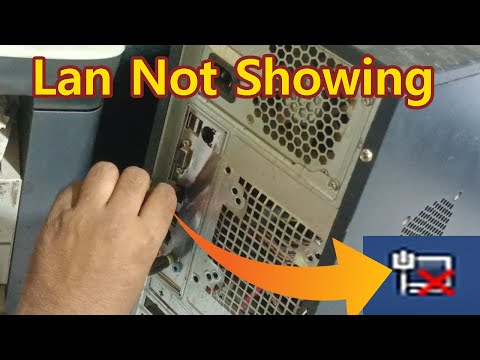
So, you’re sitting there, ready to dive into some serious networking action on your trusty old Windows 7 machine, and boom! The Ethernet controller is MIA. Gah! It’s like, where did it even go? I know that feeling. Kind of like when you’re all set for a cozy night in with your favorite movie, popcorn at the ready, but the remote is nowhere to be found.
Don’t sweat it too much. You’re definitely not alone in this little tech hiccup. Lots of folks have been there, scratching their heads just like you. The good news? It’s actually not too hard to get things back in order.
I’ll walk you through the steps and throw in a few anecdotes from my misadventures with Ethernet controllers—’cause we’ve all got those stories! Ready to jump in? Let’s tackle this together!
Manual Installation of Ethernet Driver on Windows 7
Alright, let’s dive into it. You’re having trouble with that pesky Ethernet driver on your Windows 7 machine, huh? It’s like having a car without the keys when your network controller is missing. Let’s walk through this step by step.
Check Device Manager First:
Head over to Device Manager first. Right-click on “Computer” and select “Properties.” You’ll see something like “Device Manager” there. When you open it, keep an eye out for any items marked with a yellow triangle—those are usually the ones causing headaches.
Download the Driver:
Before downloading anything, make sure you know what kind of network adapter you’re dealing with. You’ll need to visit the manufacturer’s website. For example, if you have an Intel card, go to Intel’s website.
- Select the support section.
- Search for your specific model and then find Windows 7 drivers.
- Download them onto a USB drive if needed; after all, no net access yet!
Installing the Driver:
Once you’ve got those files ready to roll:
- Go back to Device Manager.
- Select “Network adapters” area, right-click on it if there’s a yellow icon.
- Choose “Update Driver Software.” Yep, that one!
- Select “Browse my computer for driver software.” We’re doing this manually after all!
- Navigate with Windows Explorer to where you saved that download.
- If instructions pop up asking about permissions or security prompts—click ‘Yes’; no harm will come from installing genuine drivers here.
- Press Windows Key + R, type devmgmt.msc, and hit Enter.
- This will open Device Manager. Look for “Network adapters”.
- If there’s an Ethernet Controller listed under “Other devices” with a yellow triangle, that’s what we’re fixing.
- If You Have an OEM Computer (like Dell or HP): You can visit their support websites. They’ll often ask for your computer’s model number and automatically suggest drivers.
- If It’s Custom Built: Check the motherboard’s brand and model number. Motherboard manufacturers usually have driver download sections on their sites.
- Sneakernet it Over: Transfer downloaded files onto your Windows 7 machine.
- Ding Ding: Open Device Manager again. Right-click the Ethernet Controller (with the yellow exclamation mark) and choose “Update driver software.”
- Select “Browse my computer for driver software” and point it towards where you’ve saved the file.
- Open up the Device Manager. You can do this by right-clicking on Computer, selecting Properties, and clicking Device Manager.
- If there’s a yellow exclamation mark next to your Ethernet adapter under Network Adapters, it shows that there is an issue with the driver.
- If your Ethernet controller isn’t listed at all, it indicates that Windows doesn’t recognize the hardware yet.
- Check for Driver Software: If you have an installation CD from your manufacturer, pop that into your drive and follow any prompts for installation.
- No CD? No Problem: Visit the manufacturer’s website. They often have a ‘Support’ section where you can download drivers directly. Just make sure you’re getting ones specifically for Windows 7.
- The Manual Way: In Device Manager, right-click on the problematic device and select “Update Driver Software.” Then choose “Search automatically for updated driver software.”
- A Classic Reboot: Don’t underestimate its power! Sometimes just restarting can fix minor hiccups.
- Cable Check: Ensure that all cables are properly connected and undamaged.
- If unzipped files exist: pick out those INF files—it’s under there!
Sit Back and Relax:
Your system might need a moment while everything gets cooking in background mode! If not autobind properly (tech lingo), restart system once done clicking around until successful connectivity occurs at last!
If nothing works still—which sometimes happens—don’t stress too much initially! Some forums online offer community guidance based directly upon others who’ve walked same path before…
Installing Network Controller Driver on Windows 7
Hey there! Dealing with a missing network controller on Windows 7 can be a bit of a pain, but it’s something we can tackle together. Imagine this: you’re really excited to get online, maybe you want to check that recipe or catch up on emails, but your computer says “nope”. There’s hope!
What’s going on?
If you’re seeing messages about missing drivers for your Ethernet controller, it usually means that Windows doesn’t know how to talk with the hardware piece that lets you connect to a network. It’s like trying to use a gadget without the right instructions.
Step 1: Identify Your Network Card
Before diving into any downloads, you need to know which network card is in your system.
Step 2: Get the Right Driver
Talk about irony – sometimes you can’t download without internet access! Here’s what I suggest: use another device with internet access to download the driver onto a USB stick.
Step 3: Install the Driver Manually
Allow Windows some time – it’s doing its best magic trick : installing those drivers! And if all goes smoothly, you’ll see that little icon indicating internet connectivity pop up in no time.
Remember folks! Always keep them backups handy whether it’s an external drive or cloud storage when messing around with system changes. Not sure if I’m quite coming across here; just trying draw attention importance above all else while navigating tech world happily ever after perhaps alongside occasional hiccup times thereafter seemingly inevitable stretches ahead please feel free drop me note further queries whatever reason personally before calling day eventually long story short anyway cheers till then happy computing everyone!
Ethernet Adapter Installation in Windows 7
Installing an Ethernet adapter on Windows 7 can feel a bit daunting, especially if you’re not super tech-savvy. But don’t worry, it’s really just a process of taking things step-by-step. Let’s go through it together.
First off, if you find yourself in the situation where your Ethernet controller is missing, it usually means that Windows 7 isn’t recognizing your Ethernet adapter. It might happen due to a variety of reasons—like driver issues or even hardware problems.
Identify the Problem
Install or Update Drivers
Troubleshoot Connectivity Issues
-
If everything seems okay with drivers but connectivity issues persist:
Sometimes we make things more complicated than they are—you know how it is! This should help get you back online without too much stress.
Sounds familiar? Maybe you’ve faced this too when helping out friends or family—it’s always nice having all those little reminders in one place. Let me know how it goes!
Alright, so let’s talk a bit about this thing with Windows 7 and the infamous missing Ethernet controller. It’s one of those problems that can drive you a bit nuts, especially when you’re just trying to get online and do your thing.
You know, I remember this one time my friend Dave was in a real pickle. He’d just gotten his hands on an older computer—nothing fancy, but it was still pretty decent. Anyway, he called me up all flustered because he couldn’t connect to the internet. Turns out, his Ethernet controller was nowhere to be found! Talk about frustrating.
Here’s the deal: if your Ethernet controller goes MIA (missing in action!), it usually means Windows didn’t manage to recognize or install the proper driver for it. And without the right driver? No dice on getting that wired connection up and running. It’s like having a car with no key—it ain’t going anywhere.
So what can you do? First things first, you’ll want to identify that pesky network adapter. You’re looking for its hardware ID which you can track down by hitting up Device Manager (that magical place where all hidden device secrets lie). Once there, hunt down any ‘unknown’ devices—these are like little mysteries waiting to be solved—and check their properties for clues.
Next comes finding and installing the correct driver. Sometimes you might have got lucky with Windows updates doing their thing automatically; other times you’re in for some manual labor! A good start is strolling over to the computer manufacturer’s website or even directly to the adapter’s maker site if it’s separate from your PC brand.
Then there’s always this handy trick: downloading drivers on another machine with internet access and transferring them via USB stick or external hard drive. Tedious? Maybe a bit—but hey, desperate times call for desperate measures!
Finally after getting everything downloaded and installed correctly—fingers crossed—you should be in business! Seeing those little bars pop up indicating connectivity feels like winning some sort of geeky lottery almost!
Ah…networking woes—they sure test patience sometimes but somehow we muddle through ’em eventually huh?