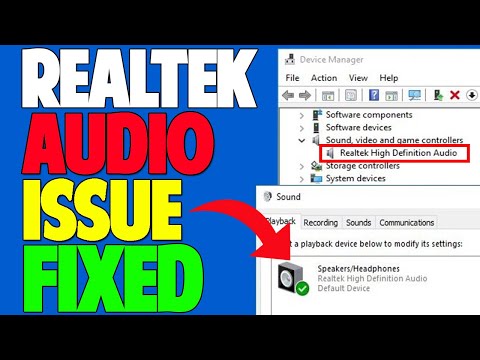
Okay, picture this. You’re all set to dive into your favorite tunes or maybe catch up on that new series everyone’s been raving about. You hit play and… silence. Total bummer, right? You’re expecting a jam session, and instead you get nothing.
So you start digging around your computer settings, and then it hits you—where’s the Realtek Audio Manager? You know it’s supposed to be there. It’s always been there! But now, poof, just vanished like a ghost.
Sound familiar? Don’t worry; you’re definitely not alone. This missing audio manager thing is actually a pretty common glitch in Windows 10. So let’s untangle this little mystery and get those speakers thumping again!
Realtek Audio Manager Missing
Alright, let’s dive into this. Picture yourself sitting down to watch a movie on your computer. You’ve got the popcorn ready, everything’s set, but then—uh-oh!—the sound’s just not right. If you’ve been hearing echoes or even nothing at all, it might be because your Realtek Audio Manager is playing hide and seek.
What’s up with Realtek Audio Manager?
Realtek HD Audio Manager is like the control center for audio in many Windows computers. It helps you tweak settings so your sound is top-notch. But sometimes, it can go missing from your system. And when that happens, well… things can get pretty quiet.
Why does it disappear?
There are a few gremlins that could cause this:
- Driver Issues: Sometimes the drivers—the little programs telling hardware how to work—can get outdated or corrupted.
- OS Updates: Those updates meant to improve things occasionally shake things up and mess with settings.
- Installation Problems: If something went awry while installing either Windows or Realtek drivers for audio management.
Getting Your Sound Back
First off: don’t panic! It happens more often than you’d think and fixing it’s kinda straightforward:
- Check for Hidden Icons: Sometimes it’s just hiding under the little arrow by the taskbar where all those tiny icons hang out.
- Update Drivers:
- If they’re absent due to an OS update glitch—as funny as that sounds—you might need reinstalling them completely after uninstall first through Device Manager (Select ‘Sound video & game controllers,’ find anything labeled ‘High Definition Audio Device,’ hit uninstall then restart computer). Once rebooted most times Windows auto-fixes by fetching proper replacements online—but if not manually downloading should take care too!
- If All Else Fails… Consider Rolling Back Update Or Restore Point Creation Prior Problem Occurring.” You know how sometimes hitting undo solves everything? Kindda similar here although caution advised (backups recommended). li >
ul >And hey… Remember finding their way around wasn’t easy initially either—but eventually everyone figures stuff out!
How to Reinstall Realtek Audio Manager
Hey there! I see you’re having trouble with your Realtek Audio Manager. Isn’t it annoying when your go-to audio control program just vanishes like that? No worries, let’s walk through how to get it back on Windows 10.
Why Realtek Audio Manager Might Disappear
Sometimes after a Windows update, you might notice that Realtek Audio Manager is missing from the taskbar or Control Panel. Updates can be sneaky like that – changing things without telling you.Steps to Reinstall Realtek Audio Manager
- Uninstall Existing Drivers: Head over to the Device Manager. You can get there by right-clicking the Start button and selecting Device Manager. Find your way to Sound, Video and Game Controllers, right-click on Realtek High Definition Audio, and then click on Uninstall device.
- Download the Latest Driver: Navigate to your computer manufacturer’s website or directly to the Realtek official website. Manufacturers often have specific versions of drivers fine-tuned for their devices.
- Install the Driver: Run the downloaded file. Just follow those instructions popping up one after another – it’s like assembling a little audio puzzle.
- Restart Your Computer: A good ol’ restart helps settle things down after new installations or changes.
- Check for Realtek Audio Manager:If everything goes smoothly, you should see this buddy make a comeback. Simply search in your Windows menu.
Troubleshooting If It Doesn’t Work Out
If you still don’t see it, try installing any pending Windows updates and reboot again. Maybe double-check if there’s a BIOS update needed – sounds techy but sometimes hardware loves being updated too.And if all else fails? There’s always reaching out in forums where other users may have experienced similar headaches!
Hope these steps help bring back some harmony into your computer life! Feel free reach out if you’ve other questions!
Realtek HD Audio Manager Configuration Settings
Let’s dive into the world of Realtek HD Audio Manager, a topic that’s closer to many of us than we think. You know how sometimes you’re all set to enjoy some music or a great movie, but then… silence. Often, this issue arises because the Realtek Audio Manager just decides to play hide and seek on you in Windows 10. But don’t worry! We’ll figure it out together.
First off, what is Realtek HD Audio Manager? It’s a control panel for your audio settings. With it, you can tweak sound effects and improve your audio experience in ways you didn’t even know were possible!
Now if it’s missing from your system, here’s what you could do:
- Check Your System Tray: Sometimes it’s hiding down there! Click on the little upward arrow on the bottom-right corner of your screen. If you find it there, just right-click and select Open.
- Control Panel Hunt: Open Control Panel (just type that into the search bar if you’re not sure where it hides), then go to Hardware and Sound. Under that section, look for Realtek HD Audio Manager. If it’s there, bingo!
- Update or Reinstall Drivers: This one can be a lifesaver! Head over to Device Manager (you’ve got this—search for it!), expand Sound, video and game controllers, right-click on Realtek High Definition Audio Driver and choose Update Driver Software. If updating doesn’t work wonders for you, try uninstalling and then reinstalling them.
- Downloading Directly: Can’t find anything? Download directly from Realtek’s official site. Make sure you’re picking the right version compatible with Windows 10.
- Tweak Your Settings: Check startup programs by pressing Ctrl + Shift + Esc to open Task Manager. Go over to Startup tab; see if it’s disabled there accidentally.
Let me tell ya how last week my friend Lucy was stuck in audio limbo—no music for days! Turned out her drivers needed an update just like mentioned above.
So, imagine this: You’re all set to watch your favorite movie, popcorn ready, blanket wrapped around you. You hit play, and then… nothing. Silence. Totally not the relaxing evening you planned on, right? It’s like expecting a drum roll in a concert and getting crickets instead.
This tricky situation often happens when Realtek Audio Manager mysteriously disappears from your Windows 10 system. Now, what’s going on here? Sometimes it’s an update that goes unnoticed. You know how Windows likes to do its thing sometimes? An update might cause Realtek to vanish into thin air.
Let’s unravel it a bit. The Realtek Audio Manager helps you control your audio settings with cool features like equalizer settings or volume adjustments specific to different speakers or headphones—tiny things that make sound feel just right.
If it’s missing, it could be frustrating! You’d want everything working smooth like cream cheese on a bagel—no interruptions! First steps usually involve ensuring the drivers are up-to-date. Sometimes they need a gentle nudge—a reinstallation of sorts—to get back in shape.
Everyone says check Device Manager—it’s kind of like playing detective but not as glamorous—and see if there’s any yellow warning beside Realtek audio devices there. The yellow triangle is not good news! It’s saying something’s up that needs attention.
In some cases, downloading the latest driver version from the manufacturer’s website directly does wonders. Sort of like getting fresh coffee instead of keeping reheating the old one—just makes things better!
Despite being just software issues, these hiccups can remind us how dependent we’ve become on technology humming along smoothly day-to-day without asking anything back… except maybe tapping ‘install’ once every while!
Letting yourself tackle these techy mysteries gives satisfaction too—as if you’re solving mini-puzzles unlocking comfort back again into life routines quietly tied around sound systems hugging our spaces each day nonstop almost unnoticed until glitches arise!
Downloading fresh ones from Realtek’s official website typically gets things up ‘n running again.