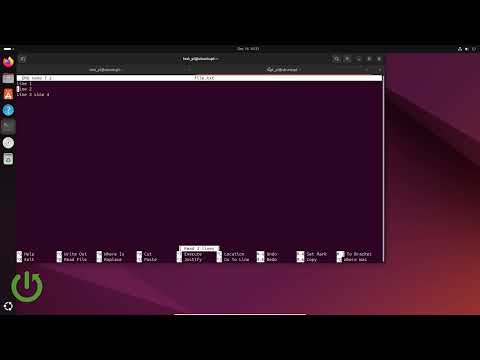
Alright, imagine this. You’ve got stuff you need to keep an eye on in your Linux system. Like, maybe you want to know how often a file is being edited or just see what’s happening inside a directory without manually checking every second. Sounds like a hassle? Totally!
Enter the ‘watch’ command! This nifty little tool can show you updates to the status of a program in real time. Think of it like having a personal scout keeping tabs and giving you updates whenever something changes.
And hey, using it is actually pretty chill. You don’t have to be some coding wizard or anything. It’s all about telling it what to watch and how often—super straightforward! Curious yet? Stick around, and I’ll spill more deets about how it works—we’re talking seconds here!
Real-Time Monitoring with Linux Watch Command on Ubuntu
Hey there! You know, there’s this cool feature in Linux called the ‘watch’ command that can be quite the lifesaver—especially when you’re using Ubuntu. Let’s say you want to keep an eye on a particular command’s output without constantly typing it again and again… we’ve all been there, right? This is where ‘watch’ steps in. It’s like having an assistant who refreshes the info for you every couple of seconds.
What Exactly is the ‘watch’ Command?
Alright, imagine you’re cooking and you keep checking the oven to see if that pie is ready—same idea, but with your computer. This command lets you execute any system command or script repeatedly, showing its output in real-time. Isn’t that handy?
A Quick Peek at Usage
When it comes to using ‘watch’, it’s pretty straightforward. Just open your terminal and type:
“`bash
watch [options]
“`
It’s like magic! For example:
“`bash
watch ls -l
“`
This will show a list of files in your current directory that updates every two seconds by default.
Customizing That Watch!
- -n SEC: Want a different refresh rate? Use this option followed by the number of seconds.
- -d: Highlight differences between updates; great if you want to spot what’s changed quickly.
- -p: If you’d rather not clear the screen before each update, this one’s for you.
A Real-Life Anecdote
I remember once when I was setting up a server—things were getting dicey because some services needed restartin’. Constantly checking whether they were alive or not got tiring real fast. Then someone tossed me this watch command idea and wow! It was such a relief seeing everything update automatically.
The Fun Part: Examples!
Maybe you’re tracking disk space. Try this out:
“`bash
watch -n 5 df -h
“`
Here it checks every five seconds how much space you’ve got left.
Or let’s say there’s this log file growing with excitement (or errors). Keep tabs on its last lines with:
“`bash
watch tail logfile.log
“`
In short, whenever life throws unexpected changes at your machine’s state or files… watch has got your back as long as there’s something repetitive about what needs monitoring!
Real-Time Monitoring with Linux Watch Command
Real-time monitoring can be a lifesaver when you’re trying to keep an eye on your system’s activities. One neat tool that Linux offers for this job is the ‘watch’ command. It’s like having a little birdie on your shoulder, whispering updates every few seconds. So let’s see how it works and why it might be just the thing you need.
Imagine you’re in the middle of troubleshooting something gnarly on your server or computer. You’re checking disk usage, processes, or maybe network connections, and you want real-time feedback without constantly hitting “enter”. This is where ‘watch’ swoops in to save you!
- Basic Usage: The primary purpose of this command is to run another command periodically and show its output in fullscreen.
- Simple Syntax:
watch [options] command- The Magic Option (-n): Specify how often (in seconds) the command should run again. For instance:
watch -n 2 df -h
This will update every two seconds with the disk space information.
- Differences Highlighted: If you use the -d option, it’ll highlight differences between updates.
- No More Command Recall:If repetitively typing commands feels like déjà vu, this comes super handy!
- A Quick Story:I remember once sitting at my desk late at night trying to fix a stubborn server issue. The ‘watch’ command was like my own personal co-pilot! Every time I looked at my screen there was fresh new data waiting—what more could you ask for?
While some people might think it’s just another tool among many others—it really stands out when accuracy counts most during chaos times! You’ll know exactly what’s happening even while sipping coffee away from keyboard (well not too far) but close enough glance over whenever curious mind demands fresh insight without lifting finger pressing keys again otherwise.
User-Friendly Tip:If you’re exploring commands firsthand cautiously yet curious about outcomes seen before diving deeper into technical details—the watch makes learning curve much softer gracefulness among technicality realms!
Real-Time Monitoring of GitHub with Linux Watch
Real-time monitoring of GitHub activities with the Linux ‘watch’ command can be a handy trick, especially if you’re into coding or managing repositories on GitHub. Let me tell you about this nifty feature!
The ‘watch’ command in Linux is like having a personal assistant that keeps an eye on your command output, refreshing it at regular intervals. Kind of like peeking over someone’s shoulder without being obvious! Imagine you’re curious about changes in a repository; this tool helps you stay updated without hitting refresh every two seconds.
Here’s how it works: you set up the watch command to repeatedly run another command at specified time intervals. How neat is that? This way, you can keep track of what’s happening live.
Basic usage:
You start by typing `watch` followed by the command you want to monitor. Simple! For instance:
“`bash
watch -n 60 your-command-here
“`
The `-n 60` part tells watch to refresh every 60 seconds – you follow me?
Now when connecting this with GitHub actions, here’s a little magic: suppose you’re interested in keeping tabs on pull requests or issues – you’d integrate some commands using `curl` or other API interaction tools. Here’s an example:
“`bash
watch -n 30 “curl -s https://api.github.com/repos/username/repo-name/issues | grep ‘title’”
“`
This line will check for new issues every 30 seconds and show titles only – perfect for staying in the loop!
Highlighted tips:
- -d flag: Add this flag to highlight changes between updates, so any change jumps out at you!
- -p flag: This pauses updates when there are no changes.
- More complex scripts can be created using Bash and APIs to tailor what specific data you’re monitoring.
This feature becomes particularly thrilling when working on collaborative projects – everyone stays informed without extra clicks! It sort of brings people together around their screens, sharing progress almost instantly.
Do remember though: too frequent checks could hit rate limits if accessing APIs often; adjusting interval settings might be wise depending upon activity levels or actual needs.
Curious yet? With just these few simple commands combined correctly—you’ll have all relevant project info right under your nose practically before it even happens! Isn’t technology amazing?
So go ahead, give it try sometime—it might make your workflow smoother than ever imagined possible.
Alright, let’s have a little chat about the ‘watch’ command in Linux. Now, imagine you’re sitting at home, just like I was last weekend, sipping on your coffee. You’ve got all these processes going on in your computer, and you kind of want to peek behind the curtain to see what they’re up to in real-time. That’s where the ‘watch’ command comes into the picture.
It’s like having a personal assistant who repeatedly tells you what’s happening with a certain command output every two seconds or whatever interval you set. It’s handy when you’re monitoring system stats or maybe keeping an eye on some log files.
I remember when I first stumbled upon it. I was trying to monitor disk usage during an intense data copying marathon – you know those times when you cross your fingers hoping your disk doesn’t fill up mid-process? It saved me from quite a headache by letting me see live updates without having to hit any keys constantly.
Using ‘watch’ is pretty simple too. You just write something like `watch df -h`, and voilà – you’ll see how much space is left refreshing right before your eyes! The cool thing? You can use it with almost any command that outputs things you’d like to keep tabs on.
Now, every tool has its quirks and tricks though. With ‘watch,’ pressing ‘ctrl+c’ won’t terminate whatever process you’re watching; it just stops the watch itself which might surprise you at first! And if you’ve got colorful terminal output? Just add `–color` after `watch` so it doesn’t turn everything monochrome.
I’ve had my fair share of experimentation with it over time – tweaking intervals or redirecting outputs for logging purposes – and honestly? It’s been a lifesaver more than once when diagnosing squirrelly system behaviors or even tracking rogue processes.
Do give it a whirl next time you’re tinkering around with Linux; I’m sure it’ll become one of those little gems in your toolbox too!