You ever get a little lost in the world of Linux commands? I totally get it. It’s like diving into a sea of mysterious shortcuts and acronyms. But hey, there’s this nifty command called “wc” that’s actually pretty cool and simple.
“wc” stands for word count, but guess what? It can do more than just count words. Imagine needing to know how many lines, words, or even bytes are in your file… wc’s got you covered.
I remember the first time I stumbled upon “wc.” I was overwhelmed with a project deadline looming over my head. Then bam! A friend happened to mention it, and suddenly I had all these numbers at my fingertips. Life saver!
So if you’re navigating those Linux waters and want a buddy to help you out with counting stuff—let’s say “wc” might just become your new best friend!
Uses of the ‘wc’ Command in Linux
Oh, the Linux world! It’s like this endless universe full of commands, each with its own quirks and abilities. One command that’s pretty nifty is the ‘wc’ command. Ever heard of it? It’s short for “word count,” but it does more than just count words. Quite the clever little tool, if you ask me!
What ‘wc’ Does:
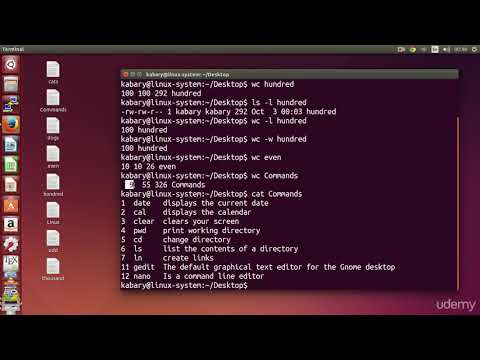
Think of ‘wc’ as your counting buddy in Linux. It can do three main things: count lines, words, and bytes or characters in a file. You feed it a file or data stream, and bam! It spits out numbers like magic.
Here’s a simple rundown:
- -l: This switch makes ‘wc’ count lines.
- -w: Use this to get word counts.
- -c: Tack on this flag for byte counting. That’s handy if you’re interested in file size.
- -m: If characters are what you need to count, add this one.
Getting Started with Example Commands:
Okay, let’s imagine you want to know how many words are there in a novel text file called “story.txt.” You’d type this:
“`bash
wc -w story.txt
“`
And presto—a number pops up showing how talkative that text is.
On those days when line counts are more your thing (maybe checking code length?), you’d use:
“`bash
wc -l story.txt
“`
Now you’ve got line numbers staring right at you.
Piping Data Streams:
Whoa! Here’s where things get cool: You can point inputs straight into ‘wc’ using piping without needing files all the time! Say you’ve got lots happening online; maybe watching system logs fly by? By chaining some commands together with piping — using | symbol—guess what happens?
“`bash
cat access.log | wc -l
“`
This buddy right here tells exactly how long that log is…in lines anyway!
So yeah…next time something needs counting around Linux land remember trusty ol’ ‘wc‘. It’s super useful once embraced fully—and who knows—it might just become indispensable during many shell voyages ahead!!!
Differences Between Grep and Wc Commands
Navigating the command line in Linux can feel a bit like learning a new language. Two commands you’ll likely bump into are `grep` and `wc`. They sound kinda cryptic, but trust me, they’re pretty straightforward once you get the hang of it.
Grep stands for “Global Regular Expression Print.” It’s like a search tool that digs through files to find lines matching a specific pattern you tell it. Imagine having hundreds of files and wanting to find every line containing the word “error”. That’s where `grep` comes in handy.
- Basic Usage:
grep 'pattern' filename - Example: If you want to find all lines with “apple” in a file named fruits.txt, you’d type:
grep 'apple' fruits.txt - -i Flag: Add this if you want your search to ignore case sensitivity, like lowercase or uppercase.
On another note, there’s the wc command, which is all about counting stuff—words, lines, even bytes. The name comes from “word count”, pretty intuitive when you think on it.
- Main Functionality:: Counts lines, words, and characters in text.
- Usage:: You’d write something like
wc filename. - A Closer Look:: Use flags for specific counts:
- -l: To get line count
- -w: To see word count only
- -c: For character count (includes spaces)
-
An Example:
If you’re curious about how many words are in report.txt? Just do:
wc -w report.txt. Simple as that!
Sometimes these two commands become best pals when used together. You could use `grep` to find certain lines and then pipe them over to `wc` to get a precise count.
- The Dynamic Duo Example:If you wanted the number of error messages in system.log:
$ grep 'error' system.log | wc -l
33
This says there are thirty-three error entries.
This combo helps keep specific data that interest.
Of course playing around with these commands on your terminal is good way understand them better!
Function of the wc Command
The wc command in Linux is kind of a hidden gem, really. It’s one of those nifty tools that can tell you a lot more about your files than you’d expect. When you run it, you’re basically asking for a quick rundown on the number of lines, words, and bytes found in the specified files.
Think back to when you first started using Linux—maybe you were overwhelmed by all those commands and options. The thing is, wc stands right there with the basics because it’s so straightforward but incredibly useful.
Here’s how it usually works out for people:
- Line Count: If you’re curious about how many lines are in a file—like maybe when you’re writing code or just trying to organize your thoughts—you can simply use
wc -l [filename]. This gives you an instant line count. - Word Count: Now let’s say you’ve got some documentation or text file. You’d want to know how many words it has, right? Just run
wc -w [filename], and voilà! You’ve got your word count. - Byte Count: And if you’re dealing with data storage considerations or something like that (and who isn’t these days?), you’d look at the byte size with
wc -c [filename].
You ever have one of those times when you’re messing around with these commands and realize they’re super handy? A friend once shared that they frequently used wc to track lines of code during a crazy hackathon weekend. Isn’t that cool?
Oh, fun fact! If you run just plain old
wc, it’ll give you all three stats by default: lines, words, and bytes . And hey—it even takes input directly from your keyboard if no filename is provided; just type away and press Ctrl+D when you’re done.So next time you’ve got some files or data on hand that need quick analysis, give this command a whirl. Keep those fingers nimble on the keyboard!
Ah, the “wc” command in Linux. It’s such a little gem, right? You know, back in the day when I was first dipping my toes into the vast ocean of Linux command-line tools, I remember stumbling upon “wc”. At first glance, it seemed pretty straightforward. But then again, like many things in life, there’s more to it than meets the eye.
“Wc” stands for “word count,” but honestly it’s kind of like a Swiss Army knife for text processing—you can count lines, words and even characters. If you’ve ever tried sorting through a massive text file and just needed to know how many lines you’re dealing with—or maybe you want to find out if that essay actually hits the dreaded word count limit—this tool is your best buddy.
I recall one time during college when I had this massive log file from a server that my team and I were analyzing for some project (don’t ask me what we were doing—it’s all a blur now). We were supposed to find out how many requests our server handled in a particular week. My friend suggested using “wc -l” to count lines quickly—genius! It was like discovering fire for the first time.
For some folks new to Linux or coding in general, commands might seem daunting at first. But when you break them down: start with `wc filename.txt`, add options like `-l` for lines or `-w` for words—and suddenly it becomes clear as day. Plus its simplicity makes it easy enough that anyone can pick up without breaking much sweat.
Sometimes using little commands like this remind me why open-source tools rock: they’re incredibly powerful yet accessible if you’re willing just dive into them headfirst!
Even today whenever someone asks me about getting started with Linux commands—which happens quite often—I always tell em’ never underestimate simple commands because they hold key potentials similar those powerful one-liners seasoned pros swear by!
So yeah… that’s pretty much reflection on understanding ‘wc’ command—it may look ordinary but its versatility speaks volumes plus saves heaps of time especially handling large files!
- Line Count: If you’re curious about how many lines are in a file—like maybe when you’re writing code or just trying to organize your thoughts—you can simply use