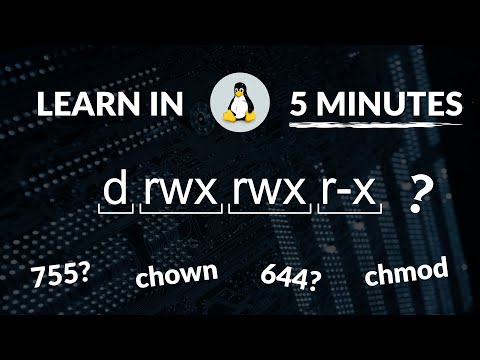
Oh man, Linux! It’s like this vast ocean of commands and possibilities, right? One minute you’re cruising along, and the next—bam! You’re staring at a screen full of permissions that look like secret codes. Crazy stuff.
You ever feel like changing file permissions is some kind of magic trick? You aren’t alone. That’s where our little friend ‘chmod’ comes into play. Seriously, it’s like having a key to unlock those mysteries.
Imagine this: you just downloaded a script from the internet, and nothing’s happening when you try to run it. Absolute bummer! A quick chmod tweak might be all you need to get things rolling.
I remember the first time I messed around with chmod. It felt like this huge power trip—like I could control my files without breaking a sweat. Maybe you’ve been there too?
Stick around and we’ll share some cool examples that’ll make you feel like a Linux permission wizard before you know it!
File Permissions with Chmod Command
Ah, file permissions! They can be a bit of a head-scratcher sometimes, right? But don’t worry, you’re about to unlock one of the keys to understanding Linux: the chmod command.
So, picture this. You’re working away on your beloved Linux system, and suddenly you realize you need to change who can read or edit a file. This is where chmod struts in like a hero.
First up: Why do these permissions matter? In Linux (and other UNIX-like systems), every file and directory has three types of permissions associated with it:
- Read (r): If allowed, you can open and read the contents.
- Write (w): Permission to modify the content or add things.
- Execute (x): Makes a script or program runnable.
And then there are three sets of entities that might get these permissions:
- The file’s owner/user (U)
- The group assigned (G)
- Others (O—meaning anyone else)
Now we’re getting into it! Here’s how you’d use chmod.
Let’s say there’s this cool script you made called `cool_script.sh`, but only you should run it. You’d use:
`chmod u+x cool_script.sh`
We just added execute permission for you as the user—nice work!
Oh! A little story here… Once I gave write access by mistake to everyone on an important file—oops! But that’s how we learn, right? So pay attention when setting those permissions.
If you’ve got numbers in your head now wondering what they mean: it’s about assigning numbers to each permission type. Like,
- Read = 4
- Write = 2
- X=1 b > li >
ul >You add these up per entity; for instance “7” means read/write/execute while “5” is read/execute. So,
`chmod 755 somefile`
This would give full rights (7) to owners but limited ones—a bit less creative—to groups & others.
Don’t worry if this sounds tricky at first—it becomes second nature once practiced! It’s helpful when managing multiple users sharing machines securely without stepping over each other’s toes inadvertently.
Tidbits: b > There’s also symbolic method like using ` + , – , = ` signs alongside them such as :
-
` g-rw filename` : Remove group ‘ s access entirely from altering/viewing things thereinside.. sorry guys ! 😅 li >
- User: Full access! The first ‘7’ means that as the user or owner, you can read, write and execute the file.
- Group: No entry! The ‘0’ indicates that no one in your group can do anything with this file.
- Others: Sorry folks! Another ‘0’ signifies that no other users on your system have any access.
- The first digit (6) means the owner has read and write permissions.
- The second and third digits (0) mean no permissions for group members or others.
4 - Read2 - Write1 - ExecuteAdd them up for combined permissions! (Read + Write = 6)
Our goal isn’t just tech mastery; more importantly perhaps too maybe helping ya dodge missteps aforehead gives greater understanding behind scenes . Keep cracking nuts out yourself feeling betta round harder stuff ain’t distant dream anymore now eyy?!
Understanding Chmod 700 Permissions in Linux
Understanding file permissions in Linux can be a bit like learning a new language. But once you get it, it’s super handy! When you hear someone talking about “chmod 700,” they’re referring to a specific set of permissions that control who can read, write, or execute a file. Sounds technical, doesn’t it? But it’s not that hard. Let’s break it down together.
So, what exactly does chmod 700 do? In Linux, permissions are typically represented by numbers. These numbers tell the system what kind of access is available for three categories: the user (that’s usually the owner), the group (could be colleagues), and others (everyone else). Each number ranges from 0 to 7 and represents a combo of permissions.
With chmod 700, here’s what’s happening:
To help visualize how these numbers work think about them as little switches. A ‘4’ allows reading—like opening a book to see what’s inside. A ‘2’ lets you write—similar to jotting notes or doodles in your diary—and an ‘1’ is for executing—kind of like pressing play on a DVD player if those still exist!
So why use chmod 700? If you’ve got private files or sensitive scripts — things you don’t want others meddling with — this permission setting keeps them safe just for your eyes only.
Using chmod isn’t too tough either; once comfortable typing commands into Terminal you’re halfway there! Just type something like:
$ chmod 700 myfile.txtThis command adjusts “myfile.txt” so only YOU have full control over it while everyone else stays out unless authorized through sudo access maybe during code reviews at work?
Remember though: sharing (safely) is caring—you might need adjust those zeros later if plans shift around offices again post-pandemic era adventures reunions etcetera…
Who knew learning security measures could resemble unlocking secret doors? Keep exploring until each numeral sequence feels second nature among family friends coworkers every day world around us—it opens up endless possibilities without slamming closed opportunity after another firewall hopscotch style protective catchphrases circulate industry continuously evolving buzzwords today tomorrow forevermore ahead beyond next generation innovations awaiting discovery shared knowledge collective growth remains cornerstone backbone journey curious always willing learn alongside fellow travelers paths life unpredictable yet exciting exploration continues…
File Permission Setting: Chmod 600 in Linux
Alright, picture this: you’re dealing with a Linux system and you need to secure your files. Enter the chmod 600 command. It’s like your trusty lock and key for keeping prying eyes away from sensitive info.
So, what is chmod 600?
In Linux, file permissions are crucial for controlling who can read, write, or execute a file. The chmod command is used to change these permissions. When you set a file’s permission to 600, you’re granting just the file owner the rights to both read and write it—no one else gets access.The magic behind 600:
A quick example:
Imagine there’s this super secret diary on your Linux system called “my_diary.txt”. You’d want to keep it private, right? By running `chmod 600 my_diary.txt`, you’re ensuring only you have access—like putting it in a safe where only you have the combination!Here’s another scenario: if you’re hosting sensitive info on your server like API keys or database passwords in configuration files, using chmod 600 keeps outsiders at bay.
Why use numbers like ‘6’ anyway? Well, these are octal numbers representing permission levels:
Just remember: chmod doesn’t affect directories the same way it does files. If you’re setting directory permissions with these digits, things will behave differently.
It’s always kind of satisfying knowing that with just a few keystrokes (a little bit of ‘chmod’ magic!) you can really tighten down who sees what on your system!
Ah, the world of Linux! It’s like a vast ocean with so many hidden treasures, and one of those little gems is the `chmod` command. If you’ve spent any time tinkering around with Linux, chances are you’ve crossed paths with this nifty tool. Remember that moment when you couldn’t access a particular file and were scratching your head? Yep, that’s where `chmod` can really come in handy.
Now, let me share a little story here. There was this one time I was trying to set up a small web server on my old laptop just for fun—you know how it goes. Everything seemed perfect until I hit a wall when trying to run some scripts. Turns out, the permissions weren’t quite right. Enter `chmod`. It was like discovering a secret key that unlocked all those permissions mysteries.
So basically, what does `chmod` do? In simple terms, it’s like giving files their marching orders about who can do what with them—read them, write to them or run them as programs (execute). And if you’re wondering about those strange numbers you sometimes see with it—like 755 or 644—they’re a way of setting these permissions using numerical codes.
Here’s another quick nugget for you: In Unix-like systems such as Linux, everything’s about ownership and rights. Imagine each file is like your house; `chmod` lets you decide if others can just look at your fancy interiors (read), rearrange your furniture (write), or even throw a party there (execute)!
We could go deeper into different scenarios where `chmod` shines brighter than ever: whether you’re securing files from prying eyes or granting access to collaboration projects on shared folders. Just remember though—it’s powerful enough that using it carelessly might lock you out from your own files!
Hey, exploring something new always feels exciting yet bewildering—and getting comfortable with commands like these is no different! So next time `chmod` pops up on your terminal screen—don’t stress—it might just be another adventure waiting for its next chapter!