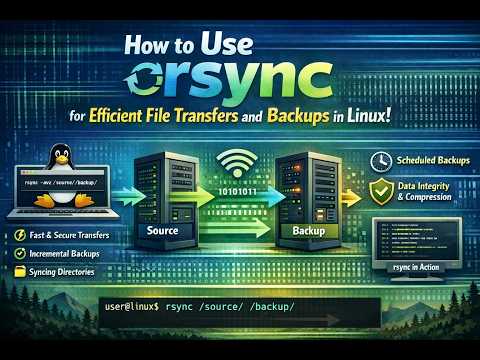
You ever tried transferring files and it feels like you’re watching paint dry? Oh man, I’ve been there. I remember once waiting ages for a simple batch of photos to copy over—like, seriously, who has time for that?
That’s where rsync comes in. This little gem on Linux is like having your very own file-moving superhero. Quick, efficient, doesn’t mess around.
Imagine this: you’re moving hundreds of files and they get exactly where they need to be without a fuss. It’s all thanks to rsync. Ready to make your life easier with file transfers? Let’s jump right in!
Using rsync for Efficient File Transfers on Linux
Using the rsync command on Linux is like having a trusty sidekick for your file transfers. It’s super handy and efficient, you know? This nifty tool helps synchronize files and directories between two locations, and it’s great cause it’s not only fast but also very smart.
Why is it so cool? Well, rsync can sync files locally or over a network. Imagine moving all your stuff between folders on the same computer or even shuttling them across to another machine. You might think about it as similar to copying files—except rsync won’t transfer everything every time! It’ll check what’s changed and just move that. That’s really awesome for saving bandwidth and time.
- Simplicity: At its core, using
rsyncis straightforward. Here’s how a basic command looks:$ rsync -avz /source/directory/ /destination/directory/That’ll copy everything from the source to the destination. Easy right?
- The options: Let me explain those little letters:
-a: Stands for “archive.” It keeps all file attributes intact.-v: Means “verbose.” It shows you what’s happening step by step.-z: Compresses data during transfer to save space.
- Distant backups: Want to back up your photos from your laptop to an external server? Something like this should do:
$ rsync -avz /photos/ user@remote-server:/backup/photos/ - Ssh integration: Using SSH makes it secure when transferring over networks:
$ rsync -avz -e ssh /docs/ user@remote-server:/backup/docs/With that, you get encryption benefits without much fuss.
- This one caan be useful too:
Pretend mode with –dry-run:If you’re worried about mistakes, use this flag first:$ rsync -avz --dry-run /source/. /destination/Think of it as a rehearsal before the actual show!
There’s something satisfying about watching your system doing its magic right before your eyes! Remember though—with great power comes responsibility; double-checking paths can save headaches later on!
Hope you find synchronizing files gets easier with practice. Trust in the process! And maybe someday you’ll be sharing tips with others too!
Using rsync for File Transfers on Ubuntu
Hey, you ever tried transferring a bunch of files on Ubuntu and wished there was an easier way? Like, it can be super frustrating, right? Well, there’s this tool called rsync, and it’s like having a magic wand for copying files. Seriously!
You see, rsync is a command-line utility that’s perfect for synchronizing files and directories between two locations. It doesn’t just copy everything bluntly; it actually checks what needs updating. So if you’ve already transferred some files before, it’ll only send over what’s changed. Pretty cool!
- Installation: First things first. If by any chance rsync isn’t installed on your system (although it’s often there out of the box), you can pop open the terminal and type:
“`shell
sudo apt-get install rsync
“`
Easy peasy. - Simplest Use: The most basic way to use rsync is just typing:
“`shell
rsync source destination
“`
Replace “source” with your file or folder location you want to copy from and “destination” where you wanna move it to.
One time I was trying to backup my documents folder—like all 10 gigs of it—and after the initial transfer using rsync, only new or changed stuff needed to be copied next time. Saved tons of time.
The real magic comes with options. Wanna keep permissions? Add the `-a` flag:
“`shell
rsync -a /home/user/Documents /backup/
“`
Worried about network hiccups corrupting transfers while pulling from a remote server? Throw in `-z` for compression:
“`shell
rsync -az user@remotehost:/var/www/html /local/directory/
“`
And here’s another thing: if you’re interrupted mid-transfer—yeah maybe your dog thought it’d be fun to trip over your power cord—restart without re-transferring every little thing again! Just run the same command afterward.
There’s a lot more juice in this lemon; options galore like preserving links (`-l`), modifying times (`-t`), etc., each adding sugar as needed.
Using rsync isn’t complicated once you get used to its groove! It’s such a nifty tool that leaves guesswork outta copying adventures completely behind! Plus once understood fully well saves heaps amount bandwidth data usage long-term wisely efficiently managing little remaining resources smartly wisely haha!
You can also combine it with ssh for secure transfers like so:
“`shell
rsync -e ssh source user@host:destination
“`
Simple right?
Using rsync for File Transfers on macOS
Alrighty, so you’re looking to transfer files on your Mac using rsync, huh? Awesome choice! Rsync is like this superstar command that helps you move files efficiently. It’s got its roots in Linux but works great on macOS, too. Imagine it as that ultra-organized friend who sorts everything out for you super fast.
First things first, let’s get it ready on your Mac! You know, just open up your Terminal. It’s probably under Applications > Utilities if you haven’t used it much before.
- Installation: Most Macs already have rsync installed, but in case yours doesn’t seem to recognize the command, just a quick installation with Homebrew will sort things out. Once you’ve got Homebrew set up (check their site if you haven’t), type:
brew install rsync. - Basic Command Structure: The basic syntax is a bit like setting rules for a game:
rsync [options] source destination - Example of Usage: Say you’ve got a bunch of photos in “/Users/YourUserName/Pictures/Vacation” and want them somewhere safe like an external drive named “BackupDrive”, you’d write:
rsync -av /Users/YourUserName/Pictures/Vacation /Volumes/BackupDrive/Pictures_backup/
This does two things: transfers files while preserving details about them (timestamps and permissions), and doesn’t miss any file changes. - Important Options Explained: Now let’s chat options:
- -v: Stands for ‘verbose’. It tells you what’s happening—great if you’re curious!
- -a: Like I said earlier, it’s ‘archive mode’, keeping your precious file attributes intact.
- -z: Compresses stuff during transfer—think squeezing clothes into a tiny suitcase.
- –progress: Shows progress during copying—that status bar we all love!
- -n or –dry-run: Tells you what would happen without making any changes—a rehearsal if you will.
- Error Handling and Logging: Sometimes hiccups happen; add this nifty thing to log errors for peace of mind:
> rsync_error.log 2>&1. Trust me; having logs can save the day when something unexpected happens. - Troubleshooting:: If rsync acts up or some files don’t copy right? Check filenames for quirks like special characters—they sometimes trip things up!
Now that wasn’t too hard was it? Rsync might sound fancy at first, yet it’s a fantastic tool once ya get the hang of it. Happy syncing! And don’t forget—a safe backup is always worth its weight in gold. Who hasn’t fretted when stuff unexpectedly goes poof?
Ah, transferring files. It’s something we’ve all done, right? And if you’ve ever found yourself knee-deep in Linux, there’s a good chance you’ve stumbled upon the rsync command. Now, let me tell you a bit about it—it’s like that trusty bicycle you had as a kid that could get you anywhere.
Picture this: it’s Sunday night and you’re shifting massive amounts of data between two servers. You’re tired and just want to kick back, relax with your favorite show. Enter rsync—a lifesaver for such moments! This little tool makes transferring files smooth and quick by syncing only the differences between source and destination. Imagine not having to re-transfer everything each time?
What I love is its ability to resume interrupted transfers. We’ve all been there; power goes out or network drops mid-way through copying files, right? With rsync, you pick up exactly where you left off without starting over. It’s like having an unsung hero quietly ensuring things go smoothly behind the scenes.
And it’s super versatile too! Need to sync just one file or entire directories complete with subdirectories? No problem at all! It even lets you do backups that could save your bacon if something ever goes wrong.
Sure some might say it’s just another command line tool but trust me—it has charm once you get used to it especially when dealing with sensitive data thanks to its secure connections feature using SSH.
So next time you’re planning those big file moves think of rsync—think efficiency reliability peace of mind wrapped in one nifty package!