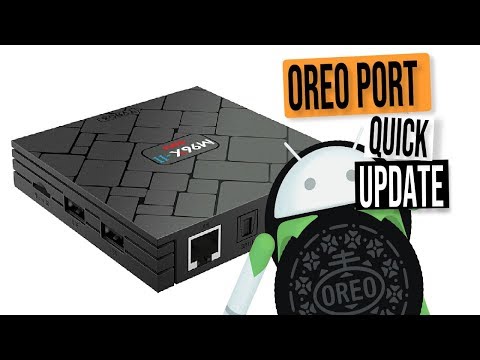
Oh man, updating tech gadgets! It’s like the ultimate love-hate relationship, isn’t it? On one hand, there’s the thrill of new features just waiting to be explored. On the other hand, there are those nagging glitches that show up when you least expect them. Especially if we’re dealing with something like updating your Amlogic S905X to Android 10.
Now look, I’ve been down that rabbit hole before. One time, I tried updating my own device and boom! My Wi-Fi decided it was on a permanent vacation. Can you imagine? If you’ve poked around similar upgrades, you probably know what I’m talking about—those pesky little hiccups that pop up and make you wonder why you didn’t just stick with what was already working fine.
But hang in there! Whether it’s a frozen screen or apps acting all funky, we’re going to chat about some of those glitches everyone seems to run into during this upgrade. It’ll save you from pulling your hair out or speed-dialing tech support—or both!
USB Compatibility Requirements for Android Box Flashing
Flashing an Android Box can be a bit like navigating a tech maze, especially when you’re dealing with USB compatibility requirements. Updating an Amlogic S905X to Android 10 might sound exciting, right? But it comes with its own set of quirks and challenges. Let’s break this down into bite-sized pieces.
Getting the right USB compatibility is crucial when you’re flashing your box. The wrong USB drive can make the process feel like trying to fit a square peg in a round hole. Here’s what you need to keep in mind:
- USB Version: You’ll want at least a USB 2.0 drive, but if you’ve got a 3.0 handy, even better! Faster data transfer speeds will save you some time.
- File System Format: The drive needs to be formatted correctly before you start anything else—you follow me? Use FAT32 or exFAT for best results since they’re most compatible with Android flashing tools.
- Storage Capacity: Ensure your USB has enough space for the firmware file and any additional software you plan on packing in there. Around 8GB should do the trick nicely.
- Error-Free Drive: It sounds obvious, but make sure your USB is free from errors or bad sectors by performing error-checking on it using your computer’s tools.
When I first attempted flashing my own box, I mistakenly used an old battered-up flash drive that caused more issues than I thought possible! Like scratched CDs back in the day—might as well have been futile!
Another important thing is having all necessary files ready on the USB before connecting it to the device; ensure nothing’s missed during preparation phase.
Oh! And don’t forget proper shut down after flashing’s complete—avoids corrupted installations happening without us realizing till it’s too late; trust me learned hard way myself once!
If something doesn’t seem quite right during this adventure remember some common mishaps can rear their heads; things like endless boot loops or just plain unresponsive displays might come up. Be sure you’ve got solutions handy just incase!
Hope that paints clearer picture when preparing necessary steps ensure smooth transition from older versions onto lovely Android-10 update via careful consideration every detail shared above!
Amlogic S905X Firmware Compatibility with Android 12
I’ve been getting quite a few questions about the Amlogic S905X and its firmware compatibility with Android 12. It’s one of those tricky areas that can be a bit of a head-scratcher. Don’t worry, we’ll unravel it together.
Understanding the Basics:
- The Amlogic S905X is a popular chipset used in various TV boxes.
- People love it for its affordability and decent performance.
- It’s had good compatibility with Android up to version 10, but moving to Android 12 introduces some challenges.
Firmware Compatibility:
Here’s where things get interesting. The jump from Android 10 to 12 isn’t just about getting new features; it’s also about ensuring the device can handle these updates smoothly.
- System Requirements: Android 12 demands more from your hardware compared to previous versions. The S905X was designed before these requirements came into play, making full compatibility an uphill battle.
- Community Support: You might find unofficial custom ROMs developed by technology enthusiasts. While these can sometimes allow such upgrades, they come with risks like instability or reduced performance.
- Lack of Official Support: Amlogic hasn’t provided an official update path for the S905X beyond earlier versions like Android 9 or 10. That means any advancement relies on third-party developers.
Let me share an anecdote from when I tried something similar: back during university days, I attempted upgrading my humble PC’s OS to something way beyond its specs—only for it to crash spectacularly right before finals week! Lesson learned: always back up your data first.
Navigating Potential Problems:
When you’ve decided you want to experiment—or if you’re just curious—here’s what you should keep in mind:
- Lags and Freezes: Common after manually updating this chipset are annoying lags—moments where you feel time stops as everything freezes.
-
Amlogic S905X Compatibility with Android 10
You want to know if the Amlogic S905X is compatible with Android 10, huh? That’s a really good question because these updates can be like a puzzle at times. The Amlogic S905X is a popular chip used in many Android TV boxes, known for handling high-definition video pretty well. Anyway, updating to Android 10 means you’d get some cool new features. But upgrades aren’t always smooth as butter!
Key Points of Compatibility and Potential Glitches:
- Performance Boosts and Limitations: You might think that upgrading pushes everything to run faster. However, the S905X, which was designed with previous versions of Android in mind, may not fully support every snazzy feature of Android 10. It’s kind of like expecting your old trusty bicycle to ride as smoothly on rough terrain—it’ll work but might feel a bit bumpy.
- User Interface Changes: Navigating through an updated user interface can seem daunting at first—like suddenly trying to speak in an unfamiliar accent! Make sure you’re ready for options that may look different than before.
- Hardware Compatibility: Here’s where things often trip people up: some hardware components might not function perfectly after the update—or they could need distinct drivers or adaptations.
Now imagine your family’s reaction when you tell them you’ve just upgraded their favorite streaming device—and whoops—a few applications behave oddly! Not ideal during movie night.
Troublesome Glitches Often Encountered:
- Playback Issues: You may notice glitches during video playback or audio syncing troubles post-update.
- App Crashes: Certain apps could start crashing unexpectedly due to compatibility hiccups between them and this newer OS version.
- Connectivity Struggles: The one that everyone sees coming but hopes won’t happen—network connectivity issues! Wi-Fi stability sometimes faces ups-and-downs right after such updates.
Remember an instance where I tried updating my own smart device firmware a couple years back—to find out it wouldn’t connect properly with my speakers anymore? Frustrating realizations occur even among us tech-savvy folks occasionally!
It probably feels tempting trying out new software advancements as soon technology offers improvements—but making sure everything stays functional should still be prioritized first-hand while considering possible impacts beforehand (certainly applies here).
Keep this info handy while deciding how excitedly you’ll greet an update buzzing around your setup too – knowing background details beforehand surely helps steer yourself clear from headaches later on!
So hanging onto certain functionalities remains wise amidst all excitement revolving fresh enhancements arriving nowadays keeping curiosity alive naturally enhances understanding undergoing transitions practically preparing devices reenter usability effectively maintaining past habits settled initially… Balance isn’t easy attaining handed forth upgrading realms abound unexpectedly throwing curveballs expectedly embraced cautiously navigated safeguarding unexpected experiences paired grounded explorations adventurous sheds trusted perspectives broader horizons enlightening day-to-day engagements lively dwellers audibly echoing age-old wisdom timeless statement spread across multiple languages tapping collective consciousness seeking insights tomorrow brings forward shaping familiarity confronting unfamiliarity enriches tailored outcomes ultimately previewing what lies ahead encompasses delightful freedom untangles mysteries surrounding individual quests connecting worlds unknown limitless passion-driven endeavors transformative potential unlocked simultaneously fostering thriving conditions connected realms seamlessly communicating witness paths unfold observe marvelous tapestry life presents woven interwoven intricately welcoming shared journey awaits embrace.
Oh, the adventure of updating tech! You know that feeling when you’re excited to get the latest version of Android running on your Amlogic S905X? Maybe you’re hoping for a slicker interface or better performance. It’s like unwrapping a gift, but sometimes what you get are unexpected surprises—glitches.
Imagine this: It’s a quiet Sunday afternoon, perfect for tackling that update. You’ve got your Amlogic box ready, and you’re pumped to have it run Android 10. The process starts off smoothly; things seem promising. And then… bam! The video playback isn’t working like it used to or apps keep crashing unexpectedly. Annoying, right?
These hiccups often stem from compatibility issues. The S905X is quite the trooper in handling various multimedia tasks, but not every bit of software meshes perfectly with its hardware out-of-the-box. Common problems include Wi-Fi dropping more than you’d like or remote controls acting up as if possessed by a ghost.
One friend of mine spent an entire evening trying to figure out why Netflix wouldn’t load correctly post-update. It turned out some settings had reset during installation—a simple box-checking oversight was all it took to fix it!
Patience and perseverance are your best buddies here. Double-check those updates for device compatibility and scan through online forums where fellow users might have already cracked the code on these glitches.
Serious tinkering might be needed if you’re into custom firmware or tweaks—it’s all part of the thrill! Just remember that perseverance usually leads back to smooth sailing (and streaming), bringing a small sense of victory with each solved issue. Anyway journeying through tech issues can sometimes feel daunting at first glance until things start falling back into place again!