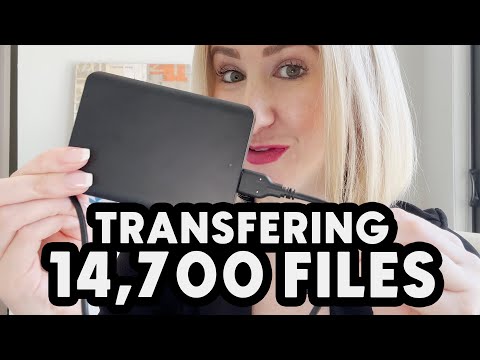
Oh, the joy of running out of storage space! We’ve all been there, frantically deleting photos and files to make room for something new. That’s when gadgets like the Toshiba Canvio Basics external hard drive come to the rescue. This little device is like a trusty sidekick for your computer—compact, easy to use, and ready to store all those precious memories or important documents you don’t want to lose. Whether you’re backing up your entire digital life or just need some extra space for that growing collection of cat videos, it’s got you covered. Let’s explore how this handy device can fit into your life!
Why is my Toshiba hard drive not detected Windows 10
Hey there! So, you’re having a rough time with your Toshiba Canvio Basics hard drive not showing up on your Windows 10, huh? That’s super annoying, right? Picture this: you plug it in and… nothing. Ugh!
There are a few things that might be causing this. First off, let’s check the basics. Have you tried connecting the hard drive using another USB port or even different cables? Sometimes ports or cables go bad without any warning.
If you’ve ruled out those easy fixes and the drive still isn’t being recognized, head over to the Disk Management tool in Windows. You can find it by right-clicking on the Start button and choosing “Disk Management” from the list of options. Here you’ll see all connected drives. Look for your Toshiba drive there—it might just need a letter assigned to it or an initialization if it’s new.
If Disk Management doesn’t show it, then maybe there’s a driver issue at play. You can try opening Device Manager (just type “Device Manager” in that search box near Start) and see if there are any alerts next to Universal Serial Bus controllers or anything suspicious-looking under ‘Drives’. Sometimes uninstalling the device and then rescanning for hardware changes gets things back on track.
Don’t forget about software updates—ensuring Windows is up-to-date might clear up conflicts that prevent recognition of external devices like your Canvio Basics.
Now swapping stories here: once my friend was freaking out because her hard drive wasn’t working either; turns out she had accidentally disabled USB ports in BIOS settings after futzing around trying different configurations! It was a relief when everything got fixed after doing some tweaks there.
Hope some of these tips hit home so you can get back to accessing all those important files stored away safely within its platters! Fingers crossed everything goes smoothly moving forward!
Toshiba canvio basics not recognized by windows 10 usb
Hey there! Dealing with a Toshiba Canvio Basics drive that isn’t being recognized by Windows 10 can be a bit of a headache, but don’t worry—I’ve got some ideas to help you out. You know, I once had a similar issue with an external drive and it turned out to be something quite simple.
First things first, make sure the USB connection is solid. Sometimes, just unplugging the drive and trying another port can work wonders. It’s like magic! If it’s still not showing up, take a look in the Disk Management tool in Windows. You can get there by right-clicking on the Start button and selecting “Disk Management.” Now see if your Canvio Basics shows up there. If it does but isn’t assigned a drive letter, right-click it and select “Change Drive Letter and Paths” to assign one.
If that doesn’t do the trick, consider updating your USB drivers. Head over to Device Manager (just search for it in your Start menu) and expand the section that says “Universal Serial Bus controllers.” Look for any warnings or outdated drivers. A quick update might just sort things out.
And hey, don’t forget about trying your Canvio on another computer if possible. This helps rule out whether it’s an issue with Windows or perhaps something more specific to that particular setup.
I hope one of these ideas helps you get back on track! It’s always frustrating dealing with tech hiccups like this, but when you finally see that drive pop up again—oh boy—the relief is real!
Toshiba external hard drive not showing up Windows 11
You know, dealing with external hard drives sometimes feels like they have their own moods. One moment they’re working perfectly, and the next, they decide to play hide and seek! If you’re using a Toshiba Canvio Basics external hard drive and it’s not showing up on your Windows 11 computer, don’t panic. I’ve been there too, thinking I’d lost all my precious photos and documents.
First things first, let’s check a few simple things. Is the USB cable firmly connected? It’s amazing how many times just unplugging it and plugging it back in can do the trick. Also, maybe try using a different USB port—sometimes those can be finicky too.
If it’s still being stubborn, let’s head into Disk Management. Just press the Windows key + X together (go ahead, give it a try!), then click on “Disk Management” from the list that pops up. This tool lets you see if Windows even detects your drive at all. If your Toshiba shows up here but not in File Explorer with a letter (like D: or E:), it might just need you to assign one.
If that doesn’t help either—and you’re still pulling out your hair—you might need to update or reinstall the drivers for your Toshiba drive. Open Device Manager (you can find this nifty tool by hitting that same Windows key + X combo) and look under “Disk Drives.” Find your Toshiba Canvio Basics right-click on it for options like updating drivers or uninstalling them so you can reinstall after rebooting.
You know what’s funny? I once spent hours trying every trick I knew only to realize later there was some silly software blocking my access! So make sure there’s nothing else causing issues like third-party security applications messing around where they shouldn’t be!
In rare cases where nothing seems to work and frustration peaks—it may mean something hardware-related inside decided not today—which means contacting support services who could advise further steps toward potential recovery efforts if necessary!
Wrapping up our little chat about the Toshiba Canvio Basics, it’s a neat little gadget for storing your stuff, you know? I mean, we’ve all been there—running out of space on our devices and needing an easy solution. That’s where this device jumps in. It’s compact, hassle-free to use, and just does the job without fuss.
A buddy of mine was totally stuck with his overflowing laptop files. He tried the Toshiba Canvio Basics, and boom! Problem solved. It’s pretty cost-effective too, which is a bonus if you’re watching your budget.
And hey, remember life doesn’t have to be complicated when it comes to storage solutions!