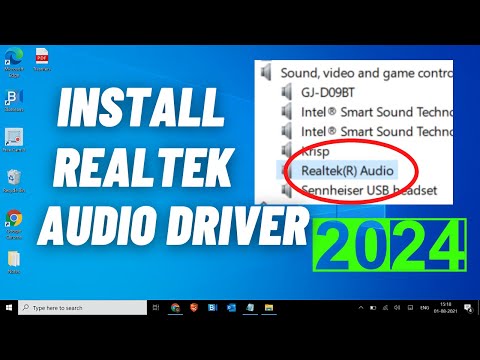
Ah, audio problems. They’re the kind of thing that can sneak up on you at the worst times, right? Like when you’re about to watch your favorite show or hop on a call with your bestie. Silence is definitely not golden in those moments! But hey, no worries—you’re not alone.
You see, missing or outdated audio drivers can be the sneaky culprit behind this ruckus. They’re like the behind-the-scenes magicians that make sure your sounds get from A to B smoothly. And if they’re acting up? Well, your speakers might as well be on mute!
Happened to me once when I was all set for a movie night marathon. Imagine my surprise when there was nothing but silent scenes! Anyway, getting those drivers sorted is easier than you might think. Promise!
Excited to fix it? Let’s jump into it and get those tunes back in action!
Installing Audio Driver on Windows 10
Oh, the joy of using your computer only to find out there’s no sound coming out. It’s like, you know, watching a silent movie when you expected a blockbuster with epic surround sound. But don’t worry too much! This is where installing an audio driver on Windows 10 comes into play.
First things first, make sure your device manager shows you need that driver update. Sometimes it’s just the case of missing those tiny yellow triangle alerts that sneak up on you.
Step 1: Open Device Manager
- Right-click on the Start menu button.
- Select Device Manager. It’s like peeking behind the stage to see how everything works.
Inside the Device Manager, look for something saying “Sound, video and game controllers”. If there’s none or there’s that dreaded exclamation mark icon next to it… well, we might have cracked this mystery!
Step 2: Identify Your Audio Device
- Under “Sound, video and game controllers”, find your audio device name.
- If you’re unsure about which one’s causing issues, try Googling its name along with “driver” to see if others had similar hiccups.
Step 3: Download and Install Driver from Manufacturer’s Website
- Navigare: Go ahead and visit your computer or motherboard manufacturer’s website.
- Search: Use any search bar available there (not too hidden usually!) and enter your product model number followed by “audio driver”. Bingo!
- Select: Choose the driver for Windows 10—double-check because older versions wouldn’t have today’s bells and whistles compatibility-wise.
- Sstaand Install:: When downloaded run through installation setup wizard provided within file package itself – straightforward walk-through!
After installation wrap-up? Restart machine unless explicitly stated otherwise during install process steps. Wait patiently here while magic happens at reboot!
Troubleshooting Tips if No Sound Still Occurs Post-Installation? b >
Crazy stuff happens right?? Try:
-
Check volume sliders both system-wide-layer/taskbar AND application-specific ones too!
- Volume Mixer: Click on the speaker icon in your taskbar and see if anything’s muted.
- Sound Control Panel: Right-click that same speaker icon again and select ‘Sounds’ for some advanced options.
- Device Manager: Open it by right-clicking the Start button. Then locate ‘Sound, video and game controllers.’
- Select Your Audio Device: Find your audio device from the list (it usually has a name like ‘Realtek’ or ‘Intel’).
- Update Driver: Right-click it and pick ‘Update driver.’ Follow the prompts to see if Windows finds a newer version online.
- Get Drivers from Manufacturer’s Website: Visit the website of your PC’s manufacturer (or motherboard maker for custom builds).
- Navigate their support section for drivers.
- Select your model and download any available sound drivers.
- Check Your System Type: First things first, check if your Windows is actually 64-bit. You can do this by going to Settings, clicking on System, then About.
- The Importance of Matching Drivers: It’s crucial that you download the driver that’s meant for your system type. A mismatch might result in no sound at all.
- Why You Need Updates: Sometimes manufacturers release updates to fix bugs or improve performance.
- Your Computer Manufacturer’s Website: This should be your go-to place. They’ll have drivers tailored for your specific model.
- The Sound Card Manufacturer’s Site: If you have an aftermarket card like one from Realtek or Creative Labs, visit their site directly.
- Avoid Third-Party Sites: They’re often sketchy and may contain malware!
- .exe Files are Friends:If it’s an executable (.exe) file, double-click and follow instructions.
- .zip Files Need Unpacking: >
- Identify Your Audio Device: This is where Device Manager comes into play. Right-click on the Start button and find “Device Manager” in the list that pops up. In there under “Sound, video and game controllers,” you’ll see what audio device you’re working with.
- Visit the Manufacturer’s Website: With your audio device info in hand, head over to the website of either your PC manufacturer (like Dell or HP) or the maker of the audio card (say Realtek) . They often have a support section for downloads.
- Select and Download: Find drivers that correspond with Windows 10—and make sure they match both version number and architecture (32-bit vs 64-bit). Hit download! As easy as pie!
Ensure playback device selection matches proper output choice via control panel sound settings context / options
Disabling then re-enabling respective drivers sometimes performs miracle cures
You ought hear audio loud clear strutting forth confidently now across speakers headset alike!!
Imagine doing whole lot longwinded quest only see fix waiting corner all along? Fun tales always laid future chats coffee friends isn’t it ?
Fixing Missing Audio Drivers in Windows 10
Oh, missing audio on your computer can be quite annoying. We’ve all been there! You know, you’re ready to binge-watch your favorite series or join a video call, and bam—no sound. If you’re dealing with missing audio drivers in Windows 10, there’s no need to panic. Let’s go through the steps together to fix this pesky issue.
Checking Your Sound Settings:
First things first. Before diving into technical stuff, double-check if your speakers are actually working and correctly connected.
Updating Audio Drivers Manually:
This might seem like rocket science at first, but trust me, it’s not!
If Windows Doesn’t Find an Update?
No worries!
- You’ll typically find them under something like ‘Support’ or ‘Downloads.’
Once downloaded? Simply run the installer! It’s designed to pretty much do everything on its own.
Troubleshooting Audio Problems Automatically:
- If manual stuff isn’t your thing:
- Your life-saving friend here is ‘Troubleshoot Settings.’
Select ‘Troubleshoot Settings’ in system settings > click on ‘Additional troubleshooters > run through audio troubleshoots’. Often this will detect issues you might have missed!
Feeling better about tackling that silent computer? A little patience will definitely get things sorted out—sound back in no time!
Windows 10 64-bit Audio Driver Compatibility
I can help you with that! If you’re setting up or troubleshooting your audio on a Windows 10, 64-bit system, dealing with audio drivers is a big part of the journey. I once spent an entire afternoon figuring out why my sound didn’t work after an update, and it ended up being a simple driver issue! So let’s go through this together.
Understanding Audio Driver Compatibility
The driver is a little piece of software that lets the operating system talk to your hardware—like when you’re asking someone to pass the salt at dinner. For Windows 10, whether it’s 32-bit or 64-bit matters because they use different drivers.
Downloading Audio Drivers for Windows 10 (64-bit)
Finding and downloading isn’t tough but knowing where is key.
Simplifying the Installation Process
When you’ve got the right driver downloaded:
After installation give it a quick check by playing something fun just so you know everything’s working smoothly!
Always remember back up important data before diving technical tasks—you never know when something unexpected might happen!
Ah, downloading audio drivers for Windows 10—something that’s much easier than it sounds. Picture this: You’ve just set up a brand new PC, or maybe you’ve had to reinstall Windows after some unexpected hiccup. You start up your favorite playlist, ready to get lost in the music, and… silence. Suddenly, it feels like your computer has forgotten how to sing!
First thing’s first—drivers basically tell your computer parts how to communicate with the software. Think of them as translators between Windows and hardware devices like your speakers or headphones. Without these little bits of magic code, your sound system could be left in the dark.
Now, here’s what you gotta do:
Remember this one time I helped a friend who thought her speakers were broken? After hours fiddling around with cables we downloaded updated drivers instead—it was pure relief when those tunes finally kicked back on.
Just ensure everything is installed properly by following any instructions during setup prompts… or restarting if needed because sometimes computers need a nap too before they get going again.
And there ya go!