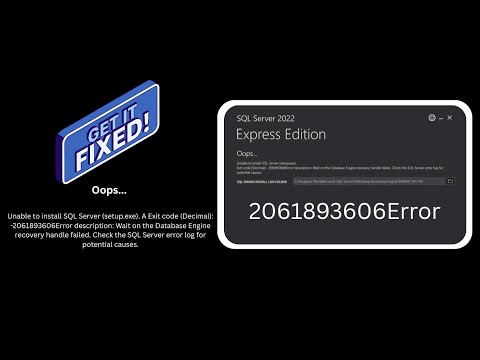
Oh, the joys of setting up SQL Express Edition, right? It’s like that time I tried to assemble flat-pack furniture without those pesky instructions. You think you’re almost there, then boom – surprise! An error pops up out of nowhere.
Trust me, you’re not alone if your installation hits a bump or two. Those quirky errors can be as unpredictable as my dog deciding he doesn’t like his favorite toy anymore. Honestly, anyone who’s dived into the world of databases has had their fair share of “what now?” moments.
In this wild ride with SQL Express, we’ll chat about some common installation snags and unravel them step by step. Let’s turn those headaches into laughs and high-fives when we get it sorted out! Feel ready? Let’s get going!
Windows 10 SQL Express Installation Error Causes
Hey there! I see you’re wrestling with installing SQL Express on Windows 10. Don’t worry, you’re not alone—it’s a bit tricky sometimes. But we’ve got this, right? Let’s dive into it and figure out why these errors pop up and how you can tackle them.
So, SQL Express is like a smaller version of SQL Server. Many use it because it’s free and perfect for small applications or testing environments. But sometimes, when you try to install it on Windows 10, errors might emerge. Here are some common reasons why that happens:
- Lack of Permissions: You gotta make sure you have the right permissions—like administrative rights—to install software on your machine. Otherwise, it won’t let you finish the installation.
- Windows Update Issues: Oh boy, if your system isn’t up-to-date with the latest Windows updates, some installations might fail. Check if there are pending updates and get ’em done!
- .NET Framework Problems: Sometimes SQL Express requires specific versions of .NET Framework to be installed before it can run smoothly. Make sure you’ve got those covered.
- Lack of Disk Space: Simple yet common—ensure there’s enough space on your drive for the installation files.
- Previous Installations:If you’ve already had another version of SQL Server installed previously, remnants could affect new installations causing conflicts or errors.
Now that we’ve got an overview let’s tackle these one by one.
Lack of Permissions: For starters—you need admin rights! Right-click on setup.exe from SQL Express installer files and select “Run as administrator.” Yeah, as easy as pie.
Windows Update Issues:The thing here is to ensure your system is ready for new installs by keeping everything fresh—like checking for any pending updates in Settings > Update & Security > Windows Update.
.NET Framework Problems:You may find certain versions are required depending on which release number you’re installing—it could range from needing specific ones like 3.5 sitting side-by-side newer editions such as 4.x series although rarely both now—but ensure they co-exist just fine (you might say!).
Lack Of Disk Space: This one’s pretty straightforward; simply remove unnecessary files or store important data externally until adequate space is freed-up beforehand commencement execution command prompt phase initial setup dialog sequence thingy majiggies!
Previous Installations: If remnants exist from earlier attempts clear’m away using proper tools often available Microsoft website Clean Uninstall utility assist thereby ensuring resolve potential conflicts arise later down track during future endeavor actions taken subsequently thereafter post-retry steps enacted perhaps hopeful eventual success triumph realization ultimate dream destination culmination goal eventuality nice eh?
I hope this informal yet comprehensive guide helps sort out whatever bugs have been bugging ya so far! Remember—you’ve got this all under control friend okay?
Installation Error Codes for SQL Express 2022
When you’re dealing with SQL Express 2022, installation errors can be a real headache! We’ve all been there, scratching our heads and wishing the computer would just cooperate. I mean, come on—how hard could it be, right? But don’t worry. It’s a common issue that many face.
Common Installation Error Codes
Understanding those cryptic codes is half the battle won. Let’s break down some of the most frequent ones:
- 0x84B10001: This indicates an operating system compatibility problem. Make sure your version of Windows supports SQL Express 2022.
- 0x851A001A: You might see this if there’s an issue with your .NET Framework installation. Double-check that the necessary version is installed and properly configured.
- 0x84B20001: This code pops up when there’s not enough disk space. You know how those pesky large software installations can eat up space! Verify that you have enough free space before trying again.
- Error Code 1603: A general error often related to permissions or conflicting software running during installation.
Troubleshooting Steps
Some errors require more than just recognizing a code! Here’s what you can try:
- Check Compatibility: Confirm that your OS and hardware meet SQL Express 2022 requirements. Sometimes updates or upgrades are needed!
- .NET Framework Verification: Ensure .NET is up-to-date and functioning correctly; this framework often plays a big role in installations.
- Disk Space Check-Up: Free up some room by deleting old files or applications you no longer use.
- User Permissions:: Run the installer as Administrator. Trust me—it helps avoid those sneaky permission issues!
Remember one time when I was helping my friend install a new PC game? He was so excited but kept facing error codes until we realized he was trying to run it on an un-updated OS version! Just like that experience, patience and attention to detail really make difference.
Finally, check out logs from failed installations if things still don’t work out. They can provide specific clues regarding what went wrong!
Hope this helps ya sort things without too much fuss—good luck getting that server running smoothly!
SQL Server Express Connection Error
Oh, connection errors with SQL Server Express can be a real headache, right? You finally get around to installing SQL Server Express Edition, and bam!— you run into connection issues. But don’t worry, fixing this can often be simpler than it seems. Let me share some insights that might help you navigate through these technical waves.
First off, verify your installation. This may sound obvious but it’s key. Make sure the setup process was completed without any hitches. Sometimes an incomplete installation can create unexpected roadblocks when you’re trying to connect to your database.
- Open up your services window (you know where you access all those important settings on your computer). Check if the “SQL Server (SQLEXPRESS)” service is running. If it’s stopped or paused, start it up.
- Confirmed it’s running but still facing issues? Alright, check that the SQL Server Browser Service is also enabled and running.
- If both services are good to go and there’s still a hiccup, ensure that SQL Server is set to allow remote connections. You’ll find this in “SQL Server Management Studio.”
Now let’s talk network stuff! Sometimes there’s a simple snag: networks settings or firewalls could be blocking connections.
- Firewall settings: You’ve probably seen how firewalls like to meddle with things. Head over to “Windows Firewall,” make sure port 1433 (the default port for SQL) isn’t blocked.
- TCP/IP Protocols: Open “SQL Server Configuration Manager.” Check under “Network Configuration” that TCP/IP protocols are enabled.
Then there’s authentication—the little gremlin that loves causing trouble!
- User Logins: Double-check the credentials you’re using match one of the logins configured in your server.
- Mixed Mode Authentication:: If using mixed-mode authentication (SQL + Windows), verify this setting during installation or change via configuration later on if required.
But hey—don’t forget about permissions too! Without proper access rights even local instances become unreachable despite everything looking fine from outside.
So there ya have it—a few thoughts on tackling those pesky SQL connection errors after installing Express Edition successfully… well almost 😉 Who hasn’t been there before feeling slightly frustrated yet determined enough just get things working as they should again?!
Ah, SQL Express Edition! It’s kind of like the little sibling in the SQL Server family—not as big or resource-hungry, but still pretty powerful. You know, for a lot of folks starting out with databases or even for small projects, it’s a lifesaver. But boy, can it be a headache when installation issues pop up!
I remember this one time when I was helping my friend set it up on their laptop. We were eager to dive into some data projects over the weekend. Everything was going along smoothly—until we hit this error message that seemed to come out of nowhere! It was like the computer suddenly decided to throw a tantrum.
And here’s the thing: those error messages are often cryptic. They might tell you something like “Installation failed due to an unexpected error,” which is about as helpful as a chocolate teapot! My friend and I got stuck there for quite some time, wracking our brains and googling everything under the sun.
One common issue we found—and maybe you’ve seen too—is related to permissions. Sometimes Windows just doesn’t want to let SQL Express play nicely because of user permissions on certain folders or registry entries. Crazy how something so small can stop you in your tracks.
Another quirky problem area is existing software versions. If you’ve got remnants from an older installation hanging around, they may refuse to cooperate with your fresh setup attempt. Registry keys from previous installs can act tricky sometimes too.
And don’t even get me started on compatibility issues with different Windows versions or updates that haven’t quite synced up yet—you know? Computers do love their unpredictability!
After fiddling around and trying various solutions, we finally managed to get it running by double-checking those pesky permissions and making sure all previous traces were fully cleaned up before attempting another install.
It kind of feels triumphant once you finally cross that hurdle—like solving a mini puzzle because persistence truly pays off here! So if ever you’re left scratching your head over these install errors: hang in there—you’ll crack them sooner than later!