Oh man, isn’t it just the worst when tech decides not to cooperate? You’re all set to install a new component, and bam! Your motherboard decides, “Not today.” You’ve got this shiny PCI Express Gen3 x4 card in your hand. It’s like having a ticket to an exciting concert, but the gatekeeper won’t let you in.
So there you are scratching your head, staring at your motherboard like it’s going to magically tell you what’s wrong. Maybe you’re wondering if you did something wrong or if it’s just plain stubborn. Trust me I’ve been there more times than I’d like to admit!
Sometimes it’s just that one little hiccup that throws everything off balance. No worries though we’re gonna figure this out together step by step and get that slot working perfectly—just hang tight!
Motherboard Not Detecting PCI Express Gen3 x4 Slot
Alright, let’s dive into the world of motherboards and PCI Express slots! So you’re dealing with a motherboard that’s just not seeing that Gen3 x4 slot, huh? Let me tell ya, this is one of those things that can give anyone a bit of a headache.
First things first, make sure the card is seated properly. You’d be amazed at how often the simplest fix does the trick. The card needs to be perfectly lined up and pressed into the slot until it clicks in place. Just like putting on a shoe—if it doesn’t fit right, you’re not going anywhere.
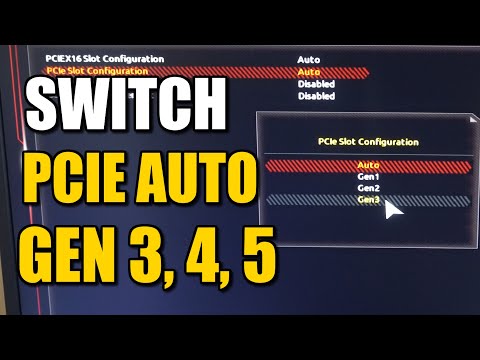
Next up: BIOS settings. Have you peeked into your BIOS lately? That configuration menu that’s got all those mysterious options? Pressing the correct key during boot (often it’s something like Delete or F2) gets you there. And oh boy, make sure your PCI Express settings aren’t set to disable anything they shouldn’t. Sometimes updates or resets change stuff without asking nicely.
While you’re poking around in there, check if there’s an option for PCIe generation compatibility. Some motherboards are real control freaks about which generation they’re running on and might need a gentle nudge to recognize Gen3 cards specifically.
Also remember:
- Power supply: Is it giving enough juice? Cards need power like we need coffee some mornings!
- Driver installation: Did you install the drivers for your device correctly? They often act as translators between your hardware and software.
- Check for damage: Look at the slot and card carefully for any bent pins or visible damage.
Let’s say everything physically looks good—next step is checking online resources from your motherboard’s manufacturer. Websites usually have forums or support pages where other folks may have dealt with similar quirks.
I once had Joe from across town call me about something similar; his issue was resolved after updating his motherboard’s firmware (it’s kinda like updating an app on your phone but scarier because who likes messing with firmware?). It’s good practice anyway since updates often include ‘genius fixes’ for issues like this!
On rare occasions though—and I mean rare—you might just be looking at incompatible components despite everything physically being fine.
Lastly: patience! Computers can be finicky creatures sometimes but they tend to cooperate if handled gently yet persistently.
Feel free to give these tips a whirl!
Motherboard Not Detecting PCI Express Gen3 x4 Slot
Have you ever felt the frustration of your motherboard not recognizing your PCI Express Gen3 x4 slot? Been there, done that! Let me tell you, it’s like losing your keys and looking everywhere except the place where they actually are. But don’t worry, we’ll figure this out together.
Check Physical Connection
Often, the issue is simply a loose connection. It’s surprising how often this happens—we’re all human, right? So what you want to do is power down your PC first (safety first!). Then pop open that case and make sure your PCIe card is seated snugly in its slot. Just give it a gentle nudge; if it clicks into place, you’ve found your culprit.
Update BIOS
Sometimes the motherboard’s firmware can be outdated. Manufacturers frequently release updates to fix bugs or add support for new components. To check if there’s an update available for your BIOS (which stands for Basic Input/Output System), visit the motherboard manufacturer’s website. All you need is the model number of your board which you’ll find printed right on it.
Enable Slot in BIOS Settings
It may seem a bit technical but sometimes slots can be disabled through BIOS settings without even realizing it—crazy huh? During boot-up, access BIOS by pressing keys like Delete or F2 (it varies depending on the brand). Once inside, navigate around until you find options related to PCI Express slots and ensure they’re enabled.
Test with Another Slot or Card
There’s always a chance that either the slot itself or just one card might have gone bad over time—electronics can be moody like that! If possible try another card in the same slot; if that works then problem solved! Or take out this current card and put it into another open compatible spot.
- Cables Matter: Ensure power cables connected directly between PSU & GPU/card are secure.
- This Is Key: Verify correct seating of any additional power connectors required by device/card.
- Peculiar Device Behavior:: External hardware devices plugged indirectly via faulty USB hubs etc., could mess things up too!
Fixing these hiccups often involves just paying attention closely at one small thing everyone overlooks after hours pulling their hair out—it’s quite funny when found ain’t it?!
Let’s imagine you’ve just upgraded your laptop with a snazzy new SSD. You’re pumped, expecting lightning-fast speeds, but then…nothing. The PCI Express Gen3 x4 slot isn’t detected by the motherboard. What a downer! It’s like eagerly unwrapping a gift only to find it’s empty.
This situation can indeed be frustrating. Been there myself once—upgraded my own PC and was ready for the boost in performance that never came. It felt like being stood up for a date! But hey, let’s take it step by step and figure it out together.
Firstly, let’s make sure it’s seated properly in the slot—sometimes, just giving it a wiggle can work wonders. And believe me, you’d be surprised how often I find something just wasn’t clicked in right!
Another thing to consider is whether your BIOS is updated. Yep, that’s the magical software that tells your computer how to start up and recognize all its parts. Sometimes it needs an update to get along with newer hardware bits.
And oh, don’t forget about those pesky drivers! They’re like your computer’s translators—they help your motherboard “talk” to new devices properly. If they’re outdated or missing…well , no chatting will happen!
Also worth checking is whether your motherboard even supports Gen3 x4 speeds directly or if there might be some configuration you missed (we’ve all done this at least once). Taking a peek at the motherboard’s manual could save you from pulling out hair in frustration.
Anyway from experience these issues are often less about broken parts and more ’bout settings needing tweaks—kind of like adjusting uncomfortable shoes till they fit just right.
In any case keep calm carry on troubleshooting—you’ll have things running smoothly again before you know it!