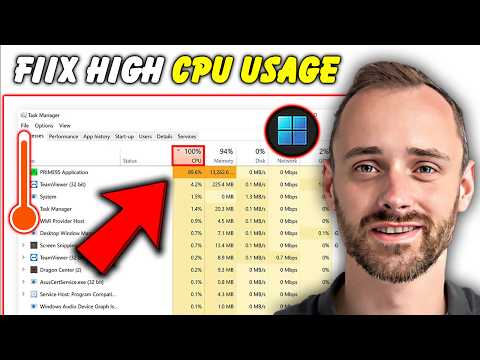
Hey, so you’ve noticed your i3 13300 acting like it’s having a meltdown, huh?
Yeah, I feel you. There’s nothing quite like watching a high-performance task turn into an unintentional sauna session for your CPU.
It’s kinda like when you’re trying to run uphill on a hot day. You know?
Let me tell you this – you’re definitely not alone with this one. This overheating thing can totally mess with your vibe.
Now, don’t panic just yet! You can tackle this glitch with some easy tweaks and keep your cool – literally and figuratively. 🥶
Let’s chat about what might be heating things up and how to chill things down. Ready? Here we go!
Causes of CPU Overheating Performance Issues
Hey there! Let’s dive into the world of CPUs and why they sometimes get a bit too hot for comfort—especially when you’re pushing that i3 13300 to its limits. You know, it’s not fun watching your computer slow down just when you’re about to win that game or finish an epic project. Here’s what’s going on:
Why CPUs Overheat:
The central processing unit (CPU), kind of like the brain of your computer, can overheat due to a few common reasons. When it’s under heavy loads, like running complex calculations or high-end games, it works super hard and generates heat.
- Inadequate Cooling: If your CPU’s fan isn’t doing its job well—maybe it’s clogged with dust, not spinning properly, or just inadequate—you’ll see temperatures rise quickly.
- Poor Thermal Paste Application: This might sound techy, but thermal paste is crucial. It’s applied between your CPU and its cooler to help transfer heat efficiently. If there’s too little—or way too much—it can mess things up.
- Overclocking: Pushing a CPU beyond its factory set limits sounds exciting but requires extra cooling measures. Without them? Overheating becomes almost inevitable.
The Impact on Performance:
When temperatures soar, modern CPUs often throttle down their performance as a protective measure—like an automatic slowdown mode—to avoid damage. Imagine being at a running race and someone slowing you down until you’re just jogging along!
- Lag During High-Performance Tasks: Games stutter or apps pause as the CPU can’t maintain peak speed due to overheating concerns.
- Unexpected Shutdowns: In extreme cases, systems will shut down without warning if the temperature gets too high—a safety net for hardware preservation.
Tackling the Issue:
Oh! Now we know what causes overheating let’s look at some practical ways to fix this:
- Cleansing Rituals: Dust is like the arch-enemy here; clean those fans and vents regularly using compressed air or gentle brushes!
- Adequate Cooling Systems: If you’re planning on demanding more from your i3 13300 consider upgrading either air coolers or even liquid cooling solutions for better heat management.
- *Special note about ambient temperature* : The weather matters! A hot room equals less efficient cooling….,
This small anecdote will make this clearer:
,You remember those days when summer hit strong? Even our bodies struggle unless cooled effectively by fans/aircons; similar applies.
.
,
There you have it – hope this sheds some light while keeping things chill (pun intended)! Stay cool out there…
CPU Temperature Safety at 90°C
Oh boy, dealing with CPU temperatures can sometimes feel like babysitting! You know how it is. One second everything’s cool, and the next you’re hitting that 90°C mark. Let’s dive into this whole situation with the i3-13300 and see what’s up.
First things first, why worry about 90°C? Well, CPUs aren’t too fond of high temps. When your i3-13300 runs around 90°C during intense tasks, it’s like asking someone to sprint in a sauna—pretty exhausting! It’s crucial to keep an eye on these temperatures because prolonged exposure can lead to throttling, or worse yet, damage.
So why exactly does your i3-13300 decide to get all hot-headed when under pressure? Here are some common reasons:
- Poor Cooling Solutions: Sometimes the stock coolers just don’t cut it during high-performance tasks. Think of those fans as tiny workers trying to stop a fire with a garden hose.
- Dust Build-Up: Dust bunnies love CPUs. When they camp out in your case, airflow is blocked, making it harder for heat to escape.
- Inefficient Thermal Paste Application: Thermal paste helps transfer heat away from the CPU. If there’s not enough or it’s applied unevenly… well you get the picture.
So what can you do? Glad you asked!
1. Upgrade Your Cooler: If you’re relying on a stock cooler and hitting those 90s regularly while gaming or rendering videos, it might be time for an aftermarket cooler upgrade. Look into ones that have better heat dissipation capabilities.
2. Cleansing Ritual: Open up your case (carefully!) and give everything a good cleaning session—you’d be surprised how much difference removing dust makes for cooling efficiency.
3. Pasting Matter: Reapply thermal paste if needed; usually once every year or two keeps things running smoothly.
4. Keep Tabs : Use software like HWMonitor or Core Temp—it keeps you in the know about temperature spikes before they become issues.
I remember back when I was overclocking my old rig without proper cooling—boy did I learn quickly (the hard way) not all heroes wear capes; some come equipped with decent thermal solutions!
Remember: Being proactive now can save headaches later down line—nobody wants fried eggs where processors should be safe working order always beats resetting burnt-out silicon!
Anyway hope these tips help keeping flagship scorching moments at bay while fulfilling highest order duties effortlessly amidst digital battlefield triumphantly!
Intel Processors with Overheating Issues
Hey, let’s chat about Intel processors, specifically the i3-13300, and this overheating issue that can crop up when they’re pushed during high-performance tasks. You know how when you’re playing a game or doing some heavy editing, and your computer starts sounding like it’s about to take off? That’s what we’re diving into.
Understanding the Problem
It’s like this: Every processor works hard to deal with all the tasks you throw at it. And in return, well, it generates heat. But then there’s this thing where too much heat can slow down performance or even damage your hardware if not handled properly.
What Causes Overheating?
Several things can cause your i3-13300 to get a bit too hot under the hood:
- Dust Build-up: Dust bunnies love settling inside your computer case and could block airflow.
- Poor Ventilation: Not enough room around your PC for air to move around? Yep, heat build-up could happen.
- Overclocking: Pushing your CPU beyond its limits might squeeze out extra performance but boy does it raise those temperatures!
- Inefficient Thermal Paste: So there’s this goo called thermal paste between CPUs and coolers—helps with heat transfer. Bad paste or bad application doesn’t help.
Tackling Overheating Issues
Taking on overheating is important; a cooler CPU lives longer! Here’s what might help:
- Clean Your PC: Regular cleaning—get rid of dust from fans and other components using compressed air (carefully though!)
- Add More Fans: If space allows adding extra fans for better airflow might work wonders.
- Avoid Overclocking;: If you’re pushing those clock speeds—maybe dial it down unless absolutely necessary.
- A better cooling system:: Upgrading heatsinks or investing in liquid cooling systems are options if temps climb high often enough (it might be worth considering).
Now let me give ya a quick scenario… I once had my trusty laptop suddenly getting super hot like frying-pan-hot because its tiny fan was clogged with all sorts of fuzzies collected over time without me realizing until one day said fan just wouldn’t spin right anymore—it made SUCH A difference cleaning everything up & letting things breathe again!
If you keep having problems even after fixing these stuff… maybe checking with professional service would make sense—they’d know their way around internals far better than most DIY attempts!
But hey… remember every system/profile differs slightly—you’ve gotta test what works best keeping tabs through monitoring apps e.g., HWMonitor/HWInfo showing current operating conditions!
Ah, the classic computer overheating issue—it’s like the modern equivalent of a car breaking down on a family road trip. Picture this: you’re pushing your i3 13300 to its limits with some demanding tasks, and suddenly you notice it’s starting to feel like a mini space heater beneath your fingertips. Not exactly what you’d expect from your trusty machine, right?
It’s almost like when I’m cooking for a big family gathering, and my kitchen starts feeling more like an oven itself – everything’s working overtime and getting just a bit too warm for my comfort. The same goes for your processor. It’s trying really hard to keep up with all those processes you’ve got running.
Now, what’s happening here is that when you’re working your PC hard—like gaming or running heavy software—the processor has to work extra diligently, which generates heat. And it’s pretty common for hardware components to heat up during such intense activities. But! There’s always the risk of crossing that line into overheating.
I remember this one time when I was editing videos on an older laptop—not quite as powerful as the i3 13300—and boy did it get hot! Ever gone camping and sat too close to the fire? Exactly that kind of feeling!
Okay so what can you do about this? First off, check if your cooling system is functioning properly—you might have dust accumulated in there acting like a blanket trapping all that heat in or maybe clear out any vents if they’re blocked by anything funny.
Also consider adjusting the room’s temperature or moving somewhere cooler—every little bit helps! You could also look into getting an external cooling pad or even upgrading internal cooling solutions if necessary.
It might seem a bit annoying at first dealing with these kinds of issues but think about it as just giving some TLC (tender loving care) back towards our loyal electronic sidekicks who bear lotsa workload daily without complaints… until they overheat y’know?