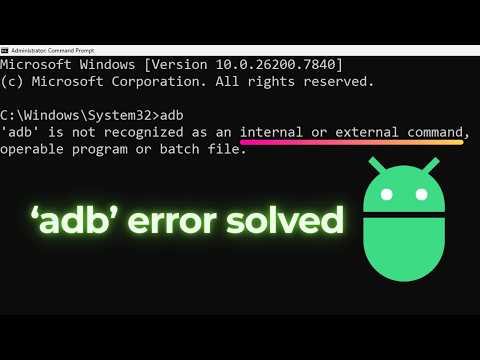
You know when you’re trying to get something done with ADB in the command prompt and it just throws that “ADB not recognized” error at you? Ugh, so frustrating! I totally get it; been there, done that. It’s like your computer’s playing a prank on you, right? Well, don’t worry—this is a pretty common issue.
Here’s the thing: it usually means your computer doesn’t know where to find ADB. Kinda like looking for a book without knowing which shelf it’s on. Yeah, computers can be kind of tricky like that sometimes. But once you get how to point your system in the right direction, this little hiccup will be history.
So if you’re ready to fix this and browse through those Android files or run commands smoothly again, let’s roll up our sleeves!
ADB Command Recognition Causes
Oh, you’re trying to figure out why your ADB command isn’t showing up properly in the Command Prompt? Let’s see if we can get that sorted for you! ADB stands for Android Debug Bridge, and it’s a nifty little tool that developers use to communicate with an Android device. Sometimes, though, it decides to play hide and seek in your system. Here’s why that might be happening.
- Path Not Set Correctly: One common reason is the system doesn’t know where to look for ADB. If the
PATHenvironment variable doesn’t have the path to your ADB folder, it won’t get recognized. - Typos in Commands: Hey, we all make typing mistakes now and then. Double-check there are no spaces or misspelled words in your command inputs.
- Outdated SDK Tools: If you’re using an old version of the SDK tools, it might just be time for an update. Keeping things fresh can solve some hiccups.
- No Administrative Privileges: Running Command Prompt without admin rights sometimes blocks certain commands from executing properly.
Now that you know what’s going on, how do you fix this little nuisance? Usually it’s simple tweaks.
Edit Your Path Variable:
- You need to add the path of your SDK’s platform-tools directory into your environment variables. This is typically something like:
C:UsersYourNameAppDataLocalAndroidsdkplatform-tools. - If on a Windows machine, head over to System Properties > Advanced > Environment Variables. Look for ‘Path’, hit edit, and throw in that directory path.
You remember last time when you were setting up some software? It’s kinda like adding its location so other programs can find it!
Tidy Up That Command Line:
- A tiny mistake like a misplaced slash or wrong case could cause an issue. “adb install” needs space between “adb” and “install,” right?
Finally check if you are running CMD as administrator—sometimes that’s just what’s missing.
Oh! And don’t forget updating those tools—just head over the Android Developer site whenever things seem outdated.
If none of these work.. well maybe there’s more going on than meets eye (like finding shoes while packing). But let’s hope this helps clear up any initial confusion!
Diagnosing ADB Device Detection Issues
Dealing with ADB issues can be a bit frustrating, especially if you’re eager to get things running smoothly. ADB, or Android Debug Bridge, is like your little gadget-helper that lets you communicate with Android devices from your computer. So, what do you do when it doesn’t recognize your device in the command prompt? Let’s take a closer look!
- Check USB Connection: First thing first, make sure your USB cable is working properly. It sounds obvious, but you’d be surprised how often a faulty connection can cause headaches. Try another cable or port if you’re stuck.
- Enable USB Debugging: For ADB to work its magic, USB debugging needs to be on. You find this under Developer Options on your device. If you haven’t enabled those options yet, tap ‘Build Number’ seven times in the About Phone settings on Android.
- Verify Device Drivers: Your computer needs the right drivers to recognize the Android device correctly. Ensure that you’ve installed the OEM drivers specific for your phone model or use universal ones like Google’s simple driver package.
- ID Device in ‘adb devices’: Entering ‘adb devices’ in command prompt should list out connected devices. If it doesn’t display any, something might not be set up right—could be permissions or even an inactive ADB server.
Now here’s a little story: I once spent hours tearing my hair out because adb simply wouldn’t recognize my old tablet after an update—turned out all I needed was to reinstall drivers! Ain’t technology wonderful?
Troubleshooting Software Conflicts:
If other programs mess with how adb works (this sometimes happens), double-check that none of them are hijacking the ports needed by adb.
Avoiding Path Problems:
Make sure environment variables are pointing to where adb is installed—mishaps happen when paths aren’t correctly set up.
Finally remember patience pays off! Troubleshooting may test nerves however finding solutions feels great once everything clicks into place again!
Enabling ADB in Command Prompt
Hey, so you’re having a bit of trouble with enabling ADB in Command Prompt, huh? No worries, we’ve all been there! Computers can be like puzzle pieces sometimes.
ADB stands for Android Debug Bridge. It’s this handy tool that lets you communicate with your device from your computer. If the command prompt doesn’t recognize it, it’s usually because something’s off with the setup.
Let’s go through it together:
- Installing Android SDK Platform-Tools: First thing’s first, you need to have this installed. You can grab it from the official Android website. It includes ADB as one of its components.
- Extract the Tools: Once downloaded, extract the contents to an easily accessible location on your PC—like C:adb or whatever works for you.
- Add to System Path: Ah, here’s where many folks trip up! You need to let your system know where to find these tools:
- Right-click on “This PC” or “My Computer”, then hit “Properties”.
- Select “Advanced system settings” and then click on “Environment Variables”.
- Under “System variables”, look for a variable named “Path”. Hit “Edit”.
- Add the path to where you extracted ADB (e.g., C:adb).
- Checking ADB Connection:: After setting up everything correctly open Command Prompt and just type `
adb version` If it shows the ADB version currently installed you’re golden! - Troubleshooting:: Still no dice? Jot down these checks:
- {@ The drivers for your specific device are *up-to-date*?
{@ Did Windows block popups about installing new devices when connecting over USB?
Ah, the good old “ADB not recognized” issue—it’s like a rite of passage for anyone dabbling with Android development. If you’ve ever tried diving into Android debugging or tweaking your device, you might’ve stumbled into this little hiccup. And when it happens, it feels like your command prompt has decided to play hard to get.
So, imagine you’re sitting there, ready to execute your big plans via ADB, and boom! Command Prompt throws that “not recognized” curveball at you. It can feel like trying to have a serious chat only for the other person to suddenly not speak your language. Frustrating? Oh yeah!
The thing is, this usually boils down to something quite fixable. Often it’s just about making sure that you’ve got your path set up correctly in Windows Environment Variables. Sounds fancy? It’s simpler than it sounds! Basically, you’re pointing Windows in the direction of where ADB lives on your system.
Now let’s get a bit anecdotal! I remember this one time I was all set to root my old phone—an experiment on par with any daring adventure—and then bam! The Command Prompt threw that dreaded line at me: “ADB is not recognized.” Panic ensued for a brief moment until I realized I had skipped setting up the PATH variable after installing Android SDK platform-tools.
It’s kind of like having a key but not being able to find the door it opens because someone forgot to label rooms in a fancy mansion. You just need to guide your system’s virtual eyes towards where ADB is hiding.
Once you tweak those settings and double-check the folder paths: C:Platform-toolsadb.exe (or wherever it’s neatly tucked away), things start clicking into place. And when CMD finally recognizes ADB without throwing errors? Pure satisfaction—a tiny victory in an otherwise tech-driven day!
Ultimately solving such technical hiccups feels rewarding and gives you confidence while diving deeper into the world of Android tinkering or app development adventures—one less barrier between ambition and implementation!