Hey there! So you’re tinkering with your Android device and suddenly, boom! You hit a wall with ADB Fastboot errors. It’s like you were on a smooth ride and then—wham! The engine just sputtered to a stop.
I get it, really. It’s like when you’re cooking dinner and the blender starts making weird noises. You’re thinking, “What’s happening now?” But don’t sweat it—I promise we’ll get through this.
Errors can be annoying little gremlins, huh? But they’re no match for us. We’ll take them one step at a time and get your device back on track in no time.
Alright, let’s roll up our sleeves and dive into clearing up those pesky issues together. Ready to tackle this? Let’s jump right in!
Checking ADB Fastboot Device Connection
Oh, those Android troubles! I remember this one time my friend was freaking out because her phone was stuck and needed some tinkering with ADB (Android Debug Bridge). It’s like having a magic tool for your phone to help you fix things. But hey, getting it connected properly can be a bit of a puzzle. Let’s try to make it simple.
Why ADB Fastboot?
Imagine you’re behind the scenes of your device. That’s what ADB Fastboot is like! You’re commanding your device through a computer, talking in little lines of code.
Checking the Connection
To know if you’re on the right track with connecting, you need to make sure that your device and computer are having a good chat. Here’s how you can do that:
- Installation: Make sure you’ve got the latest Android SDK Platform Tools on your computer. This is like installing a language pack so they understand each other.
- Cable Check: Use a good quality USB cable. Seriously, it’s like making sure you’ve got clean wires in an old radio.
- Developer Options: Head over to your device’s settings and tap “Build Number” around seven times. It’ll unlock Developer Options—your special backstage pass!
- USB Debugging: In Developer Options, you’ll find “USB Debugging.” Enable it so your phone agrees to talk.
Troubleshooting Connection
Sometimes things still don’t work out even when you’ve followed all steps. Here are some ideas:
- Create Trust: When you plug in for the first time with debugging on, watch out for a pop-up on your device asking if you trust this computer—be friendly and say yes!
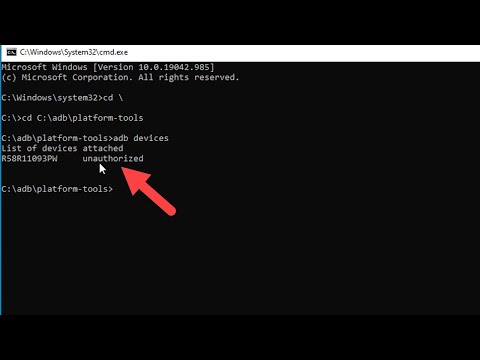
- ID Device: Open Command Prompt or Terminal (depending on whether you’re using Windows or Mac) and type: `adb devices`. You should see something listed below if things are cozy between them.
- If no devices show up, reconnect cables or try different USB ports; they can be picky sometimes!
Sneaky Fastboot Mode
Especially when dealing with stubborn errors or funky behaviors—fastboot mode comes into play here!
– Rebooting into fastboot might require powering off completely then holding specific buttons while powering back up again (often vol down + power).
There ya go, my friend managed through hers after some hiccups too—it happens! Just remember patience pays off when working through techy stuff likes this!
ADB Fastboot Error Causes on Samsung Devices
Sure, let’s dig into this quirky little issue that often pops up with Samsung devices when you’re playing around with ADB and Fastboot. These tools are like Swiss army knives for Android enthusiasts, letting you communicate with your device from your computer. But when they throw an error at you, it can be super frustrating, right? Anyway, let’s see what might be going on when these errors happen.
First off, if you’re facing issues using ADB (Android Debug Bridge) or Fastboot on Samsung devices, there are a few common causes. Understanding these can save you a ton of headache.
- Lack of proper USB drivers: For ADB and Fastboot to work smoothly, your computer needs the right USB drivers for your Samsung device. Think of it as speaking the same language; without it, communication fails.
- USB Debugging not enabled: Go to the Settings on your phone. Tap into “About Phone” and find “Build Number.” Tap that seven times—yeah seven!—to become a developer. Then head back to the main settings menu and look for “Developer Options”. You’ll need to toggle on “USB Debugging”.
- Locked Bootloader: This is pretty much like a locked door keeping Fastboot out. Some Samsung phones come out of the box with locked bootloaders especially if they’re carrier-tied.
- Poor USB connection or cable issues: Believe me or not? Sometimes it’s as simple as a faulty cable or port causing interruptions in communication between your PC and phone.
- No OEM Unlocking option:: You gotta make sure that OEM unlocking is enabled in Developer Options too.
- MTP connections interfering:: If options pop up each time you connect via USB asking whether to charge only, transfer files (MTP) etc., go ahead and select ‘transfer files’. That helps keep connections stable while tinkering about!
If you’re scratching your head already trying looking through multiple guides just go straight checking these first mentioned points one by one—they resolve most error instances pretty fast! And remember specific steps sometimes vary depending upon model software updates so adaptability goes hand-in-hand whenever troubleshooting takes place 🙂
And isn’t crazy how something overlooked – like incorrect driver setup common cables disrupts command-lines capabilities altogether?!
Checking Device Connection Status in ADB
Okay, let’s chat about checking the device connection status using ADB, and maybe toss in a sprinkle of help on those pesky Fastboot errors as well. If you’ve ever dabbled with Android development or tried fixing an Android device, you’d know that ADB is your best mate for interacting with devices through your computer.
Basic Steps:
- First things first, ensure that you have ADB installed on your computer. It’s part of the Android SDK Platform Tools.
- Connect your Android device to your computer. Use a reliable USB cable—trust me, a dodgy one can drive you nuts!
- If you’re seeing “N/A” or blank in settings under “USB Debugging”, switch it off then back on. It often resolves hiccups.
Now you’ve got everything set up physically, open up the command terminal on your PC and type this command:
“`shell
adb devices
“`
Upon hitting Enter, it should list connected devices—ideally showing something like `xxxxyyyy device`. If it’s not showing any devices here are some pointers:
- Enable USB Debugging: Make sure USB debugging is enabled in Developer Options on your Android. Sometimes it just switches off by itself!
- You might need to update or install proper drivers for your phone model if you’re using Windows.
There might be times when the output says “unauthorized.” This means that there’s a prompt waiting for you to approve on the phone itself—a little box that’s easily missed!
Troubleshooting Common Errors:
When ADB plays hard-to-get and doesn’t seem to recognize anything, try these tricks:
- Restart ADB Server:
Run:
“`shell
adb kill-server
“`
then follow it up with:
“`shell
adb start-server
“`
This usually gives it a nudge. - Check Connection Mode:
Your phone must be in the right connection mode–choose “File Transfer” when connecting via USB.
Seriously, there are tales of people stuck for hours just because they picked “Charging only.”
Now regarding Fastboot errors… switching into Fastboot mode varies by brand but normally involves holding power and volume down buttons together while starting up—you know how each little quirk makes them unique?
If commands like `fastboot devices` don’t reply back usefully even though you’re sure it’s set right (Yep been there!):
Try different cables until one works consistently since flaky wires deliver strange results meantime disrupting sanity.
That’s pretty much sums our walk-through here! Just bat an eye onto these small trickeries at times & most issues dissolve gracefully (touched wood).
You know, dealing with ADB Fastboot errors can feel like trying to solve a puzzle with missing pieces. I remember this one time when I was all set to root my old Android phone—feeling like a tech wizard—only to get stuck on this mysterious error screen. It’s kind of frustrating, right? Especially when you’re excited about tinkering with your device.
ADB and Fastboot are these nifty tools used for rooting or flashing devices. Even the names sound sort of futuristic! But, they can be a bit tricky. It’s not uncommon to run into issues if things aren’t set up just right. Maybe it’s a driver issue, or sometimes the cable is loose—or worse, the cable isn’t working well at all. Little oversights like forgetting to enable USB debugging in developer options have cost many of us hours.
But hey, don’t sweat it too much! Patience here is key and double-checking helps more than you’d think. Sometimes it’s simply about re-installing the drivers or using another USB port—that’s what fixed mine back then! And once everything aligns perfectly? The satisfaction is unreal!
So next time you encounter an ADB Fastboot error, take a deep breath and take it step by step—because there’s always a solution waiting around the corner if you look carefully enough!