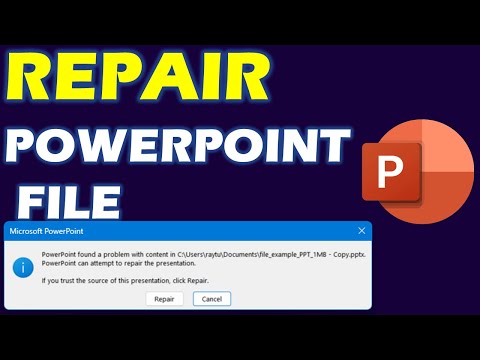
You know that moment when you’re all set to give a presentation? You’ve got your slides looking sharp, and bam! PowerPoint decides to play hide and seek with your files. It’s like they’re there one second, gone the next. Oh, the frustration!
Trust me, I’ve been there too. Picture this: I’m at an important meeting, ready to impress everyone. I open my laptop, and guess what? My slides won’t load. Panic mode activated.
But hey, breathe. There’s hope! You can repair those pesky presentations online without spending a dime—all from the comfort of wherever you are.
Got your attention? Stick around, we’ll make sure tech doesn’t get in your way again!
Free Online Repair for PowerPoint Files
Hey there! Trying to fix a broken PowerPoint file can feel like waking up to find your favorite mug shattered on the floor—it’s stressful but not impossible. And guess what, you can actually repair some PowerPoint presentations online without spending a dime. Here’s how you can try doing that.
Online Repair Tools
There are a few websites out there that offer free repair services. These services aim to mend corrupted files so you can get back to pestering your coworkers with endless slideshows about the awesomeness of your last project, ha!
- Upload Your File: Start by uploading the damaged PowerPoint file from your computer. You just drag and drop it into the service’s upload box.
- Automatic Repair Process: The tool will usually analyze and attempt to repair any corruption or damage automatically. It’s like magic happening behind the scenes.
- Download Your Fixed File: Once it’s done, you get an option to download this repaired version of your presentation. Always give it a quick look through before sending it off.
The thing is, results might vary—sometimes these tools fix everything perfectly, other times not quite. In my experience? I once had my holiday trip presentation glitch and couldn’t open it—I tried an online tool, and voila! Everything was back as if nothing happened.
Selecting A Reliable Tool
When picking which website or service to use for repairs, consider these aspects:
- User Reviews: Checking feedback from other users could help you gauge effectiveness.
- No Cost & Hidden Fees: Make sure there’s no surprise charge waiting in the wings!
- Simplicity & Ease-of-Use: Some sites are less intuitive; go for those which guide you throughout.
Remember though—as with anything online—there’s always some risk involved when uploading sensitive content onto third-party sites—you know? It’s all about finding that balance of convenience versus privacy needs.
So yeah—there ya have it—a straightforward approach dealing with messed-up PowerPoints using free digital helpers readily available over crowdsourced cyber street corners today!
Repair Procedure for a PowerPoint Presentation
Sure thing! Imagine spending hours working on a PowerPoint presentation only to find out it’s corrupted. Disheartening, right? But don’t worry, there’s hope! Let’s go over how you can repair it online for free.
Step 1: Look for an Online Repair Tool
There are several websites that offer free PowerPoint repair services. You just need to search for something like “repair PowerPoint presentation online” and check the first few results. It’s a bit like ordering food—you might have your favorites!
Step 2: Choose a Trusted Service
Once you find a website, take a moment to ensure it’s trustworthy. Check for reviews or user feedback if available. You want something reliable, like when picking out new headphones.
Step 3: Upload Your Corrupted File
Most of these tools will ask you to upload the broken file right away. It’s usually as easy as clicking an “Upload” button or dragging your file into the browser window.
- Select: Find your corrupted PowerPoint file on your computer.
- Upload: Use the tool’s interface to upload the file.
Example: A friend used “Free Online File Repair” and found it straightforward—just click-and-go!
Step 4: Wait for the Magic
The tool will typically scan your file and give you results fast—though some may take longer than others depending on file size and complexity.
- You might see messages about the issues being detected.
- The tool will attempt to recover what’s possible from your presentation.
Think of it as waiting in line at a coffee shop—not too long if you’re lucky!
Step 5: Download Your Repaired File
After it’s done, there should be an option to download the fixed version of your presentation.
- Tip: Save this recovered version with a new name on your device.
- This helps avoid overwriting issues with other files!
And that’s it! You’ve got your data back just like finding loose change in couch cushions—it feels great!
Such repairs aren’t perfect every time due to complexities within some corruptions but hey—worth giving them a shot when things seem bleak!
Free Online Tools for Editing PPTs
Hey there! Ever found yourself in a pinch, needing to tweak a PowerPoint presentation but don’t have the software installed on your computer? Yeah, that can be quite the hassle. That’s where free online tools come in handy—these nifty tools let you edit your presentations without spending a dime or downloading extra software. Let me walk you through some popular ones.
Google Slides: Honestly, this is one of my personal favorites. All you need is a Google account (which is pretty much everyone these days, right?). You can upload your PPT file to Google Drive and open it with Google Slides. It offers basic but powerful editing features, so you can rearrange slides, change fonts or colors, and even add animations if you’re feeling fancy.
Canva: Canva isn’t just for pretty graphics; it’s also great for tweaking presentations! Upload your PPT file into Canva’s platform and start playing around with their drag-and-drop editor. It’s user-friendly and gives creative control thanks to its wide array of templates and design elements.
Microsoft Office Online: If you’re more comfortable sticking with Microsoft’s ecosystem, then Microsoft Office Online might just be up your alley! With an internet connection and Microsoft account (even free ones work here!), access PowerPoint Online directly through OneDrive where you upload—and boom—you’re ready for some straightforward edits!
So how do these tools help when things go kaput while working on our needed presentation?
- No Installation Required: Everything happens directly in the browser—meaning no clogging up storage space!
- Cross-device Accessibility: Whether at work desktop during lunch break—or using tablet couch-side—they’ve got ya covered!
- No-cost Solution: Free options making life simpler without breaking wallet banks.
Oh yeah—and don’t forget about iLovePDF; another tool offering focused services like merging/dividing individual slides alongside essential formatting aids should any unforeseen blunders arise unexpectedly mid-edit… Sweet relief indeed!
Have you ever been in a situation where your PowerPoint presentation decided to take a vacation the day before an important meeting? Let me tell you, it’s no fun. I remember one time; I was ready for this big presentation at work—had everything lined up, practiced my slides multiple times, feeling all confident and then boom! The file just wouldn’t open. Total panic mode.
Now, if that’s ever happened to you (which I hope not!), there are some online tools that can save the day—for free! It’s like having a little emergency kit for your files. The internet is like this giant toolbox, right? You find websites offering services to repair corrupted PowerPoint files without costing you a dime.
But here’s the kicker—some of these websites are super simple to use: just upload your damaged file, and they do their magic. Others might ask for more steps or even sign-ups. And yes, sometimes the result isn’t perfect because tech has its limits too, but hey, it’s worth a shot before starting from scratch!
Remembering how stressed I was makes me grateful these tools exist now. They’re great for those unexpected moments when technology decides it needs a break—usually when we need it most! And trust me, having an option like this can be such a relief when deadlines loom over our heads.
In any case ensuring (or trying) your files are backed up regularly is probably still something we should all try doing…lessons learned from experience! So next time technology tries playing tricks on you maybe think about giving one of those handy online helpers a whirl—you never know when you’ll need it!