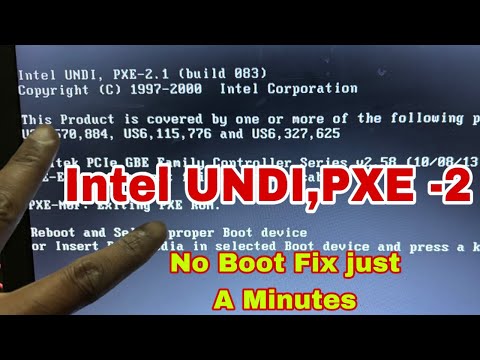
Hey, have you ever had one of those days where your computer just doesn’t want to play nice? We’ve all been there. You sit down, ready to conquer the digital world—or maybe just check your emails—but instead, you’re greeted by some pesky boot-up errors. Ugh!
If you’re rocking an Intel G7400 and having a bit of a rough patch with it, you’re in the right place. It’s like when your car won’t start after you promised you’d take it for regular oil changes… yet here we are.
No need to stress though! It’s usually something that can be nudged back into working properly. So let’s see what’s going on under that hood of yours!
Startup Boot Error Troubleshooting Steps
Oh, startup boot errors—those pesky little gremlins that can turn on what should be a productive day into a frustrating puzzle, don’t you think? They sneak up when you power on your PC, and suddenly, you’re staring at an error message instead of your desktop. Let’s talk about how to deal with these guys, especially if you’ve got an Intel G7400.
Check Your Connections:
Sometimes it’s the simple things that trip us up. Make sure all your cables are securely connected. A loose cable can cause the system to not find essential components at startup.
Inspect the BIOS Settings:
When dealing with boot errors on your Intel G7400, you might want to start by dashing into the BIOS settings. Press F2, Delete, or whatever key gets you into BIOS during startup. Look around for boot priority and ensure that your primary drive is listed first.
- SATA Configuration: Ensure it’s set correctly for your setup—AHCI or IDE mode depending on what hard drive you’re using.
- Date and Time Settings: Mismatched date/time might throw off some systems.
Error Codes Are Your Friends—Sort Of:
Listen—and read carefully—for any beep codes or error messages. They’re not just mockingly beeping at you; they’re trying to communicate! Cross-reference those codes with your motherboard’s manual (it’s probably stashed in a drawer somewhere) to get insight into what’s wrong.
Tweak Boot Order:
Your computer might be trying to boot from the wrong device. In the BIOS setup, look for something like “Boot” sequence/menu and confirm it’s pointing towards the right hard drive.
Hardware Check-Up:
Open up your PC like a surgeon opens up a patient—with care! Examine RAM sticks; reseat them just in case they’ve jiggled out of place somehow. A gentler touch here goes miles.
- If you’ve added new hardware recently, consider unplugging it temporarily until things are running smoothly again.
Error-Avoidant Software Checks:
If everything’s fine physically yet errors persist, software hiccups might need addressing:
- Create recovery media.
- Crying out loud over corrupted Windows files?: Repair ’em using commands like SFC /SCANNOW via Command Prompt from recovery mode.
And there we have it: navigating through erratic startup boo-boos amidst groans while being gentle with our beloved devices! Navigating these waters sometimes requires patience akin fishing without bait… but achieving resolution proves rewarding!
You might have resolved similar mysteries before—it feels almost magical when troubleshooting finally unravels kinks!
Intel G7400 Boot Error Troubleshooting on Windows 11
Imagine this: you’re all set for a day of tinkering with your computer, maybe even planning to game or work on a project. You switch on your machine and—uh-oh—there’s that dreaded boot error staring back at you! If the name “Intel G7400” rings a bell, you’re in the right place.
Let’s figure out what’s going wrong when your Intel G7400 processor is involved. Before diving into specifics, here’s the thing: boot errors can pop up due to various reasons, and they’re usually tied to your Windows 11 system environment. But not to worry; we’ll take it step by step.
- Check Connections: First off, ensure that all cables are connected securely in their respective slots. It may seem obvious but often we overlook these simple things.
- Verify BIOS Settings: Sometimes settings go awry without anyone touching them. Access your BIOS (usually by pressing F2, Del or Esc during boot-up) and make sure everything is as it should be, especially the boot order.
- Secure Boot: If it’s enabled in BIOS settings, disable it temporarily just to see if it affects the problem.
- Error Codes On-Screen: Pay attention if there are any error codes displayed at start-up; they can lead you directly toward what might need fixing.
- RAM Issues: The RAM might be misconfigured too—remove sticks one by one from their slots (if more than one) while keeping only essential ones plugged-in before turning back power once again after each removal stage completed successfully without further trouble occurring again shortly thereafter following test results garnered within due course!
When dealing with hardware-related snafus like these involving modern processors such as Intel’s lineup today—which includes offerings like ours under consideration presently—it’d behoove us rely heavily upon existing forums frequented perhaps even by fellow enthusiasts where similar troubles faced resolved past experiences yielded insights thus far accumulated over time collectively speaking out loud does wonders truly!
If none works still instead scratching head frustratedly then re-check all components functioning correctly because occasionally underlying defects cause malfunctioning regardless efforts put forth earlier troubleshooting steps undertaken conscientiously alongside patience perseverance ultimately reaping rewards unanticipated previously underestimated entirely warranted satisfaction achieved amazing feeling indeed shared globally everywhere connecting humanity together through technology common goal betterment lives whole world over continually strives attain endlessly evermore amen Hallelujah!
Intel G7400 Windows 10 Boot Error Causes
Sure thing! Let’s dive into what can cause boot errors when you’re dealing with an Intel G7400 processor on a Windows 10 system. You know how frustrating it can be, right? Seeing that dreaded error screen instead of the smooth startup you expected? Let’s chat about what might be happening and how to tackle it.
1. BIOS/UEFI Settings
Sometimes, these settings get a little out of whack. Maybe there was an update or just a wrong click here and there. Make sure the boot order is set correctly, meaning your hard drive heads the list if Windows is installed there.
2. Incompatible Drivers
Oh boy, drivers can be tricky! If Windows updates happened recently, they might have included some drivers that your Intel G7400 doesn’t quite fancy. Check if rolling back or updating the drivers resolves the issue.
- NVIDIA GPU: Sometimes graphics cards get cranky with updates. Try disabling it through safe mode as a temporary fix.
- Audiophiles beware!: Audio drivers too can sometimes lead to trouble during startup.
3. Corrupted System Files
I mean, who wants corrupted files on their computer? Not you for sure! Running commands like sfc /scannow using Command Prompt in Safe Mode could help identify these troublemakers.
4. Malicious Software
Viruses love to mess about with boot processes — seriously annoying! An antivirus scan might shine a light on this sneaky situation.
5. Recent Hardware Changes
Did you tweak any hardware recently? New RAM or swapping storage units maybe? These changes could potentially disrupt things; try removing them temporarily for testing purposes.
These are just some possible causes lurking behind those frustrating boot-up errors with an Intel G7400 running Windows 10 — cause hey nobody likes staring at error screens all day long!
Remember always have backups handy like those rainy days where stormy skies catch us off guard… Computers have bad days too!
You got this!
You know, there’s something incredibly frustrating about sitting down with a cup of coffee, all set to tackle your work for the day, and then—boom!—your computer throws a tantrum. It refuses to boot up, and before you know it, you’re staring at an Intel G7400 error message. Argh! Been there, felt that.
Let’s imagine it: You press the power button with all your positive energy, waiting for the hum of life from your machine. But instead of booting up like a champ, it’s just… stuck. Maybe there’s some cryptic error code flashing on the screen or the dreaded blue screen stubbornly refusing to leave you alone.
First things first: don’t panic. It’s not the end of your digital world! Boot issues with Intel processors like the G7400 can often be linked to relatively simple things like loose cables or outdated BIOS settings. Yeah, I know—BIOS sounds super technical and kind of scary—but stick with me.
What happens is that sometimes updates conflict or get missed entirely (such typical tech snafus!). To tackle these issues head-on: pop open your computer case (carefully!) and check if everything’s connected properly. Memory sticks especially love playing hide-and-seek by slightly dislodging themselves over time.
And hey, let’s not forget about BIOS updates—they’re crucial little guys ensuring everything communicates smoothly in that tiny universe inside your device. Head over to Intel’s website where they list updates specifically catering to processor quirks like those seen in G7400s.
Finally yet importantly—and this one’s often overlooked—consider corrupted software as another troublemaker if hardware checks out fine but problems persist. Booting into Safe Mode helps isolate whether third-party programs are meddling with startup processes unexpectedly putting obstacles in smooth sailing plans!
Whenever tackling technology mishaps pops up unexpectedly remember—the journey doesn’t have needlessly become frustrating chaos filled; taking logical steps usually leads solutions right around corner waiting eager hands solve puzzle pieces successfully joining them familiar happy workspace where productivity reigns supreme again…, You follow me?