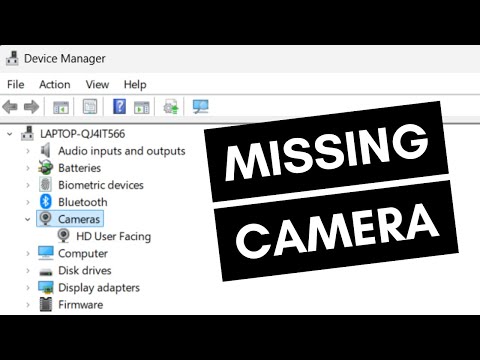
Okay, so picture this—you’re all set for an online meeting. Hair’s done, the perfect lighting… and boom! Your webcam decides to play hide and seek with you on Windows 10.
Annoying, right? A lot of folks have been there. You’re not alone.
Sometimes it’s like: “Windows, why must you test my patience?” Happens to the best of us. But hey, don’t panic!
There might be a simple fix for your webcam woes. Let’s dive into it together!
Resetting Camera Driver in Windows 10
Oh boy, there’s nothing more frustrating than trying to video call someone and realizing your webcam isn’t working. So, you’re staring at a blank screen while your friends or coworkers wonder where you went.
Resetting the Camera Driver in Windows 10 can often help solve issues when your webcam seems to be on strike. Let’s get started.
Checking for Driver Updates: First things first, make sure your camera driver is up-to-date. Outdated drivers can sometimes cause hiccups.
- Press the Windows key, type “Device Manager“, and hit Enter.
- In Device Manager, look for “Cameras“. Click on it.
- You should see your camera listed there. Right-click on it and choose “Update driver“.
- Select the option for Windows to search for updated drivers automatically.
If there’s an update available, follow the prompts to install it. But if not, don’t worry; we’ve got other steps!
Reinstalling the Camera Driver>: Sometimes, just giving the driver a fresh start works wonders.
- Go back to Device Manager like before.
- This time right-click on your camera and select “Uninstall device“. That will remove the current driver.
- /i>
When Windows restarts it’ll usually detect the camera and reinstall the basic driver automatically.Now if automatic isn’t happening or you just want more control head over to either:
your computer manufacturer’s website (like Dell or HP) or directly go-to-the-camera manufacturer’s site.
There you’ll find downloadable drivers specifically suited-for-your model.
But what If you’re still seeing zero images after all that?Time To Tackle Privacy Settings: Yeah privacy could sometimes block access too!
* Use those Win-key again with “Settings” this time!
* Head-on under”Privacy”, click “Camera”.
* Check out options allowing apps-oh yeah don’t forget browser permissions too- access;
toggle em’ off then back-on try again!Hey hang-in there tech glitches aren’t forever they’ll bend eventually—trust-me I’ve witnessed crazier breakdowns before!
Updating Webcam Driver on Windows 10
Alright, so you’re having a bit of trouble with your webcam on Windows 10. Don’t worry, you’re definitely not alone! It can be a real bummer when you’re all set for that video call and, well, your webcam decides it’s not gonna play along. But let’s see if we can sort this out.
Step 1: Check Device Manager
First off, you’re going to want to peek into Device Manager. It’s like the control room of your computer where you can see everything plugged in or installed — hardware-wise. Just hit the Windows key and type “Device Manager.” Easy, right?Once there:
- Look for “Imaging devices”. Your webcam should be listed there.
- If it’s got a little yellow triangle icon next to it, well, that’s our culprit. It means there’s an issue with the driver.
Step 2: Update the Driver
Drivers are like translators between your camera and computer – without updated ones things might get lost in translation.Here’s what you do:
- Right-click on your webcam from that “Imaging devices” list.
- Select “Update driver“. A window will pop up asking how you want to search for drivers.
- You’ve got options! Choose “Search automatically for updated driver software“. Windows will now sniff around online for any recent updates.
If You’re Still Not Seeing Any Changes:
Sometimes drivers are stubborn or they pretend they’re up-to-date even though they’re not!So try this:
- Go back to Device Manager and right-click your webcam again.
- This time choose “Uninstall device“. Don’t stress – uninstalling just uninstalls the driver — not physically removing it or anything!
- (Quick anecdote here: My friend did this once. She panicked thinking she’d literally removed her webcam from her laptop!)
Restart your computer after doing that.
Upon restart? Boom! Windows should re-detect and reinstall the default driver.
No Dice?
If none of these options seem helpfull…, it might be worth checking out if there’s a newer version directly from the manufacturer’s website—especially if using an external USB camera. They’re often more up-to-date than through Windows’ automatic search.
And remember patience is key here; I know tech issues can test that sometimes! But hey!, What’s important is you’ve taken some solid steps toward fixing it yourself—high five for being proactive!
Checking Webcam Driver Installation Status
Ah, webcams! They can be such finicky little devices sometimes, right? Maybe you’re sitting there, ready for a call, and suddenly… nothing. Just a blank screen staring back at you. Before you panic, it could be as simple as checking your webcam driver installation. Drivers are like translators for hardware and software—a kind of bridge that lets them communicate.
Step 1: Open Device Manager
You’re going to start by pressing the Windows key + X. This will bring up a menu where you’ll find the “Device Manager.” Click on it. Device Manager is like your computer’s inventory list; it tells you everything connected to it.
Step 2: Locate Your Webcam
In Device Manager, look under the category labeled Cameras or maybe Imaging Devices. It depends on how your system wants to name things. You should see something that sounds like “webcam” in there.
Step 3: Verify Driver Installation Status
Now double-click on your webcam name! A window pops up with all sorts of tabs. Go over to the one named “Driver.” Here you’re looking for two things:
- Driver Version: This is just like checking what version of an app you’re running.
- Driver Status: Just below, make sure it says something positive—like “This device is working properly.”
If the status says otherwise or shows an error code, that’s probably why your webcam is acting up!
The Solutions If It’s Not Working:
1. **Update Your Driver** – Click on ‘Update Driver.’ Choose the option to search automatically online if prompted. Windows will try its best detective skills here.
2. **Uninstall and Reinstall** – Maybe more drastic but effective! Right-click on your webcam in Device Manager again and hit “Uninstall.” Once done restart your computer—it’s magic sometimes—and hopefully it’ll reinstall by itself.
3. **Check For Windows Updates** – Sometimes driver issues magically disappear after updates because Microsoft likes fixing things in batches!
These steps should help get ya through most common hiccups related directly with drivers not playing nice with each other., Hope everything goes smoothly from here onward!
Alright, let’s chat about those moments when technology decides it wants to throw a little tantrum. Picture this: you’ve got an important video call coming up, maybe with your boss or a loved one far away, and suddenly your webcam just refuses to play nice. It’s like the universe is conspiring against you!
First things first, if your webcam driver isn’t cooperating in Windows 10, take a deep breath. You’re definitely not alone in this; it happens to the best of us! Sometimes Windows updates can cause these hiccups—they’re supposed to make things better but occasionally stir the pot instead.
Imagine you’re scrambling through settings trying to fix things. You wonder if there’s a magic button labeled “Fix Everything.” Spoiler alert: there isn’t one…but we can still work through it together.
Start by checking whether the camera is even recognized by your computer. Go into “Device Manager.” Look for any yellow warning signs next to imaging devices—that’s usually a hint that something isn’t right. If you see anything odd there, try updating the driver software directly from that menu.
If that doesn’t do the trick, consider rolling back recent updates or even uninstalling and reinstalling the webcam driver. Sounds complex at first, but it’s pretty much like giving it a chance for a fresh start! It’s kind of like rebooting yourself with some deep breaths during stress.
Funny story: my friend once had her whole camera issue sorted out because she discovered—much later—that she had accidentally turned off camera permissions in her privacy settings! Sometimes it’s just those tiny little tweaks that’ll save the day.
At any rate, if all else fails—try reaching out on tech forums where real-life humans who’ve seen these issues might have another angle you’d never considered before! And hey if nothing works…it could be time for an external USB camera which might skip all these software hurdles straight away!
But seriously? Whatever you do don’t let it ruin your vibe—it’s just tech being techy again…