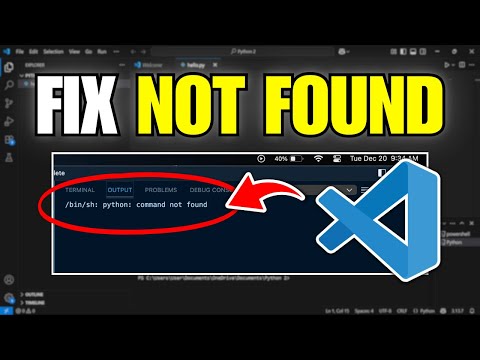
Oh man, ever had that moment where you’re all set to get coding on Debian, but then – bam! – “Python not found” pops up? It feels like hitting a pothole when you’re cruising on a sunny day. Just plain deflating.
But hey, don’t stress it too much. You’re definitely not alone here. I mean, we’ve all been there at least once… Okay maybe more than once for me. It’s an easy fix, promise!
You’ll soon be running your scripts like nothing happened. Just gotta tweak a couple of things with the installation and voilà! Ready to roll with Python again.
Curiosity piqued? Stick around!
Python Not Found Error Solutions
Running into a “Python Not Found” error on Debian can be a bit of a head-scratcher, right? It’s like trying to find your favorite book on the shelf only to realize it’s missing! This usually happens when Python isn’t installed or maybe the system can’t locate it. Let’s dig into some practical ways to resolve this snag.
Understand the Problem: Sometimes, Debian doesn’t have Python pre-installed. If you try running Python scripts and get an error message like “command not found”, that’s your clue!
Check for Installation: First thing’s first: see if Python is there but hiding from you. Open up your Terminal and type:
“`bash
python –version
“`
or
“`bash
python3 –version
“`
If there’s an output showing a version number, congrats, it’s installed! Otherwise, you’ll need to bring it in yourself.
Install Python: If it’s absent, here’s where the magic comes in. Installing Python is as simple as pie:
- Update Your Package List: Run this command:
“`bash
sudo apt update
“` - Install Python3: Use this line:
“`bash
sudo apt install python3
“`
Create a SymLink (Symbolic Link): On some systems, even after installation, running `python` might not work because Debian defaults to only recognizing `python3`. A little trick is to set up what’s called a symbolic link:
“`bash
sudo ln -s /usr/bin/python3 /usr/bin/python
“`
What you’re doing here is creating an alias so every time you call `python`, it knows where to go for your `python3`.
Add to PATH (if Needed): In certain scenarios, even with everything set up, your trusty Terminal might still play hide and seek with Python because it’s nowhere in the PATH. To add it manually:
- Edit the .bashrc file in your home directory by typing:
“`bash
nano ~/.bashrc
“` - Add this line at the end of the file:
“`bash
export PATH=$PATH:/usr/bin/python3
“` - Save changes and update with:
“`bash
source ~/.bashrc
“`
Off you go! Now try calling **Python** again.And hey! With these tips under your belt—you’re all set for smooth sailing ahead without that pesky “not found” error bugging ya. Good luck!
Installing Python on Debian Linux
Sure thing! Let’s get into how you can install Python on Debian Linux, especially if you’ve run into the “Python Not Found” glitch. It’s like trying to bake a cake without flour – not ideal! Here’s a step-by-step way to fix that.
First off, it’s common for some Debian setups not to have Python pre-installed. You’re not alone in this. Maybe you’re just setting up your environment and stumbled upon this roadblock. No worries, though; we’ll get you through.
Checking Python Installation
Before taking any steps towards installation, you gotta check if Python’s really missing or just hiding somewhere:
- Open your terminal. You know, it’s the black screen with white text that makes you feel like a hacker.
- Type
python3 --versionand hit Enter. - If it returns a version number like
Python 3.x.x, hooray! Python 3 is there. If it says something like “command not found,” yep, we need to install it.
Installing Python on Debian
If you confirmed that it’s missing, let’s add it:
- You’ll need superuser permissions here. So try running:
sudo apt update. This command updates the package list for upgrades or new packages. - The next move is with:
sudo apt install python3. This grabs and installs Python from Debian’s repository.
Add-Ons You Might Want:
Hey, once you’ve got the basics down and working smoothly, there are extras that might come in handy!
- Pip: Most people use Pip for managing additional packages for Python projects. To get Pip type:
sudo apt install python3-pip. - IDEs: Integrated Development Environments (IDEs) are all about making coding easier with features like syntax highlighting or autocomplete suggestions. Consider installing one of them to enhance your productivity levels!
A Little Test Run!
After everything’s said and done don’t forget to test run by typing `python3` again in the terminal just ensuring everything runs alright now!
There ya go—easy breezy lemon squeezy!
Installing Python Packages Outside Debian Repositories
Hey there! So, you’re trying to install Python packages outside of the Debian repositories? That’s a fun little adventure, isn’t it? Grab a coffee and let’s get started!
First things first, you might be running into this because sometimes, the version of Python or the package you’ve got your eyes on isn’t available in the official Debian repositories. Yeah, happens a lot.
Why go outside the repositories?
Well, official repos may have older versions due to stability preferences. If you’re itching for something new or experimental… you’re gonna need another way.Step 1: Install Python
If you haven’t installed Python yet—or if your system can’t find it for some reason—you’ll wanna do that first. Here’s how:- Open terminal: Use Ctrl+Alt+T.
- Add deadsnakes PPA (Personal Package Archive):
“`bash
sudo apt update
sudo apt install software-properties-common
sudo add-apt-repository ppa:deadsnakes/ppa
“`After adding deadsnakes PPA:
- Install Python:
“`bash
sudo apt update
sudo apt install python3.x # Replace ‘x’ with your desired version number.
“`Now onto installing those packages!
Step 2: Use pip!
Pip is like this magical tool for installing and managing additional packages that aren’t in Debian’s repositories.- If pip isn’t installed:
“`bash
sudo apt install python3-pip
“`Once pip’s good to go:
Step 3: Install Non-Debian Repo Packages!
I know you’re excited—how cool is installing packages without waiting on repos? Here’s how you do it:
pip install package-name: This command pulls from PyPI (Python Package Index) directly.- E.g., want NumPy? Type: `pip install numpy`.
- If you’ve got a local file (.whl, yeah?): `pip install package-file.whl`.
Remember when downloading directly from external sources (like GitHub), trust is vital! Also check version compatibility—just saying.
Finally, check your installation by using:
“`bash
python3 -m pip show package-name
“`
This helps ensure everything’s hunky-dory.And hey—don’t forget to keep everything updated using:
“`bash
pip list –outdated
pip install –upgrade package-name
“`Congrats—you’ve just leveled up in Python wizardry! 😄 Happy coding!
Ah, the classic moment when you’re all set to dive into a big project with Python, and, whoosh, you hit that infamous wall: “Python not found.” If you’re working on a Debian system and see this message, it might feel like your computer’s playing tricks on you. But don’t worry—it’s likely just a missing installation.
Now, let me take you back to one of my own experiences. I remember sitting in my cozy little home office with a cup of tea steaming next to me. I was ready to execute a script after hours of coding only to face the dreaded “command not found” for Python. My head had an instant flash of frustration!
On Debian systems, especially fresh installations or minimal setups, Python may not come pre-installed or have multiple versions that can confuse things even more. Before getting too concerned about your machine having an issue – double-check by typing `python3 –version` in your terminal. If it doesn’t recognize that command either then we might assume pretty definitely there’s no Python3 installed yet.
Okay—you want Python 3? No sweat! Just go ahead and open up your Terminal (it must be pretty much second nature if you’re already delving into projects), then type away:
“`bash
sudo apt update
sudo apt install python3
“`Remember why we needed both commands? It’s because the first one makes sure all repositories get updated while the second installs what ya need!
But maybe things aren’t so straightforward—you know how technology loves making life interesting sometimes? There could be cases when symbolic links are broken somehow; perhaps they need reinforcing too… yikes! In such instances try hitting up:
“`bash
sudo ln -s /usr/bin/python3 /usr/bin/python
“`I hope this sheds light on getting past those errant moments where computers seem insistent upon irritations rather than cooperation.
Remember though—with these solutions handy whenever Debian decides clumsily hiding something essential like Python sounds fun—you’re back steering ship confidently before long!