You know when you’re all set to dive into the cyber world, and bam—your network card decides it’s on vacation? Yeah, we’ve all been there.
I mean, you plug it in, expect magic, but nothing happens. Nada!
Windows 10 can party with a ton of gadgets… but sometimes that PCI network card is like an uninvited guest.
So you’re staring at your screen thinking “Why isn’t this thing working?” Frustrating, right?
But hey, let’s just breathe for a sec. We’ll figure it out together.
Windows 10 Ethernet Connection Not Recognized
Oh, the frustration of dealing with a pesky network card not being recognized by Windows 10! It’s like being locked out of your own house. You’re dying to get online, but something’s standing in your way.
Here’s a friendly guide to help you get that Ethernet connection up and running:
Check Physical Connections
Is everything plugged in correctly? Start by taking a look at the physical cables and connections. Make sure the Ethernet cable is securely connected to both the router or modem and your computer. Sometimes, the simplest solution is just tightening a loose cable.
Update Network Drivers
Old or missing drivers can often be the culprit. To update them:
- Press Windows+X, then select Device Manager.
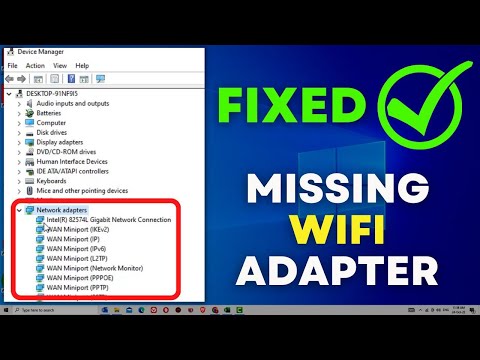
- Find your network adapter under “Network adapters”. It might have an exclamation mark if there’s an issue.
- Right-click on it and choose “Update driver”.
- Select “Search automatically for updated driver software”. Let Windows do its magic.
Reset Network Settings
Network settings can sometimes get scrambled. Here’s how you can reset them:
- Open Windows Settings using Win+I keys.
- Navigate to “Status” under “Network & Internet.”
- Select ““Network reset”“, which will restore things back to default.
Edit Power Management Settings
Your computer might be turning off the PCI card to save power.
- > Go back into Device Manager, find your network adapter again.
- > Right-click > Properties > Power Management tab.
- Check Your Slot Type: Make sure your card matches the kind of slot you’ve got. There’s PCIe x1, x4, x8, and x16—different sizes for different needs.
- Version Compatibility: Motherboards and cards come in different versions like PCIe 3.0 or 4.0. They’re usually backward compatible but double-checking helps!
- Sit Properly! Ensure that you’ve seated the card firmly in its slot – it should fit snugly without any wobble.
- Update Drivers: Outdated drivers can be sneaky culprits. Head to Device Manager to see if there’s an issue with drivers.
- Enable/Disable Slots: Peek into your BIOS settings at startup (usually by pressing F2 or Delete) to ensure they’re enabled.
- If you’re mixing newer cards with older systems—or vice versa—it might not work seamlessly despite being “compatible.”
- If another device works in that same slot then maybe it’s simply a faulty card needing replacement.
- Power Down Your PC: Before diving in there, always power off your computer and unplug it. Trust me, safety first! You don’t want any accidental zaps.
- Check the Seating of the Card: Pop open your computer case and ensure that your PCIe network card is snugly fitted into its slot on the motherboard. If it looks loose or crooked, gently press it down until it clicks into place.
- Boot Up & Head to Device Manager: Power up the machine. Once you’ve logged back into Windows 10 head over to Device Manager by typing “Device Manager” into that little search bar near Start menu.
- Look for Network Adapters: In Device Manager window find “Network Adapters” section–expand this list click on arrow next to it! Can you see something resembling the name of our elusive PCIe card here?
- If you do see it – but there’s a yellow warning icon–it tells us something’s wrong with driver software probably needs attention soon as possible right?
- If no sign exists whatsoever don’t worry—move onto next step!
- Install or Update Drivers Manually:You might need head online with alternative connection seek updated drivers from manufacturer support page directly have them downloaded beforehand placed safely USB drive ready transfer installation excitement afterward happens reboot system feel moment success coursing through veins!(Okay maybe not dramatic but hey installing updates wins day).
- Troubleshoot Driver Installation:Mainly focused ensuring pesky software compatibility disable temporarily anti-virus firewalls preventing proper installation finding suitable version via rolling back old working previously instance none these steps yield results why consult forums dedicated hardware community knowledge endless…;br>>;
(Seriously those folks know stuff trust them piece advice worth gold.) br>;
[Move onto less conventional means involving BIOS tweaks rare impactful mentioning completeness because does happen occasionally] - Dive Into BIOS/ UEFI Settings : b >; br > Find Fast Boot option potentially inhibits hardware recognition disabling gives time breathe identifying connecting smoothly proceed cautiously however adjusting settings unless certain changes positive effect expected honestly preference seasoned users familiar environment; br>;
{You may need consult motherboard manual relation specifics contacting too eager friend whose expertise friendly manner infectious while reaching same goal collaboratively …} ul >Anyway now at least equipped battling stubborn components encounters future persist yet enigmatic presence learning growth hopefully shining light otherwise mysterious domains technology world welcome praise success story awaits enter confidently knowing perseverance key gaining mastery new challenges enhancing understanding lovely digital landscape envelops us all times embrace exploring glory 😉 br>;
Hopefully connects resonates readers inspiring push forward overcoming obstacles encountered amen victory journey beloved technological adventures ahead.
Ah, the pesky PCI network card not showing up on your Windows 10 box. Been there? It’s one of those tech hiccups that can seriously grind your gears. Let’s just say, there was this one time I spent a whole afternoon convincing my computer that a perfectly good network card was actually sitting there, waiting to be noticed. My old desktop just seemed to have a mind of its own.
Alright, enough about me! So, here’s the thing: this issue usually boils down to either hardware hiccup or software tantrum—and yeah, sometimes it’s both at once! It can start with something as simple as the card not being seated properly in its slot. You know how it is; you gently push and click it into place like fitting together those last stubborn pieces in a jigsaw puzzle.
Another trick up your sleeve could be diving into the Device Manager on Windows 10. Once I accidentally fixed my friend’s PC by realizing the drivers got all scrambled up after an update—like who knew? On occasion you’ll find that’s been disabled or maybe even screaming for a driver update. And drivers? They’re those tiny programs that tell your computer how to deal with all its gadgets.
Now, if neither of these do the charm then perhaps BIOS settings are worth checking out. Some machines love hiding little secrets in there where settings might be blocking detection altogether—sneaky devils!
In any case perseverance pays off even if sometimes it feels like you’re trying everything short of performing rain dances around your machine! Technology has this way of testing our patience but don’t let it fool ya—you’ve got this under control…eventually!
>
If there’s a checked box saying something like “Allow computer to turn off this device,” uncheck it!
Feeling any better? If things are still acting up after these steps, it could mean there’s an issue with hardware compatibility or even our good old friend: Windows Update.
Sometimes updating Windows itself clears out these gremlins causing connection issues (yeah!) with newer drivers or patches that fix bugs.
Updating windows ? Just type “update” into search bar ,and follow prompts.– simple enough right!?
Keep fingers crossed & patience handy through this little dance till wired world fairies align connections!
PCIe Slot Compatibility Check
Sure! Let’s chat about checking compatibility issues with your PCIe slot, especially if your PCI network card isn’t being recognized on Windows 10. It’s a bit of a tech puzzle, you know?
First Things First: Understand What PCIe Is
PCIe, or Peripheral Component Interconnect Express, is kinda like the highway for information in your computer. It’s how different parts talk to each other. Imagine if all the cars were data zooming around—smooth travel means faster performance!
Troubleshooting When Not Recognized by Windows 10
Picture this: you’ve installed the card but Windows gives you the silent treatment—frustrating! Here’s what’s usually going on:
Dive Into BIOS/UEFI Settings
Sometimes it’s not just Windows; it’s also about what happens when you power up.
A Few More Tidbits:
And there ya go! Checking these things might just get everything running smoothly again without pulling too many hairs out over tech headaches!
PCIe Network Card Activation Steps
Oh, network issues. They can be a real headache, can’t they? You’re trying to get your PCIe network card to show up on Windows 10, and it’s just not happening. Been there, done that. Let me guide you through some steps to hopefully make this little problem a thing of the past.
First things first: Let’s make sure everything is physically in place.
Alright, assuming everything’s situated nicely in there, let’s move on with checking Windows settings.
Let’s tame those drivers once and forever shall we?