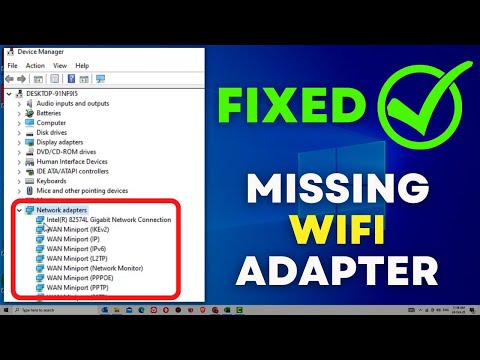
Oh man, have you ever plugged in one of those nifty external network cards into your Windows 10 computer and boom—nothing happens? Ugh, I’ve been there, buddy. You know that feeling when you’re so ready to dive into something awesome, and then technology decides to play tricks on you? Super frustrating.
This one time, I was all set to watch my favorite show online. Had my popcorn ready and everything, only for the internet to play hide-and-seek on me. Yep! Turned out that my external network card wasn’t being detected at all! Talk about a bummer moment.
But fear not; you’re not alone in this mix-up. Let’s figure this out together and get that little gadget working like a charm!
Diagnosing LAN Card Detection Issues
Hey there! You ever had one of those moments where your external network card just throws a tantrum and decides not to work with Windows 10? Yeah, it’s frustrating, but you’re not alone. Let me help you get through this.
Check Physical Connection
- First things first – make sure the network card is actually plugged in. I know, it sounds silly, but sometimes the simplest solution is the one we overlook.
- If you’re using a USB network card, try different ports on your computer. Ports can be finicky sometimes!
Device Manager Fun!
- Press Win + X and select Device Manager. This magical place shows all the devices connected to your computer.
- Look for “Network adapters” and see if there’s an exclamation mark or error message next to your device name. If it’s missing altogether, that might be our clue!
The Driver Dilemma
- Your drivers could be outdated or corrupted. Right-click on the network adapter in Device Manager and choose “Update driver”. Follow the prompts for automatic update search.
- If that doesn’t work out, head over to the manufacturer’s website and download directly from there—the manufacturer’s got you covered with their latest drivers.
The Enable/Disable Dance
- In some cases, simply disabling and re-enabling can do wonders. In Device Manager right-click on the troublesome device and select “Disable.” Wait a few seconds before clicking “Enable” again.
Sometimes our devices just need a quick wake-up call!
Sneaky Power Management Settings
Your network adapter might decide to save power by shutting off when you’re not looking—sneaky!
- Select your network adapter in Device Manager again, click Properties > Power Management tab. Uncheck “Allow computer to turn off this device…”. We don’t want any surprises here!
Imagine being in an intense online game only for this power-saving move messing up everything… Not today!
Sift Through System Logs:
Let’s dig into those logs if none of these simple steps seem effective.
- You can find event logs by entering “Event Viewer” into Start menu search bar.
Understanding these may require patience (and perhaps decoding skills), yet often offer insightful clues regarding recent hardware anomalies.
You know what? Sometimes these issues just show up outta nowhere—but they don’t stand a chance now because you’ve got knowledge under your belt!
Diagnosing Undetected External Network Card in Windows 10
Oh, the frustration of an undetected external network card on Windows 10! It’s like trying to tune into your favorite radio station and getting nothing but static. We’ve all been there. Let’s walk through this together—like chatting with a friend over coffee!
First things first, make sure your network card is properly connected to your computer. It seems obvious, right? But you’d be surprised how often a slightly loose connection can cause these headaches.
Once the physical connection is confirmed, dive into checking if Windows even recognizes that curious piece of hardware hanging off your machine:
- Open Device Manager: You can do this by typing “Device Manager” in the search bar next to the Start menu—easy peasy.
- Look under the “Network adapters” section.
- If you spot something like “Unknown device” or a yellow exclamation mark, there’s our culprit!
If you find it there but with an error:, it might be a pesky driver issue. Drivers are like translators for devices—they help Windows talk to them properly.
Here’s what you can do:
- Update Drivers:: Right-click on that problematic device in Device Manager and pick “Update driver“. Bear with me, Windows will then try its best to fetch what’s needed online.
- No luck?: Sometimes Windows isn’t as resourceful as we’d hope. A trip to the manufacturer’s website might save the day. Downloading and installing drivers directly from there guarantees they’re up-to-date.
But ah—the dreaded “unknown device” not showing at all? It’s like searching for a missing sock that simply vanished from existence.
In such cases:
- Troubleshoot Hardware Changes:: In Device Manager, click on “Action” up top, then “Scan for hardware changes“. This little trick often nudges Windows into recognizing new devices it missed during startup.
- Open Device Manager: You can do this by right-clicking on the Start menu and selecting “Device Manager.” Easy peasy!
- Find Network Adapters: Expand this section by clicking on it.
- Locate Your External Network Card: If it’s not there or showing an error (like a little yellow triangle), that’s our clue.
- Select The Device: Right-click on your network card (or unidentified device) here.
- Select Update Driver Software:
- You’ll see two options: Let Windows search automatically or browse manually if you downloaded drivers from Dell’s website.
- Select Uninstall Device:
oviding these trips help resolve that icky non-detection problem! Feel free refer back aytime mechanical unicorn acts ptusly once more.nk you’ll eet nd hich may apply uniquelyntoyour scenario.;)
Oh boy, dealing with tech issues can really be a rollercoaster, right? You’ve got this sleek external network card that you’ve been dying to use on your Windows 10 machine, only to find out it’s not being detected. Ugh! It’s like getting all geared up for a long drive and finding out your car won’t start.
Imagine this: You’re sitting down after a long day, ready to surf the internet at lightning speed… but nothing happens. Your little network card buddy is seemingly invisible to your computer. Frustrating? You bet!
Now you might be thinking, “Why is this happening?” There could be a few things going on here. Sometimes, it’s as simple as a driver issue. You see, drivers are like translators between your hardware and software. If they’re out of whack or missing, communication breaks down. It’s kinda like trying to talk to someone who doesn’t speak the same language as you.
Another possibility could be the USB port itself. Maybe it’s just not getting along with your network card today — they do that sometimes! Swapping ports can sometimes magically solve the problem.
And let me tell you—I once spent an entire afternoon poking around in Device Manager (that’s where you can see all attached hardware) just for my computer to suddenly recognize my printer after I restarted it for the umpteenth time. Oh man, I still remember that small victory dance when it finally worked!
Anyway, if you’re up against an undetected external network card right now, don’t lose hope! Try checking if there are any updates or reinstalling drivers using Windows Update or directly from the manufacturer’s website—sometimes it’s all about patience and trial/error until something clicks into place again.
Hang in there; tech woes have their upsides too—they teach us resilience and give us some pretty entertaining stories later down line!
When software tweaks fail us:
– There’s always the classic “try another port” approach. Switching USB slots could be just what’s needed—especially if one port is finicky or underpowered.
– If still no joy , testing with another computer ensures it’s not some mysterious fault in our beloved external card.
Fixing tech issues feels daunting sometimes—it reminds me of assembling IKEA furniture without the instructions (we’ve all been there!). By following these steps though you’re stacking those diagnostic blocks one at time hoping each fits snugly till everything clicks together seamlessly again!
Dell Windows 10 External Network Card Detection Issue
Alright, let’s dive into that issue you’re having with your Dell computer and the external network card not being detected on Windows 10. Trust me; you’re not alone in this situation. It’s a pretty common hiccup, but there are some easy-to-follow steps you can take to get it sorted out.
First off, let’s check the physical connection. Sounds basic, right? Make sure the network card is snugly plugged into the USB port. Sometimes just jiggling it around or switching to a different USB port does wonders! It’s like when your phone doesn’t charge and you realize it wasn’t connected properly—frustrating yet simple to fix!
Next up, if everything looks good physically, let’s move onto Device Manager. Here’s where many hidden issues pop up.
If things look weird here, we might need to update or reinstall drivers. Don’t panic—drivers are just like instructions for your computer to communicate with hardware.
Updating drivers:
If updating didn’t do the trick, consider uninstalling: