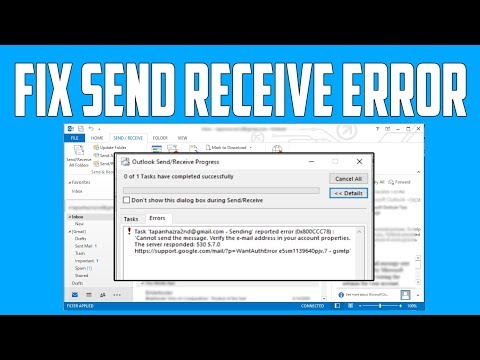
Oh man, Outlook repair errors can be such a pain, right? You’re all set to send that crucial email or maybe you’re just trying to keep things organized. Then… BAM! You hit an error. Talk about frustrating!
I totally get it. I’ve been there myself, staring at the screen, thinking “Why now?!” And you know what? Lots of folks out there are nodding their heads right now ’cause they’ve been in your shoes too.
But don’t panic just yet! We’re gonna sort this out together step by step. Promise it’ll be as painless as possible—like chatting with a buddy over coffee. So grab your cup and let’s get cracking on those pesky Outlook repair errors!
Outlook Repair Tool Limitations
Ah, Outlook Repair Tool. A lifesaver when those email glitches hit, right? But like all good things, it’s not perfect. Let’s shine a light on its limitations with a warm cup of “friend-to-friend” clarity.
Understanding Outlook Repair Tool
You know, the official tool for fixing PST file issues is called ScanPST.exe. It’s there to handle those moments when your Outlook is acting like it hasn’t had its morning coffee. Basically, it’s really helpful but has its quirks.
Limitations You Might Run Into
- File Size Limit: If you have a PST file that dances over the 2GB mark—forget it! Problems might pop up like uninvited guests at your party.
- Only Surface-Level Fixes: This tool is great for basic errors. But if you have deeper issues in your data structure, it’s kinda like putting a band-aid on a broken leg.
- Loses Some Data: Sometimes repairing files means trimming off some rough edges—sounds familiar? Although this can lead to some data going poof!
- No Help with Network Issues: If connectivity woes are getting in the way of emails reaching your inbox, this tool isn’t equipped to be your network guru.
- Limited File Types Support: We’re talking just PST and OST here. So if you’re thinking about other formats…well…you get the picture.
Tackling Those Errors Indirectly
Picture this: It’s late at night, and you’ve got an error message glaring at you while all you want is access to your calendar! The key here can sometimes be prevention or alternative methods:
– Regular backups are like comfort food for digital stress.
– Keeping an eye on file sizes helps avoid bumping into size limits.
– Considering third-party tools as sidekicks might also offer more robust solutions for tricky spots.
While not perfect by any means, understanding these limitations can make navigating repair tasks feel less daunting—and maybe even more manageable in future hiccups!
Repairing Outlook in Windows 11
Navigating through Outlook issues on Windows 11 can feel like finding your way through a maze, right? Let’s make it simple.
Starting Outlook in Safe Mode
You know, sometimes starting the app in safe mode can bypass those little glitches. To do this, you’ll just need to press the Windows + R keys to open the run dialog box. Then type outlook.exe /safe and hit enter. This launches Outlook without any add-ons that might be causing trouble.
Repairing with Microsoft Office Repair Tool
Windows 11 has got this handy repair tool built right in. Here’s how you can use it:
- Open Control Panel and head over to Programs & Features.
- Select Microsoft Office or Microsoft 365.
- You’ll see an option at the top that says “Change”. Click on it.
- A pop-up will appear with two options: Quick Repair and Online Repair.
Go for Quick Repair first—it’s faster. If things still aren’t working quite right, try Online Repair. But heads up: it might take a bit longer as it needs internet access.
Troubleshooting Add-ins
Sometimes add-ins are the culprits behind all those errors you’ve been getting.
- If Outlook works fine in safe mode, consider disabling unnecessary add-ins.
- You can do this by going to File > Options > Add-Ins.
- Select COM Add-ins from the Manage box and click Go.
- Deselect the add-ins one by one and restart Outlook each time to see if removing a specific one solves your problem.
Create a New Profile if All Else Fails!
In some cases, creating a fresh profile can be just what you need.
- Navigate to Control Panel again, go into Mail (Microsoft Outlook).
- Select Show Profiles > Add, then follow instructions using your email credentials.
Let me share my personal tale! A couple of years back I was facing these bizarre error codes whenever I’d start check my emails—and couldn’t figure out why! Then I tried repairing—and voilá—life saver!
By breaking down steps into something more straightforward step by not trying everything at once —you got time; no rush—we get much nearer closer towards fixing errors coming our screen , see?
Outlook Repair Tool Availability
Oh, Outlook! It’s like that old, reliable friend who’s always there for you, but sometimes they just have a bad day, right? One moment you’re sending emails smoothly and the next you’re greeted with an error message. Ever been there? I feel you.
When your Outlook starts acting up on your Windows computer, it’s often due to a corrupted data file or other minor glitches. Luckily, Microsoft provides an Outlook Repair Tool to help fix these issues. Sounds like a lifesaver already!
So how do you use it? Let’s break it down:
- Locate the Repair Tool: First things first! You’ll need to find this magical tool on your machine. It’s called the Inbox Repair Tool or SCANPST.EXE. Quite a name for such a handy helper!
- Finding SCANPST.EXE: Now, this might take a little digging because its location depends on your version of Microsoft Office. Generally speaking, it’s nestled somewhere in the Program Files folder.
- Run the Repair Tool: Once you’ve tracked it down (phew!), open SCANPST.EXE. A small window will pop up asking for the path of your Outlook Data File (.pst). If you’re not sure where that is, use File Explorer to search for *.pst files.
- The Repair Process: After you’ve found and selected your .pst file, hit ‘Start.’ The tool analyzes your data file in hope of finding any errors or corruptions.
- Error Resolution: If it detects any problems—don’t worry—it’ll give you options to repair them directly. Follow through with its prompts and cross those fingers!
You follow me so far? Navigating these tools might take patience but trust me; they’re worth every minute when things start working smoothly again.
And here’s something crucial – always make backup copies of those precious files before doing anything drastic with repairs! You never know what could happen during unexpected moments.
Hopefully today’s chat gave clarity navigating Outlook problems because hey—we’ve all got enough stresses without dealing tech headaches like these ones… Good luck getting reconnected fast my friend!
Alright, so you’ve got Outlook on your Windows PC, and suddenly it’s acting all wonky, right? You click to open an email, but nothing happens. Or maybe it just crashes! It’s like it has a mind of its own. I totally get how frustrating that can be.
I remember this one time my aunt called me in a panic because her Outlook was misbehaving. She’s not exactly tech-savvy (no offense, Auntie!), so she was about ready to throw the whole computer out the window. I had to remind her there’s usually a way around these things before resorting to extreme measures.
First off: have you tried restarting your computer? Sounds basic but trust me—it works wonders more often than you’d think. Sometimes those background processes just need a good ol’ kickstart.
But let’s say you’ve done that. Next up might be running the built-in repair tool. What’s cool is that Microsoft Office comes with its own “Doctor,” if you will, for fixing itself up! You’d go into your Control Panel (kind of like the old-school dashboard in your car), find Programs and Features, and from there select Office and click Repair. It’s kinda like giving Outlook a quick tune-up.
Another trick I picked up is checking for updates—not just for Windows but specifically for Office too. Sometimes errors pop up because something’s out-of-date or wasn’t installed quite right.
And hey, if everything still doesn’t work after trying all this—you might need help from someone more experienced or hit up official support channels for guidance.
Feeling overwhelmed with techie stuff is normal (even computers have bad days!). Just remember: patience and a bit of tinkering usually save the day!