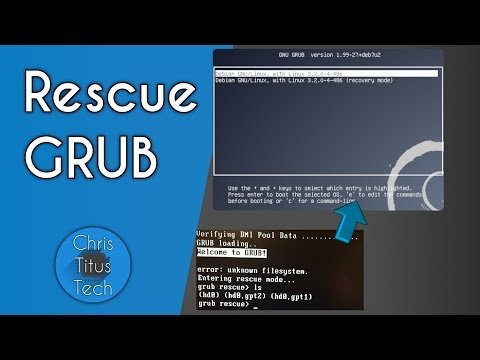
You know that moment when your computer refuses to start? Total panic, right?
But hey, don’t freak out just yet. There’s this neat tool called Super Grub2 Bootloader. Sounds fancy but it’s really just your ticket to getting things back on track.
Imagine it like a superhero cape for your computer. You just pop it on and voilà, boot issues be gone!
Sure is frustrating dealing with these hiccups, I get it. But sometimes all you need is a little nudge in the right direction.
So how about we dive in together and see what’s what with this boot-fixing magic?
Super Grub2 Application Procedure
Alright, the Super Grub2 Application is like this little lifesaver in your tech toolbox. It helps when your computer decides not to boot up. That’s when you turn to the Super Grub2 Bootloader.
Why use Super Grub2? Imagine waking up one day and your computer simply refuses to start. Kind of like trying to cook breakfast only to find the kitchen locked! This tool is for those moments.
Here’s how you can approach it:
- Create a Bootable Disk: First thing, you’ll need a USB stick or CD. Download the Super Grub2 ISO image from their official site and use software like Rufus or Balena Etcher to put it onto your USB or CD.
- Boot from USB/CD: Restart your computer with this new super tool plugged in and prompt it to boot from that disk, usually by pressing something like F12 or ESC during startup.
- Select Your OS: Once it starts up, you’ll see options—sort of feels like choosing which movie to watch on Netflix! You should see choices like ‘Detect any Operating System’ which you can select if things are missing.
Identifying Issues: Once you’re in there, if you’re lucky, simply picking the right operating system will do wonders. But if not…
- Edit Boot Options: Sometimes configurations go haywire—kind of like getting lost without a GPS on a road trip. You could need adjustments here or additional parameters added.
- Restore GRUB: If GRUB needs fixing (it’s what gives those neat OS choices on startup), scripts available within Super Grub2 might help restore what’s broken.
A Little Piece of Wisdom: While this tool is handy for recovery, it’s not meant as a replacement for regular backups. Think about making data copies regularly—you know—to avoid heartaches!
Even though all this tech talk might sound tricky initially (like assembling furniture without instructions!), with patience and these steps close by, you’ll be back online quicker than expected!
Fixing Common Boot Issues with Super Grub2 Bootloader
Oh, booting issues can be such a pain, can’t they? Honestly, nothing is more annoying than starting up your computer only to stare at a blank screen. Lucky for you, there’s this handy little tool called Super Grub2 Bootloader that might just save the day.
What is Super Grub2 Bootloader? It’s like this magical toolkit for fixing boot problems. Imagine you have lost your keys and someone shows up with a universal key. That’s what Super Grub2 feels like when your operating system decides to play hide-and-seek.
If you’re facing trouble with booting, whether it’s Windows or Linux, here are some common issues where Super Grub2 can help:
- Your computer won’t boot: You turn on the PC and… nothing happens. Sometimes it’s due to an incorrect boot order or corrupt system files.
- The infamous GRUB rescue prompt: You see something like “grub rescue,” as cryptic as a secret message from aliens. This usually means GRUB can’t find its configuration file.
So now you’re probably wondering how do you get started? First off, download the latest version of Super Grub2 Bootloader from their official website onto another computer and burn it onto a USB stick or CD—you know, in case CDs weren’t only good for coasters.
- Create a bootable media: Use tools like Rufus or UNetbootin to create it on a USB stick if CDs aren’t your jam anymore.
- Boot from Super Grub2 Bootloader: Stick the USB in (or pop the CD if you’re feeling retro), and restart your problem-child computer. And don’t forget to set BIOS/UEFI settings correctly so it actually boots from there!
- Select “Detect any Operating System”: This is where magic happens—it checks all connected drives for bootable OS installations that might have gone invisible due to various reasons!
If all goes smoothly (*fingers crossed*), you’ll see options listing out found operating systems which had seemed lost! Just select yours using arrow keys—and hit enter—watch them come alive again!
I recall one time our family computer pulled off similar shenanigans before my sibling’s presentation submission deadline – total chaos ensued at home until we discovered this tool thanks partly serendipitous online search venture fueled by panic mode caffeine consumption binges…anyway hope prevents panic next time round gotta love those happy endings huh?
You’ve just used high-tech wizardry without blowing up anything! Ain’t digital life grand sometimes?
Fixing GRUB2 Bootloader Issues on Windows 11
So, you’ve got your shiny new Windows 11 set up and everything seems perfect, until you decide to dual-boot with Linux and whoops—your GRUB2 bootloader throws a tantrum. It’s like when your dog sits in the middle of the street refusing to move. Doesn’t that sound familiar? Here’s how you can tame the GRUB beast!
First things first: What even is GRUB2? Think of it as a kind of traffic controller for different operating systems on your computer. If it misbehaves, well, you might find yourself unable to boot into any OS!
- Step One: Boot from Live Media
- Step Two: Open Terminal
- Step Three: Identify Your Partitions
- Step Four: Mount Your Linux Partition
- Step Five: Reinstall GRUB2 Bootloader
- The crucial part: Use this command –
grub-install --root-directory=/mnt /dev/sdX. Don’t mix up ‘X’, that’d be like putting salt instead of sugar in coffee!
You’ll need a Linux live USB or CD. Ok, imagine it’s like carrying around a spare pair of shoes—handy in unexpected situations! Pop it into your computer and boot from there.
This is where you enter commands—the magic words that’ll bring back order to chaos! Type: sudo fdisk -l. This command’s going to list all your partitions.
You’re looking for something labeled as “Linux” or similar. Take note—you don’t want to scribble this info down the wrong way!
The command here is: mount /dev/sdXY /mnt. Replace “sdXY” with what matches your system… Think of it like picking out which shoe fits best!
If everything went smoothly—and fingers crossed it does—restart your system sans live media. You should see that trusty GRUB menu appear once again.
- Troubleshooting :If issues persist—using tools like ‘Boot Repair’ from Linux environment may just turn out handy.
- A little advice here; having regular data backups can be lifesavers during these rocky events—you know prepared always beats panic right?
)
- This whole process sounds daunting but hey remember even tech experts trip over their shoelaces sometimes at least now next time when they encounter issue similar tackling won’t feel daunting anymore!” }
)
Oh, boot issues. They can be such a headache, can’t they? I remember one time I had a laptop that just refused to boot up correctly—just stuck there on a blank screen. It was so frustrating! And, you know, when you’re dealing with these kinds of problems, having the right tools makes all the difference.
Enter Super Grub2 Bootloader. If you haven’t heard of it before, it’s kind of like having a superhero for your computer’s startup woes. It’s this nifty little tool that can rescue you from some pretty sticky situations.
What Super Grub2 does is help you bypass those pesky boot-loading problems by letting you load and repair different operating systems or operating system components without needing them to be fully functional right away. Imagine it as giving you a second chance to fix things before your computer completely throws in the towel.
This tool is particularly handy if something goes awry after an update or if multi-boot configurations decide they’re not going to play nice anymore. All you’ve gotta do is get this bootloader on a USB stick or CD and use it to access the parts of your system that are acting up. It’s like calling in reinforcements when things aren’t going according to plan.
I remember using Super Grub2 once when my friend’s dual-boot setup crashed after an unexpected power outage… Within minutes, we had access again and managed to set everything back on track.
Of course, while Super Grub2 Bootloader can be a real lifesaver, it pays off massively if you’re willing to dig into some troubleshooting basics yourself too! Familiarizing yourself with how bootloaders work gives you an edge whenever technical hiccups crop up again—because let’s face it—they will visit everyone at some point!
In any case: whether tech-savvy or budding enthusiast; this little loader might just save your digital day someday!