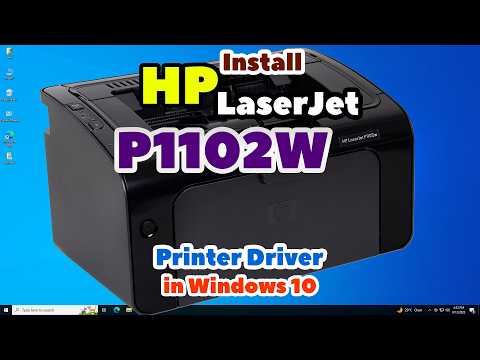
You know there’s this moment, right? That point when you’ve got a new gadget sitting on your desk. Look at you, it’s shiny, and then, boom! There’s this tiny hiccup—installing the driver. It’s like… can anything be easy?
So, buckle up because we’re gonna get through installing your HP LaserJet P1102w driver on Windows 10 together. No fuss, no muss.
Remember that time you were all excited about a new phone app but kinda got stuck setting it up? Yeah, setting up printers can feel like that too! But I’ll guide you through it.
Seriously though, don’t stress it. Just follow along and soon enough you’ll be printing dog pics again—because let’s face it, that’s what we all do with new printers!
Installing HP LaserJet Driver on Windows 10
Alright, let’s get you that HP LaserJet P1102w driver installed on your Windows 10. You know how sometimes printing feels like it’s from the Stone Age? Well, installing the right driver can make it so much smoother—like a hot knife through butter.
First things first: Don’t worry, even though it might sound techy and complex, we’re just having a little chat about getting your printer to work perfectly with your computer. It’s kinda like finding the right key for a door. So here’s what you’ll do:
1. Visit the HP website: Head over to the official HP support page. You’ll want to look for the “Software and Drivers” section.
2. Select your printer model: Type in LaseJet P1102w. Double-check that you’ve got the model number right – these numbers are tiny but super important.
3. Choose Windows 10 as your operating system: This is where folks often slip up, picking an OS that’s not theirs ’cause they clicked too fast or something.
4. Download: Hit download on the recommended driver (usually there’s a fancy word like “latest” attached). Save it somewhere handy on your computer—maybe smack dab in the middle of your desktop?
5.
– Once downloaded, navigate to where you saved that file.
– Double-click it and follow those prompts! They’ll ask some typical setup questions; just follow along by reading carefully.
6. Connect Your Printer: Make sure your printer is on and connected via USB or Wi-Fi—depending on how you roll at home.
Here’s an example from my past: I once spent nearly an hour trying to figure out why nothing was printing only to realize I hadn’t actually clicked “connect” during setup! True story—it happens!
7.
– Try printing a test page from Windows settings (just type ‘printer’ in Start menu). If everything looks good there—that’s celebration time!
Troubleshooting Tips: If things still aren’t working perfectly after all this loveable effort:
- Double-check those physical connections.
- Sometimes reconnecting helps.
Hope that helps get those documents flying out effortlessly!
Installing HP LaserJet P1102w Driver Without Internet
Installing the HP LaserJet P1102w driver without an internet connection can be a bit of a challenge, but hey, it’s definitely doable! Imagine this: you need to print something important and can’t get online. No worries, let’s figure it out step by step. Just make sure you’re ready with some basic things before we get started.
First up, you need the installation CD that came with your printer. If you’re like me and tend to misplace these things, well, don’t panic just yet! You might have tucked it away somewhere safe. But if it’s lost forever in the void, there’s another way. Borrow one from someone who has the same printer model.
Gather what you need:
- Installation CD for HP LaserJet P1102w
- A computer running Windows 10
- A USB cable to connect your printer to the computer
Alrighty then, once you’ve got everything ready let’s start:
1. **Insert the Installation CD:** Pop that CD into your computer’s drive. Wait for it to spin up and open automatically—fingers crossed!
2. **Open File Explorer:** Alright, if auto-run doesn’t kick in, just open File Explorer (that’s like browsing through files on your computer).
3. **Locate the Setup File:** Find that CD drive listed over there? Open it and look for a file named something like “setup.exe”. Double-click it.
4. **Connect Your Printer:** Grab one end of that USB cable and plug it into the printer; then do the other end into your computer.
5. **Follow On-Screen Instructions:** The setup wizard should launch now (hopefully). Go ahead and follow those instructions as they appear.
6. **Testing Time:** Once installation is complete unplug that USB cable… feeling hopeful? Test print something just t’check everything’s good.
Remember this: even though having internet makes life easier sometimes especially when downloading drivers online directly– this workaround proves helpful in situations where connecting isn’t possible! Isn’t having alternatives always reassuring?
And here’s a little tip from personal experience: keep all CDs handy by storing them together in one place so next time around locating any needed ones becomes hassle free too– trust me on this one!
Good luck getting those pages printed smoothly without hiccups!
Installing HP LaserJet P1102w Driver on Windows 10
Setting up the HP LaserJet P1102w driver on your Windows 10 PC can feel a bit daunting, but don’t worry! I’m here to help guide you through it step by step. It’s kind of like assembling a jigsaw puzzle; it may seem tricky at first, but with some patience and the right guidance, it falls into place.
Initial Preparations
Before diving in, make sure your printer is ready for action. Here’s what you need:
- A stable internet connection to download drivers—this is super important!
- Your printer should be turned on.
- A USB cable that will connect your printer to the computer—handy if you’re not going wireless yet!
Downloading the Driver
The driver acts like the translator between your PC and printer, ensuring they understand each other perfectly. To download:
- Visit HP’s Website: Head over to HP’s support page using your browser.
- Search for Drivers: In the search bar, type ‘HP LaserJet P1102w’ and hit Enter.
- Select Your OS: Ensure you choose Windows 10 from any dropdown or list of operating systems they provide.
- Download Driver: Click ‘Download’ next to the latest driver available. Trust me, it’s best to have the newest one—they come with bug fixes and improvements!
Installing the Driver
After downloading comes installation—you’re halfway there!
- Locate File: The driver file usually hangs out in your Downloads folder unless you’ve told your browser otherwise.
- Run Installer:: Double-click on that file; it should prompt an installer window to pop up. Just follow its instructions—it’s pretty slick at guiding you through what it needs!
.
.
Troubleshooting Common Hiccups
Oh, installing drivers! That’s something that always feels like a mini adventure in the world of owning a printer, doesn’t it? Especially when you’ve got a reliable workhorse like the HP LaserJet P1102w and you want to get it running smoothly on your Windows 10 setup. But really, it’s not as daunting as it might seem, even if at first you’re scratching your head.
I remember once trying to set up this printer for my friend’s small home office. She’d just upgraded her computer, and her trusty P1102w was sitting quietly in the corner waiting for its chance to shine again. She looked at me with those “help me!” eyes because she had an important document due by evening. Ah, deadlines!
So, here’s where the magic begins: first thing’s first, you’ve gotta connect your printer to your computer. You know how some devices immediately light up with enthusiasm because they already have what they need? This might happen if Windows 10 recognizes your printer straight away—almost like it’s saying “Oh hey old friend!” But if not, no worries, there’s always plan B.
Now comes finding the driver. You typically head over to HP’s official site—to grab that virtual bridge—that allows your computer and printer to speak the same language. It’s usually as simple as downloading and running through their installation steps; just clicking ‘Next’ until completion. And yeah—they explain things pretty well there!
Sometimes while following along I think about how much simpler tech has made our lives yet how some parts still need a bit of hands-on work—a reminder that we’re still in control of these machines we depend on daily! And make sure that Wi-Fi connection is solid when setting up wireless printing—you wouldn’t want any hiccups when sending documents across thin air.
After all is in place and test documents are rolling out smooth as butter… there’s this kind of beautiful satisfaction knowing everything’s working effortlessly once again—just another small victory conquered!