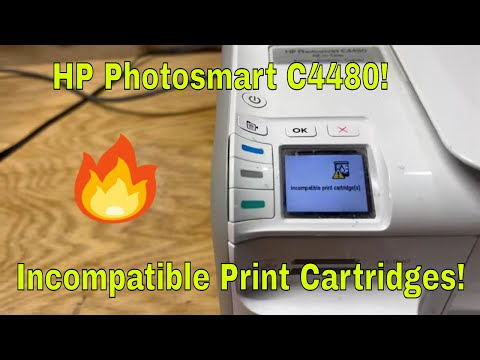
Oh man, printer problems can be super annoying, right? You just wanna print that report or perhaps a cute puppy picture, and bam! Your HP Photosmart C4280 starts acting up because of some weird driver compatibility issues. Ugh, the struggle is real. But hey, it’s nothing we can’t figure out together.
Imagine this: You’re all set to smash out some work or get that invitation printed for your niece’s birthday. You hit ‘print,’ and then… nothin’. Crickets. That’s what happens when your printer and computer aren’t on the same page—literally! Sometimes it feels like they’re speaking different languages. But no worries, we’re gonna sort this out.
Think about it as if your printer is being a little bit stubborn. Like it’s throwing a tantrum because it doesn’t get along with its new buddy—the updated software on your computer. It’s kinda like when two friends have an argument over something silly and need a little nudge to make up.
So yeah, let’s figure out how to patch things up between them. With just a smidge of patience and teamwork, you’ll have things running smoothly again in no time!
HP PhotoSmart C4280 Wireless Capability
Oh, the joys of printers! Sometimes they can be a little sneaky and hide features you didn’t expect. When it comes to the HP PhotoSmart C4280, it’s a question that pops up quite often: “Can this printer do wireless printing?” And hey, it’s a reasonable thing to wonder.
Here’s the deal. The HP PhotoSmart C4280 is primarily known as an all-in-one inkjet printer that handles your basic printing, scanning, and copying needs. But when it comes to wireless capability—well, there’s a little twist.
- The Surprise: No Built-In Wireless: The C4280 doesn’t come with built-in Wi-Fi capability. You can’t just connect it directly to your home network wirelessly like some other fancy newer models.
- Using USB Connection: This trusty printer prefers the classic USB cable connection to hook up with your computer. It’s simple and direct—just like back in the day.
- Alternative Solutions: If you’re dead set on going wireless though, there might still be hope! You could use a wireless print server. Think of it as a tiny bridge that links your non-wireless printer to your network.
- Anecdote Time: I remember when I visited my old pal Pete who was struggling with wires everywhere because his desk was basically drowning in them. We found an affordable wireless print server online and boom—problem solved without splurging on new equipment!
- The Driver Compatibility Concern: Here’s another nugget worth mentioning if you’re running into issues getting this device humming along smoothly—make sure those drivers are up-to-date! Download them either directly from HP’s official site or run any bundled software CD for installation.
It’s one of those situations where news isn’t exactly what many folks hope for but hey—you got options nonetheless! And now at least you know why things aren’t quite connecting effortlessly right outta’ box like magic.
And by all means head over confidently now while wielding newfound knowledge about what possibilities exist given constraints faced – even if they weren’t anticipated initially setting sights high expecting seamlessness automatically working purely off instincts alone before reaching clarification moment provided herein today amidst journey seeking answers diligently pursued above anything else previously imagined beforehand ever possible considered solemnly amid quest known fondly around parts dubbed “Printer Land Adventures”.
HP Photosmart C4280 Windows 11 Driver Compatibility
can be a bit of a maze, especially when you’re updating your computer operating system. Ah, those pesky driver issues! I got you covered, though.
Why compatibility matters
When you connect your printer to your PC, it’s not always smooth sailing if the drivers don’t match up. It’s like trying to speak two different languages—they can end up not understanding each other!
Checking driver compatibility
First things first: find out what drivers you currently have for the HP Photosmart C4280. You might remember installing them ages ago when running an older version of Windows.
- Visit HP’s official website: Head over there and look for any available updates specifically supporting Windows 11.
- Windows update: Sometimes, Windows itself offers updated drivers. Go into settings and see if there are pending updates for your hardware.
- User forums: If you’re still unsure or spot trouble, folks in tech forums often share helpful advice or workarounds.
Sneaky troubleshooting tips
Using your HP Photosmart C4280 without hiccups involves a few useful steps:
- Compatibility mode: If there’s no direct support yet for Windows 11 on the HP site, try installing older drivers in compatibility mode.
- Painful but possible reset: Turn off both printer and computer; sometimes they just need to reboot fresh!
- A harmless restart once saved me after hours of pulling my hair out… definitely worth a shot!
Remember these golden rules when dealing with driver compatibility issues: Stay patient and keep things simple by sticking closely with official sources—as much as possible anyway! So yeah even though navigating these problems may feel daunting at first glance you’ll get through it fine fam!
HP Photosmart C4280 Driver Compatibility Issues
Oh, printer woes, they’re always lurking around the corner, aren’t they? If you’re dealing with the HP Photosmart C4280 and its driver compatibility issues, I totally feel your pain! It’s like trying to get an old pair of shoes to fit again—sometimes it just doesn’t work out as easily as you hope.
Now before diving in completely let’s understand what a driver is. A driver works like a translator between your printer and computer. Without it, these devices can’t “speak” to each other. So if you’re having trouble with your printer, it’s often because this translator isn’t doing its job properly.
Key Compatibility Issues:
- Operating System Mismatch: Sometimes the real kicker is that new operating systems don’t play nice with older drivers. If you’ve upgraded your computer recently this might be why everything seems upside down.
- Wrong Driver Installed: This might sound silly but it’s more common than you’d imagine! Double-check that you’ve got the correct one for your specific model.
- Outdated Software: Like wearing outdated fashion! Just not gonna work right—your old driver may simply need an update.
Troubleshooting Steps:
- Check HP’s Official Website: Always start there—they usually have up-to-date drivers tailored specifically for whatever OS you’re using.
- Use Windows Update or MacOS Updates: Sometimes these built-in options can find solutions you didn’t even know existed. Give them a shot!
- Uninstall & Reinstall: Sounds basic but there’s beauty in simplicity—completely removing then reinstalling those buggers could solve everything.
You know what’s really interesting? One time my friend tried installing an older version of Windows on his shiny new laptop thinking it’d solve all his printing problems… Boy was he wrong! Turns out modern and old tech have minds of their own sometimes (go figure!).
For techies at heart who love tinkering around beyond basics—you might want(but careful!), experiment with third-party software patches that sometimes exist online…But these can be risky ventures so proceed only if absolutely necessary!
In case nothing works out despite following every step religiously—it’s okay take deep breaths—it happens even among expert users occasionally. Maybe reach out directly via support forums where other seasoned warriors share secrets unspoken elsewhere; they truly can work wonders too sometimes!
Hope some part resonates making life easier next time powering up precious C4280 companion gracing desktop space ever loyally beside season after season…
Oh, printer drivers! If you’ve ever had an HP Photosmart C4280, you know what I mean. It’s one of those quirky situations that many folks have faced. Let me tell you about a time when my friend Sarah was wrestling with this very issue.
Sarah had just bought a new laptop and was excited to get everything synced up, including her trusty old HP Photosmart C4280. But connecting the two? What a rollercoaster! She hit the classic compatibility wall most of us dread. You see, sometimes older printers just don’t mesh well with newer operating systems—like when your favorite band no longer plays your hometown.
So there we were on this sunny Sunday afternoon, sipping coffee and hoping for the best. The thing is, finding the right driver can feel a lot like searching for a needle in a haystack! Sarah tried downloading several drivers from HP’s website, but nothing seemed to fit quite right.
The breakthrough came after tweaking around in some online forums—those spaces can be goldmines if you dig with patience (and use your instincts). Someone suggested checking out an updated universal print driver from HP’s site. It was like finding that missing puzzle piece; suddenly everything just clicked into place!
We laughed at how something so small could cause such a commotion. And when that test page finally printed – let me tell you – it felt like winning a prize at those claw machines! Sarah learned that even though tech has its hiccups, perseverance pays off.
The experience made me realize how these little hiccups teach us patience and resourcefulness. Technology might not always flow seamlessly as we’d expect—but hey—that’s what keeps it real interesting right?