Ah, the Ryzen chipset—it’s kind of like your dependable buddy who’s always there but occasionally has a bit of an attitude. You know what I mean? Like when you try to plug in a new gadget or update something, and it just can’t seem to play nice.
I’ve totally been there! One minute everything’s smooth as silk, the next, it’s hiccup city. It’s those little quirks that make tech both fascinating and sometimes… well, infuriating. But we keep coming back because when it works? Magic.
Now let’s get real for a sec. Compatibility issues aren’t exactly thrilling, right? More like a chore you didn’t sign up for. But getting them sorted can feel pretty satisfying—like finally finding that missing sock in the laundry.
Curious what makes Ryzen tick (and sometimes not tick)? Let’s uncover some common gremlins and see what’s behind those hiccups—the good thing is there are ways to fix them!
Ryzen Motherboard Compatibility Requirements
Understanding Ryzen motherboard compatibility can feel like piecing together a puzzle. But don’t worry, it’s simpler than it seems once you get the hang of it. When you’re trying to build or upgrade a system using an AMD Ryzen processor, checking motherboard compatibility is crucial.
Here’s what you need to pay attention to:
- Chipset Compatibility: Ryzen CPUs work with several chipsets like A320, B450, X470 among others. Each chipset offers different features and support levels for processors. For instance, if you’re eyeing overclocking or advanced features, you’ll probably want to look into something like an X570.
- BIOS Version: Sometimes your motherboard may need a BIOS update to support newer Ryzen processors. Check the manufacturer’s website for any BIOS updates required for compatibility with your CPU.
- Socket Type: Make sure the socket type on the motherboard matches your CPU’s requirements—usually AM4 for most Ryzen models.
There was this once when I was trying to upgrade my friend’s PC with a shiny new Ryzen chip. We thought we had everything figured out until we realized the BIOS wasn’t updated enough! You bet it was a lesson learned.
And then there’s RAM Compatibility. Not all RAM modules work equally well across different motherboards and CPUs.
- Check Supported Speeds: Motherboards often have specific supported RAM speeds—make sure yours matches or exceeds these specs.
- Dual Channel Support: For better performance, aim for dual-channel memory configurations as supported by many Ryzen systems.
A while back another friend bought high-speed RAM that his new rig didn’t actually support fully—it ran under whelmingly slower than expected because he didn’t double-check this ahead of time.
Lastly but very importantly: read those manuals! They’re there precisely so folks won’t run into any hiccups during their builds.
With those pointers in mind—a glance at manuals & online forums before picking parts can save potential headaches later (& who wants them after all?).
AMD Chipset Software Functionality Issue
Alright, so you’ve got yourself an AMD Ryzen processor, right? Fantastic choice! These chips are all about power and efficiency. They’re like the race cars of processors. But…sometimes, you might run into a few bumps on the road with their chipset software functionality. Let’s chat about that.
Common Issues with AMD Chipset Software:
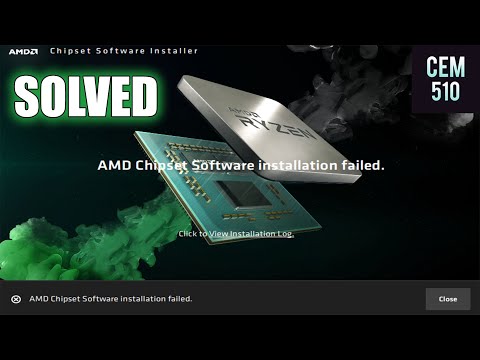
- Installation Problems: You might think everything is set up perfectly, but oh no, the installer fails or doesn’t recognize your hardware.
- Compatibility Concerns: Sometimes after a Windows update or even after updating other drivers, things just don’t line up correctly.
- Performance Hiccups: You could notice your system isn’t as zippy as before—or worse—stability issues pop up like random reboots!
Here’s a little story for ya: I remember this one time when my buddy Mike installed a new game on his PC with an AMD Ryzen chip. He fires it up and boom! Just like that, he faced stuttering and crashing issues. Poor guy was all puzzled until we figured out it was this sneaky little chipset driver that needed an update.
Fixing these Pesky Issues:
- Check for Updates: Always make sure you’ve got the latest chipset drivers from the official AMD website. They release updates often to improve compatibility and performance.
- Clean Installation: Sometimes removing previous versions and performing a clean install really helps! Just uninstall it through Control Panel (Programs & Features) first.
- Tweak BIOS Settings: Dive into your BIOS and check if there’s an update available. Manufacturers often push updates to improve compatibility with chipsets.
And hey, don’t get too stressed! Hardware interactions can be unpredictable at times. A friend once said dealing with tech is like adopting a pet: rewarding but can have some messy challenges along the way!
**Why It Happens:** It’s not always AMD’s fault entirely; myriad variables come into play here—like different motherboard vendors—and Windows updates shaking hands awkwardly (or not at all) sometimes.
So there ya have it! With these tips in mind hopefully nothing takes away from enjoying those smooth gaming sessions or productive work hours powered by Ryzen awesomeness!
You Got This!: If things still feel complicated call in additional help-line trusted forums specific communities—they’ve been around block countless times offering advice sharing solutions firsthand experiences similar scenarios heck they love talking shop over there believe me…
Windows 10 Ryzen Chipset Compatibility Issues
You got yourself a Ryzen processor and you’re using Windows 10, right? And now maybe you’re scratching your head over some hiccups. Let me tell you, you’re not alone—many folks run into bumps along the way with this combo. But no worries! I’m here to help make sense of it.
Understanding Compatibility Issues
The thing is, sometimes Ryzen CPUs don’t play nice with Windows 10 right out of the gate. Sure, they usually work fine, but once in a while you’ll hit those moments where things just seem off.
- Driver Woes: Oh boy, outdated or missing drivers can be such pests! If your system’s misbehaving—like maybe it’s being sluggish or freezing up—you might want to take a peek at those chipset drivers.
- BIOS Updates: This one’s big! Every so often, manufacturers release these updates to smooth things over. Missing an update might lead to compatibility quirks.
- Windows Updates: Love ’em or hate ’em—but they’re essential! Sometimes missed updates can be why things act funky.
Smoothing Things Out
Don’t fret too much; there are ways to get everything running like clockwork. Let’s dig into that!
- Update Drivers Regularly: Head over to the manufacturer’s website for those latest chipset drivers. Got a new one? Install it and see if that sorts things out!
- Bump Up Your BIOS Version: Trust me on this—check your motherboard maker’s site for any new BIOS versions waiting for you.
- Keeps Tabs on Windows Updates: Go into Settings > Update & Security > Windows Update and click “Check for updates.” It could make all the difference!
Tales from the Trenches
I recall helping my neighbor Dennis who was tearing his hair out over this exact issue. His computer would freeze whenever he tried using certain apps—super frustrating! We updated his chipset driver and voila—the problems poofed away!
Look, technology isn’t always as reliable as we’d like it to be. But knowing where little tweaks can make big changes is half the battle won.
Your Turn!
So go on and give these tips a try. The idea being: iron out these quirks without having to bite more than you can chew when dealing with these hardware hiccups.
There’s always room for learning with tech stuff—it never ends really—and that makes it both challenging and exciting at times!
You know, crazy how tech can give us those head-scratching moments, right? I remember when my friend Steve decided to upgrade his PC. He was all excited and went for one of those shiny new Ryzen processors. Well, he didn’t think much about the chipset compatibility before diving in. Oh boy, did that lead to a rollercoaster ride.
First thing he ran into was the BIOS update issue. He’d pop in the processor and nothing happened—zilch. Turns out, his motherboard needed a BIOS update to recognize the new Ryzen chip. It’s like trying to teach an old dog a new trick without training treats! So, there he was searching for solutions online—and thank goodness for online forums where other folks had been through this exact drama.
Then there’s this quirky RAM thing. With these Ryzen systems, memory compatibility can be finicky sometimes—especially with older boards or certain RAM speeds that don’t play nicely together out of the box. Steve found himself wrestling with the settings in BIOS just to get everything stable. For someone who usually only played around with basic settings? It felt like deciphering alien language codes or something.
And not forgetting drivers! Ha! The simple joy of installing something only for Windows to throw up fifty “missing driver” alerts is enough to make anyone feel faint-hearted. But I have to say: AMD’s kept improving their drivers over time, making life easier even though it wasn’t always sunshine and rainbows at first launch.
Honestly though? Once you’ve got all those little gremlins sorted out—updated BIOS here, tweak some memory timings there—the performance boost is really worth it! It’s amazing how snappy everything becomes when it finally falls into place.
So if you’re considering jumping aboard the Ryzen train? Just make sure you hit up your motherboard’s website ahead of time—you’ll save yourself one big headache by ensuring compatibility upfront!
Anyway yeah… tech life can be fun but challenging sometimes too!