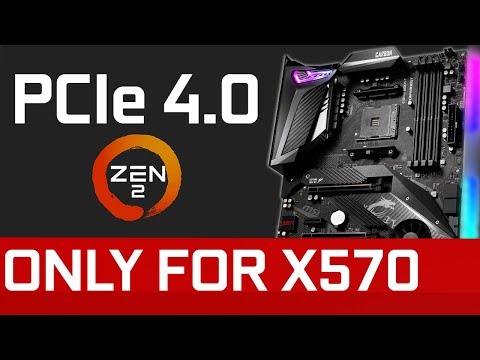
Oh man, technology can be a real head-scratcher sometimes, right? You get all excited about upgrading your computer with the latest and greatest stuff—like those snazzy PCIe Gen4 SSDs. They promise lightning-fast speeds, and who doesn’t want that? But suddenly you hit a roadblock: your good old system isn’t quite as eager to welcome this new tech.
You ever pick up a shiny new gadget only to realize it doesn’t play nice with what you’ve already got? That’s kind of what’s going on here. Older systems and newer SSDs have a bit of a compatibility dance they need to do. And let me tell you, it’s a tricky tango.
I’ve been there; trying to make things work like they should but running into hiccups that just don’t make sense. It’s one of those moments where you just shake your head and wonder “Why can’t things be easy?” But don’t worry! There’s always hope for bridging the gap between old faithful hardware and new-fangled tech. Let’s dive in (see what I did there?)!
Gen 4 SSD Compatibility with Older Interfaces
You know, being part of this fast-paced tech world can be quite a ride. It’s like every day there’s something shiny and new popping out of the wizard’s hat. One minute you’re getting the hang of the latest gadget, next thing you know there’s an even faster one around the corner. But hey, that’s just how things roll!
Now, let’s get into something that’s been buzzing around lately: Gen 4 SSD Compatibility with older interfaces. If you’ve dipped your toes into improving your computer’s speed or storage, you’ve likely heard about these Gen 4 solid-state drives (SSDs). They promise some blazing-fast performance. Yet, compatibility with older systems isn’t always straightforward.
PCIe Generations Explained:
Imagine PCIe slots as highways inside your computer. Different generations mean different lanes for data traffic.
- Gen 3: These are like a four-lane highway—perfectly functional and relatively quick.
- Gen 4: Think of this as an eight-lane superhighway offering double the speed!
Now you’re probably thinking: “Can I stick my Gen 4 SSD into an older system?” Sure thing! But not all features will work at their peak.
Main Compatibility Issues:
- Speed Limitation: If you plug a Gen 4 SSD into a PCIe Gen 3 slot, it’ll work but it’ll only go at Gen 3 speeds.
- Bios Support: Some old systems might need a BIOS update. It’s like giving them a little pep talk to get them ready.
A buddy of mine once tried upgrading his trusty old PC by popping in a new Gen-4 drive—only to find it wasn’t any quicker than his previous drive! We had quite a laugh after realizing his old motherboard was bottlenecking the poor thing.
Troubleshooting Steps if Things Go South:
1- First off check for any BIOS updates available from your motherboard manufacturer.
2- Make sure your existing cables and power supply meet requirements.
3- Consider consulting forums or tech communities if you’re stuck – those folks can be lifesavers!
At times we all get overly excited by shiny new equipment without considering our machines’ realities; heck I’ve been there myself many moons ago when trying desperately (yet unknowingly futilely) make some hot-off-the-press gear fit into my stubbornly aging desktop tower!
Remember though: upgrading isn’t always necessary unless there’d noticeable boost in performance given usage patterns etc., right?
Well anyway… Happy computing adventures ahead!
Pcie Gen4 SSD Compatibility in Older Windows Systems
Sure, understanding PCIe Gen4 SSD compatibility in older Windows systems can seem like a hassle at first, but let’s break it down together in a simple way.
First off, PCIe is this technology that connects various components inside your computer, and it’s super important. Think of it like a highway for data between your SSD and motherboard. Now, these highways have different generations—Gen3, Gen4—and each new one is generally faster than the previous.
Compatibility Basics
- Motherboard Support: For a PCIe Gen4 SSD to work at top speed, you’ll need a motherboard that supports PCIe 4.0. Most likely you’re looking at a board with an AMD Ryzen 3000 series CPU or later.
- Backward Compatibility: Luckily for us folks using older systems, these new Gen4 drives often work on older motherboards too! They just run at the slower Gen3 speeds.
Feeling curious? Check this out: I had an old rig with no official support for Gen4 SSDs. After throwing one in there, my system ran without hiccups but couldn’t reach that zippy top speed. Bummer? Not really—it still felt much quicker than my old drive.
Bios & Drivers
- Bios Updates: Updating your BIOS can sometimes help recognize newer hardware better even if full speed isn’t possible.
- Avoid Driver Hassles: Make sure you’ve got current drivers installed; they keep everything playing nice together. You wouldn’t believe how many times driver updates fix seemingly strange problems!
There’s one thing worth mentioning about potential hurdles: thermal management matters here too—Gen4 drives might get toastier since they run big data lanes fast! If heat becomes an issue (you’ll notice slowing performance), adding extra cooling could be helpful.
The Legacy Lane
- Cost vs Benefit Analysis : Weigh up whether investing hugely into bleeding-edge tech pays off given other priorities right now…especially if we aren’t maxing its full capacity anyway due to limitations involved 😅. li >
- Realistic Expectations : You’re not alone wondering why things aren’t exactly lighting-fast immediately—the ol’ faithful was never meant expect lightning speeds overnight either …Keep expectations reasonable yet trust it’ll definitely outperform traditional HDDs 😉 li >
ul >In conclusion? Time marches ever forward bringing perks faster storage capacities along wide distribution support standards slowly tagging behind ensuring most complete utilization—you follow me?
PCIe 4 SSD Compatibility with PCIe 3 Slot
Ah, the wonders of technology! You get yourself a shiny new PCIe 4 SSD, and then wonder if it’ll play nice with your older PCIe 3 motherboard. A pretty common concern, right?
Good News First: Your PCIe 4 SSD is compatible with a PCIe 3 slot. See, these technologies are like those kindly neighbors you have that always lend a cup of sugar when you’re out. The newer generation hardware can usually work with the older versions thanks to something called backward compatibility.
- Performance: The thing here is that a PCIe 4 SSD will work at PCIe 3 speeds when plugged into a PCIe 3 slot. It’s like having a sports car in city traffic—it can go fast, but there’s some limit to how much it can stretch its legs.
- Installation: There’s no need for special tricks or wizardry in installation; just plug it into the slot and you’re set. It’s like putting LEGO blocks together—satisfyingly simple.
- Cautions: Sometimes an older motherboard might not support the full capabilities of an NVMe drive or require a BIOS update for everything to run smoothly.
Now let’s sprinkle in a bit of techie stuff! When you’re dealing with different generations, “lanes” are important. They determine how data flows between your SSD and other parts of your system.
Lanes Matter Too! Just to be sure everything’s peachy: check if your motherboard uses all available lanes for that lovely piece of hardware you’ve got there. In some cases, certain slots on your motherboard might provide fewer lanes which might slightly cap performance.
In my own setup once, I had this very mismatch—installed my Gen4 drive only to find out later I needed an upgrade myself… My system was snailing along due mainly due what I’d overlooked initially regarding lane usage!
Remember though: even without hitting max performance numbers from Gen4 under Gen3 conditions—you’ll still notice snappier load times compared say traditional HDDs—or even earlier gen solid-state drives!
Anyway—it’s quite convenient tech progression doesn’t immediately render past investments obsolete every time new gear emerges—keeping things friendly on both pocket book & frustration levels alike!
You know how technology loves to keep advancing at breakneck speed, right? We got the flashy new PCIe Gen4 SSDs promising lightning-fast speeds—like “blink and you’ll miss it” fast. Now, here’s where things get interesting: you’ve got one of these in your hands, and you’re all pumped up to install it in your trusty old system. But hold on a second—it doesn’t quite work as planned.
Let me share a little story with you. Picture my buddy John: last weekend he was all set for an upgrade marathon with his classic machine he’d had forever. He grabbed himself one of those shiny Gen4 SSDs. Plugged it in, fired up the system…and crickets. Nothing happened! It seemed like the universe was having a laugh at his expense.
The thing is, older systems often don’t support the latest PCIe versions natively—especially those no-longer-so-modern systems that predate even Gen3 standards! The motherboard might not have the required chipset or BIOS version to leverage such high-speed capabilities.
Even if they do physically slot into a Gen3 port (because they’re backward compatible), they might fall short of unleashing their true potential speeds! Kind of like trying to race a sports car on an off-road track without any tires.
So what can you do? Well, some folks manage by updating their BIOS (if updates are available), which sometimes unlocks broader compatibility; others just embrace living with slower speeds until it’s time for big upgrades downrange.
In moments like these when tech leaves us scratching our heads…we remember how fun yet unpredictable this digital world can be sometimes!