You ever feel like your phone’s just packed tighter than a can of sardines? I mean, one minute, everything’s running smooth, and the next, you’re greeted by that annoying “storage almost full” notification. Ugh, right?
So there I was the other day, desperately trying to take a picture of my dog doing this hilarious thing. But nope! My phone just wouldn’t let me. And yeah—let’s face it—it’s frustrating.
But hey, don’t worry! I’ve got some nifty tips to help clear that precious space on your device. Trust me. By the time we’re done here, you’ll be snapping away with room to spare!
Freeing Up Space on Samsung Phones
Hey, ever picked up your Samsung phone and noticed it’s slower than usual? Or maybe you got that dreaded “Storage Full” notification. Yeah, it can be pretty annoying. But let’s not get stressed out! I’m here to help you figure out how to free up some space on your beloved device.
Check What’s Taking Up Space
First things first, dive into your phone’s settings to see what’s hogging all the storage. Go to Settings, then Device Care, and tap on Storage. You’ll get a breakdown of categories like apps, images, and videos. Sometimes, you’ll be surprised at what takes up a chunk of space!
Clear Out Unnecessary Apps
Let’s face it; sometimes we download apps that we barely touch again. Find those underused ones in the list and uninstall them. Just long-press on an app icon from the home screen or app menu, then tap on “Uninstall”. It’s like cleaning out your closet but for apps.
Cull Your Photo Gallery
I know we all love capturing memories with tons of photos. But do you need duplicates or those blurry shots? Head over to the gallery app and do some digital decluttering by removing unnecessary pictures or moving them to cloud storage solutions like Google Photos.
Here’s a sneaky tip: use the built-in feature in Samsung called “Free up space”. It helps automatically move content you’re less likely to access frequently.
Empty the Trash
Did you know deleted files don’t disappear right away? They hang around in a trash folder for about 30 days usually taking up space. Check if there’s anything sitting there waiting for permanent deletion by opening apps like Gallery or My Files and emptying the trash bin accordingly.
Manage Downloads Wisely
Got old PDFs or documents doing nothing but sitting in your downloads folder? Open up My Files > Downloads folder then start cleaning house by deleting unnecessary items!
Move Apps & Data To SD Card (If Supported)
If you’ve got an SD card slot available (lucky you!), consider transferring some apps–or even media files–to external memory via Settings > Apps selection–simply choose where data should live next using options shown within each application info screen after tapping ‘Storage’.
With these tips tucked under our belt freeing space doesn’t have feel daunting anymore right?! Phew! Now run smoother enjoy faster speeds without worrying getting full alerts popping again anytime soon!
iPhone Storage Management Steps
Hey there! Let’s chat about managing your iPhone storage. Sometimes it feels like we’re just snapping photos or downloading apps, and then boom, space is gone. It’s a bit frustrating, isn’t it? But no worries, I’ve got a few handy tips for you to help free up some space.
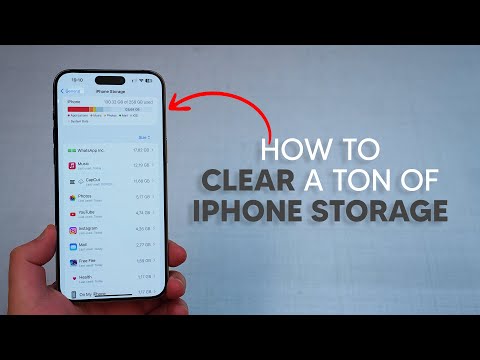
First things first, it’s good to know where all that storage is going. You can check this on your device by going to Settings, then tapping on General, and finally selecting iPhone Storage. Here you’ll see a breakdown of what’s eating up the most room.
- Photos and Videos: They can take up loads of space. If you’re someone who loves capturing every moment, try using iCloud Photos or Google Photos to store them in the cloud. This way you keep those memories safe without them hogging all the space.
- Apps: Some apps are sneaky space hogs! Check the list of apps sorted by size in your storage settings. If you find some that you rarely use or just don’t need anymore, delete them by tapping on them and selecting “Delete App.”
- Messages: Yep, those long threads might be cluttering things up too. Consider deleting old conversations or setting messages to delete automatically after 30 days or so under Settings > Messages > Keep Messages.
- Browser Cache: Browsers store temporary files that add up over time. Clear Safari’s cache by going to Settings > Safari > Clear History and Website Data. For other browsers like Chrome, find similar options in their app settings.
- Email Attachments:: If you’ve got lots of emails with attachments saved offline from apps like Mail or Gmail, these could be taking space too. Deleting unneeded emails with hefty attachments might do the trick.
One cool feature Apple offers is called Offload Unused Apps. It’s located in that same Storage section we began with at Settings > General > iPhone Storage near reading suggestions below colored chart thingy above app list overview — turn this feature On if available due its potential benefits while keeping associated user-specific data intact!
And here’s a neat tip: Keeping an eye out for software updates periodically helps enhance performance ever so slightly when freeing minor chunks within new releases automatically optimizing themselves better than before previously done manually instead personally customizing lesser known areas already mentioned throughout continuous usage habits previously adjusted accordingly overtime achieving satisfying improvements along way anyway hoping eventually necessary measures comes fantastically handy saving day during crunch times when least expected needing fixes most importantly crucially vital indispensable way possible!
Freeing Up Space on Android Devices
Freeing up space on your Android device can feel like spring cleaning. You know that moment when everything is clutter-free? Well, that’s the vibe we’re going for here! Let’s look at how you can create some breathing room on your Android without overwhelming yourself.
First things first: have a glance at those apps you haven’t touched in ages. Really, do you need all those games from last year? Make a quick decision to uninstall what’s gathering digital dust. Just head over to your app drawer, long press on the app icon, and hit uninstall. Easy as pie!
Now, let’s focus on cached data. Each app stores bits of info to speed up loading times. It’s useful but it piles up over time. To clear this out: go to Settings, tap Storage, then choose Cached Data, and hit clear when prompted. It’s like wiping crumbs off your table!
Don’t forget about your downloads. Open the Downloads folder, look at what’s sitting there and get rid of what you no longer need — old PDFs or duplicate photos maybe? Every little bit helps!
Here’s another neat trick: use cloud services for your photos and videos. Tools like Google Photos can automatically back them up for you—freeing space and keeping memories safe.
- Delete old messages: Especially if they come with attachments! Go through conversations in messaging apps and remove anything unnecessary.
- Binge-watch later: Have offline content from streaming services? Delete after watching!
- Tune into lighter versions: Some apps offer ‘lite’ versions designed to save both space and data.
The thing is, freeing space doesn’t have to be an all-day affair! Focus here are there with these steps every now and then; that should keep things smooth indeed.
Asking yourself why bother doing this regularly? Just remember how bogged down computers feel when they’re overloaded—same goes for phones; they simply work better with some room to breathe!
Oh boy… hope these tips help find more room in no time flat!
Ah, the ever-present struggle to keep some space free on our mobile devices—quite the modern dilemma, right? You know, I’ve personally hit that wall of frustration when I try to capture a special moment with my phone and it hits me with “Storage full.” I mean, who hasn’t been there? It’s like your device has turned into a little hoarder overnight!
First things first: let’s chat about those apps you never use. We all have them… downloaded in a moment of enthusiasm and then forgotten. They sit quietly, taking up precious megabytes while we get all excited about downloading yet another app. It’s sort of like buying clothes we think we’ll wear every day but end up tucked away in the closet. If it’s not sparking joy—just let it go.
And photos, oh boy! Our gallery can quickly become this vast universe of memories which is beautiful until you’re stuck with hundreds of nearly identical shots—the same sunset from different angles! It’s tempting to save them all, right? But maybe pick your favorite few from each burst. Trust me—future you will be grateful.
Then there’s the whole cache situation—the geeky way phones store data so things load faster next time around. Sounds clever but sometimes it ends up being more clutter than convenience. Clearing it out every now and then feels pretty satisfying—it’s kind of like tidying up a messy drawer.
Subscriptions to streaming services are another surprise contender for gobbling space if you’ve clicked ‘download for offline viewing’ too many times without remembering to delete them after you’ve watched. Suddenly you’re wondering why your device’s memory has vanished into thin air.
To wrap things up—finding this balance between cherishing memories (and some fun apps) while keeping some breathing room on our devices isn’t easy-peasy—but hey—it definitely makes life smoother! So next time storage starts running low maybe take a deep breath—possibly shed those digital pounds—and revel in that newfound freedom!