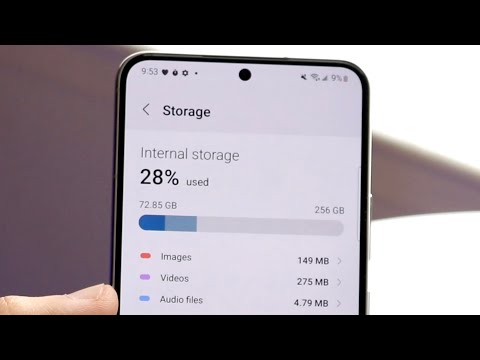
Oh no, running out of space on your Android again? It’s like, here we go another memory management saga. You’re just scrolling through photos and BAM! That pesky low storage warning pops up. It’s annoying, right?
I mean, it’s as if our phones have their own agenda—always filling up with stuff we didn’t even realize was there. It creeps up on us!
But hey, you know what? We’ve all been there. Finding yourself deleting apps or precious pictures to make room for new ones is frustrating.
No worries though! There are ways to get rid of that little warning and breathe easy again. Sounds good?
Clearing Cache to Free Up Space on Android
Oh, the dreaded “Low Storage Space” warning on Android. Isn’t it frustrating when you’re trying to download a new app or take one more picture and your device just screams, “Nope, no room!”? Yeah, it happens to the best of us. One simple trick that can help is clearing the cache. So what’s this cache thing anyway? Think of it like crumbs left over from apps—temporary files that your phone doesn’t really need forever.
Why Clear Cache?
Well, these little crumbs can pile up over time and hog space on your phone. Clearing them out won’t delete anything essential; it just helps tidy up all those temporary files.
Steps to Clear Cache:
- Open Settings: Look for the gear icon in your app drawer or pull-down menu.
- Select ‘Storage’: Here you’ll see a breakdown of what’s taking up space.
- Taps on ‘Cached Data’: Your phone might show you a prompt asking if you want to clear cached data for all apps.
- Confirm: If asked whether you’re sure, just say yes! You won’t lose any important data.
Clearing cache doesn’t erase personal info like photos or texts—it’s more like deleting junk mail from a mailbox. Once I did this before heading out for a big concert night because my camera app was acting all sluggish. Poof! Space freed up instantly without losing any precious pics.
Now remember: some caches are useful for speed and efficiency within an app. But if storage warnings bug ya often, it’s worth doing every so often; keeps things running smooth as butter—especially old devices!
So go ahead give it try next time storage gets tight—it might be exactly what your Android needs breathe easier again!
Clearing Cached Data on Android Devices
Oh, the joys of seeing that dreaded “Low Storage Space” warning on your Android phone! It’s like discovering you forgot to defrost dinner—annoying and disruptive. You may not realize it, but clearing cached data might be just what you need to solve this. Let me guide you through it.
What is Cached Data?
Alright, when your phone’s working its magic, it saves bits of data for quick access later. Imagine it’s like leaving a bookmark in a book; makes it quicker to find where you left off! Cached data can pile up over time and take up valuable space on your device. So, giving it a spring cleaning can free up some room.
Why Clear Cached Data?
Clearing cache not only frees space but can also help in getting rid of those annoying glitches or slowdowns (you know… when apps act like they’ve had too much coffee). This won’t delete important info or files—just preloaded bits that are easy for your apps to grab again if needed.
How to Clear Cache on Android:
Here’s how those steps look:
- Open Settings: First thing’s first (duh!), head over to the Settings app.
- Nudge Storage: Inside Settings, tap on Storage. You’ll get a peek into what’s hogging all that space.
- Tidy Up Apps: Tap on Apps or Other Apps depending on your specific smartphone model.
- Select an App: Pick an app that’s been eating up more storage than you’d like.
- Banish the Cache: You’ll see “Clear Cache.” Tap it and voilà! Just like waving a magic wand!
Do this periodically if you’re running low on space often enough. No stress—the apps will build back some cache as needed because efficiency matters too!
A personal note: My friend once told me about her selfie game being interrupted by endless “low storage” alerts. After showing her these steps, let’s say she’s now known for never missing out on capturing moments due to full storage again!
A Word of Caution: Only clear cached data when necessary since some elements help load data faster. Over-clearing could mean waiting longer next time you launch certain apps!
So there ya have it—clearing cache is simpler than trying out Grandma’s old recipes while hungry! With these steps under your belt maybe low-storage warnings might become less frequent visitors too?
Phantom Storage Usage Causes
Oh, that infamous “Low Storage Space” notification on your Android device! You know, there’s nothing quite like it to make you feel stuck. It’s like this annoying ghost hogging space you can’t really see or touch.
Phantom storage usage is what happens when your phone says it’s full, but you’re left wondering where all that space went.
- Cache Files: These little guys are like the crumbs left behind after a good meal. Apps stash data to load faster next time. But if they don’t clean up after themselves, things can get messy.
- Hidden App Data: Some apps save tons of data you don’t even notice unless you dive deep into settings. Ever seen those “clear storage” and “clear cache” buttons under app management? They’re lifesavers in disguise!
- Sneaky Duplicates: Duplicate files sneak into your gallery or downloads, taking up more room than you’d think! Running an occasional check through a file manager can help chase them off.
- Old Updates & Installation Files: After apps update, the old files sometimes hang around doing nothing useful at all! Most apps automatically delete these, but some might need a nudge from you.
- Bloatware: Preloaded apps that just sit there—never wanted in the first place—eating up precious space without batting an eye.
Now hear me out for a second—deleting stuff is tough when every pic tells a story (or a hundred!). But making room doesn’t always mean getting rid of memories; it’s more about tidying up so everything fits right.
Remember my friend Max? He was super frustrated because his phone kept bugging him with low storage warnings while he was away on a trip. Turns out he’d been unknowingly hoarding cached data from apps he hadn’t opened since last year!
If you’re facing similar woes, take some time to explore what’s cluttering your digital space. Keep an eye on file sizes by accessing settings and checking app or storage info regularly—a little spring cleaning might be exactly what’s needed!
Ah, the dreaded low storage space warning on your Android device. It’s kind of like that feeling when you’re trying to cram one more thing into your already overstuffed suitcase and it just won’t budge. We’ve all been there—as you eagerly download that new app or snap a bunch of photos, suddenly this pesky little notification appears, reminding you that it’s time to do some digital housekeeping.
Remember the time you tried to capture a perfect moment, but your phone cruelly decided it was full? Yikes! You had to frantically delete some old stuff just for that one shot.
So what can we do about this? Well, first off, take a deep breath; it’s totally fixable! Start by checking out those older apps you rarely use. You know how there are apps you thought you’d need forever but have opened just once or twice? They might be taking up valuable space.
And then there are pictures and videos—goodness, they pile up fast! Maybe go through them on a rainy afternoon and send the less important ones to cloud storage or simply remove them if they’re no longer needed.
Next up: cached data. Ever notice how apps save temporary data on your phone? It’s like digital lint gathering in pockets over time. You can usually clear this in settings without losing anything important.
These steps can help keep those pesky warnings at bay while freeing up more space for what truly matters—like future memories you’ll want to capture…not miss!