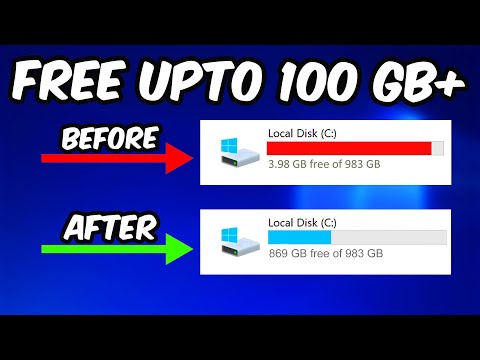
You know that feeling when your computer’s moving slower than a snail on a bad day? Ugh, it’s the worst. The thing is, sometimes it just needs a little TLC, and a good ol’ disk cleanup can work wonders.
Seriously, you’d be amazed how much junk piles up without you even realizing it! All those forgotten files, temporary downloads… they’re like dust bunnies hiding in the corner.
But cleaning things up isn’t as scary (or boring) as it sounds! It’s more like tidying your room; once it’s done, everything feels lighter. Plus, your computer might just thank you by speeding up like crazy.
Ready to roll up those sleeves and give that PC some love? Let’s jump in!
Using Windows 10 Disk Cleanup for Speed Boost
Alrighty, let’s chat a bit about using Disk Cleanup on Windows 10 to give your computer a little speed boost. You know when your computer feels like it’s just crawling along? Trust me, you’re not alone. One time, I was in the middle of an important video call and my PC just froze up! But hey, using Windows 10’s Disk Cleanup helped get things back on track.
What does Disk Cleanup actually do? It’s like tidying up your room—getting rid of all the clutter that you don’t need. Over time, our computers collect a bunch of unnecessary files that hog space and slow things down.
- Old temporary files: These are like those brochures or old notes you’ve been meaning to toss but haven’t yet.
- System cache: It’s where your system tries to be helpful by storing bits of data to use later. Sometimes it saves more than needed.
- Browsing history: All those web pages you’ve visited? Yup, stored here too!
How do you use Disk Cleanup? It’s super straightforward! I’ve explained it here:
- Select the Start button, then go to the search bar and type “Disk Cleanup“. You’ll see this nifty tool pop right up!
- Select your drive:, usually C:. This is generally where all the magic happens—and by magic I mean files piling up.
- The tool will calculate how much space you can free up—it might surprise ya with how much clutter there is!
- You’ll get this list with boxes next to different file types. Just check off what you want gone.
- Select “OK”:, then confirm by clicking “Delete Files“. Boom! Your computer is cleaner already!
A little note on system files…: If you click on “Clean up system files”, you’ll get options for even more thorough cleaning. Stuff like old Windows updates which are clogging things up without needing them anymore.
So yeah!, after doing this cleanup, you’ll often find apps opening faster and fewer freeze-ups during calls or gaming sessions. Kind of feels like giving your PC its morning cup of coffee!
If you’re like me (who once accidentally deleted an app doc!), don’t worry—Disk Cleanup mainly targets unnecessary stuff. But still always check before confirming deletions!
And there ya go—a neat ‘n tidy way to boost speed by using Windows 10’s trusty Disk Cleanup tool.
Disk Cleanup to Free Up Space on Windows 10
You know how sometimes your computer starts running slow and you’re just trying to get things done? One thing that might help is clearing up some space on your hard drive. On Windows 10, there’s this neat tool called Disk Cleanup. It’s kind of like taking out the trash at home—it frees up some room so your computer can run smoother.
First off, why do we need to free up disk space? Well, more space means your system has more freedom to run applications effectively. When the storage gets crammed up with unused files, temporary stuff, and other digital clutter, it might slow everything down. So yeah, giving your system some breathing room can help improve performance.
Here’s a step-by-step guide on how to do it:
- Open Disk Cleanup: You’ll want to type “Disk Cleanup” into the search bar next to the Start button. Click on it when it pops up.
- Select Drive: A small window will pop open asking you which drive you want to clean up—usually “C:” is where everything piles up.
- Analyze Junk: The tool will analyze data that could be deleted without causing harm—temporary files, recycle bin contents, etc.
- Select What to Delete: It’ll present a list of file types like “Downloaded Program Files” or “Temporary Internet Files.” Checkmark those you want gone.
- Cleanup System Files (Optional): If additional disk space is needed, click “Clean Up System Files.” This digs deeper into system-related clogs such as old updates.
- Finalize Deletion: Hit OK and confirm deletion. It’s a liberating feeling when junk flies out of sight!
And don’t worry if you’re nervous about deleting something important—the tool avoids messing with essential files by design! You know what helps too? Setting reminders once in a while (say monthly), just like checking oil levels in your car!
Every now and then life throws curveballs at computers too—data backlogs being one of them! When was the last time you gave yours some room for fresh air?
Oh hey! Quick tip: remember that if things go sideways and desktop icons start disappearing mysteriously after cleaning sessions… they’re not gone forever; sometimes refresh or restart reveals hidden treasures again.
So there you have it! Give Disk Cleanup on Windows 10 a whirl next time space runs tight—it could make all difference giving systems extra elbowroom they deserve before hitting brick wall failure modes beyond easy fixes!
No need sweating over clogged windows any longer when simple solutions await right around corner waiting table ready whenever needed; hope this nudgesticks anyway getting hands dirty waxon-waxoff style doing good turn calculating circuits crossing paths orbits earth alike destiny cosmic cycles universe depends order harmony balance restoration peace perseverance progress must thrive day-day repetitions habits patterns relying upon us lead chart new course discovery learning growing evolving equals happiness satisfaction prosperity solutions emerge needs met challenges overcome solutions found lives enriched journeys shared adventures awaiting next frontier embrace unknowns uncover mysteries yet-to-be-revealed joyful exploration unfolds joyride future beckons endless possibilities ahead always hope dreams realities converging uniting forces synergy collaboration innovation creativity shaping worlds tomorrow promising brighter better connected fulfilling destinies entwined intertwined together unity strength resilience courage integrity love triumphantly behind scenes orchestration magic happening miracles abound glimpses unseen realms discovered truths uncovered breaking barriers traversing horizons unimaginable scales dimensions transcendence becoming reality moment realization dawns awakenings breakthroughs phenomenal experiences embraced unveiled unveiled awakening awakened transformation metamorphosis enlightenment rainbow spectrum brilliance illuminating depths below skies above beyond multiverse infinity interstellar interspace constellations galaxies nebulae wonders behold endlessness infinite eternal universality divinity evolution consciousness existence awareness intelligence brilliance illumination radiance guiding light path journey continuum timeless eternal everpresent now presence existence knowingness being state connection universal cosmos energy substance form waves particles essence spirit matter energy vibration frequency resonance attunement alignment…
Using Disk Cleanup in Windows 10
Hey there! So, you want to give your Windows 10 computer a little boost? Disk Cleanup is like that friend who helps organize your cluttered room. It clears out those unnecessary files hogging space and can even make things run smoother. Neat, huh? Let’s dive into how this works.
What is Disk Cleanup?
Think of Disk Cleanup as a built-in tool on your Windows 10 system that’s designed to free up disk space. It targets temporary files, system cache, and even old updates gathering dust in the corners of your storage.
Steps to Use Disk Cleanup:
- Accessing Disk Cleanup: Go down to your search bar and type “Disk Cleanup.” You’ll see it pop up at the top—click it.
- Selecting the Drive: A window will appear asking which drive you want to clean. Most times it’s the C: drive that needs tidying up—it’s where all main action happens.
- Select Files: Once it analyzes, you’ll get a list of file types you can delete. Temporary Internet Files or Recycle Bin contents often top this list.
- Clean System Files: For deeper cleaning, hit “Clean up system files.” This digs a bit further into old System updates or restore points.
- Saying Goodbye to Clutter: Review what you wish to delete (you know, some stuff might be needed), then click “OK” and confirm!
A little anecdote here: I remember my cousin always complained about how slow his laptop was. He was ready to chuck it out when I suggested this neat trick! Well… he tried it out and boy was he surprised by how much space he got back—and poof! Smoother performance too!
The Benefits of Regularly Using Disk Cleanup:
- Saves Space: Clearly makes sense – more room for photos or apps when those useless files are gone.
- Keeps Performance in Check: Removing junk helps free up resources your system uses for better stuff like running games without glitches!
- Avoids Bugs from Old Updates: Sometimes leftover installation files mess things up—this keeps them at bay.
Remember though… while doing cleanup is good practice once in a while – don’t obsessively do it every single day; systems need some cache info sometimes for efficiency.
A Quick Reminder: Use tools like this wisely – always ensure what’s being deleted isn’t essential unless absolutely sure about its impact overall afterward too!
Happy cleaning!
Imagine you’re in the middle of an important Zoom call, your computer starts lagging. Ugh! Nothing’s more frustrating, right? You know what the culprit often is? A cluttered hard drive. Seriously, disk cleanup can be like magic for your PC’s performance.
A while ago, my friend Sarah called me in a panic—her laptop was taking forever just to open a document. We ended up discovering that her computer was filled to the brim with temporary files and old downloads she didn’t even know existed! We had a little tech intervention and ran a disk cleanup. What happened next felt like watching one of those home makeover shows where everything falls into place—it was so satisfying!
Here’s the gist: Windows has this nifty built-in tool called Disk Cleanup. It scans your drives for files you don’t really need—think temp files or system cache—and lets you decide what’s ready to go. And it’s super easy! Just search for “Disk Cleanup” in your Start menu, select which drive to scan (usually C:), and let it do its thing.
Not only does it free up space, but it also helps speed things up a bit by preventing overloading your drive with unnecessary data. It’s kinda like cleaning out that junk drawer we all have somewhere at home—you feel lighter afterwards!
So hey, next time your PC feels sluggish, maybe give Disk Cleanup a whirl before considering costly repairs or upgrades. It’s quick and can genuinely work wonders—or at least smooth out some digital wrinkles.
Give it a try when you’ve got some downtime… who knows? You might end up calling me back with thanks just like Sarah did!