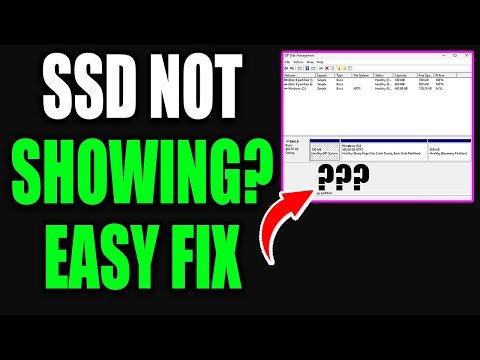
Hey, ever had one of those days where technology just doesn’t want to play nice? You plug in this shiny new 4TB internal SSD, all excited and ready to have a ton of space for everything—music, photos, you name it. But wait! Windows 10 decides it’s invisible. Fun times, right?
Trust me, it’s happened to the best of us. There’s a thrill in unboxing and installing that sweet piece of hardware, only to find yourself staring at an empty space where your drive should be listed. Frustrating as heck!
Anyway, no worries. We’re gonna walk through this together like pals solving a mystery—because really, who needs more tech drama? Stick around and let’s get that SSD recognized so you can get back to enjoying your digital goodies!
SSD Not Detected in File Explorer
Oh no, an SSD that’s not playing nice! It can be a real downer when your shiny new 4TB internal SSD decides to hide from you in File Explorer. Let’s chat about how to get it back on track.
Why It Happens:
Your computer is supposed to recognize any new storage device, like an SSD, automatically, right? But sometimes windows 10 skips a beat. Here’re some reasons why:
- Driver issues: Outdated or missing drivers can cause Windows not to recognize the SSD.
- Connection problems: Physical connections might be loose or cables could be faulty.
- Wrong file system: Sometimes the disk is formatted in a way that Windows doesn’t understand.
Troubleshooting Steps:
Here’s some things you can try to bring that elusive drive into view.
- Check the Connection: Ensure all cables are snug and securely connected. Disconnect and reconnect them if necessary, just like plugging back in a lamp that won’t turn on. Simple but effective!
- Dive into Disk Management: Press
Win + X, then click “Disk Management.” Does your drive show up there? Look for anything labeled “Unallocated”—that might be our rogue disk. - If you do see it there but it’s unallocated, right-click it and select “New Simple Volume” This should prepare the drive for use with Windows 10 by assigning it a letter and formatting it.
- Update or Reinstall Drivers:: In Device Manager, navigate to “Disk Drives“. Right-click your troublesome drive if it’s listed and choose “Update driver” or “Uninstall device” then reboot—Windows will reinstall drivers automatically in this case.
Bios Checkup Time!: If those steps didn’t help out check if your BIOS recognizes your SSD:
1. Restart Your Computer: As soon as you see something on-screen during startup (usually logos), hit F2/Del/Esc (it varies) to enter BIOS settings.
2. Look for storage devices listed here; ensure any options related auto-detection enabled.
Sometimes tech gives more of struggle than we want! But persistent poking around generally gets results—and knowing where different settings lurk really helps too! Hope these activities get everything working smoothly again because having full access 4TB solid state goodness definitely worth effort every step way!!
Windows 10 Compatibility with 4TB Hard Drives
Alright, let’s dive into the world of Windows 10 and its dealings with those gigantic 4TB hard drives. You know, it’s kinda when you get this fancy new tech gear, but suddenly your good ol’ computer starts acting like it doesn’t want to be friends. It happened to a buddy of mine just last week! Bought a shiny new 4TB SSD, plugged it in all excited. But guess what? His Windows 10 just didn’t see it.
- Check Your Connection: First things first. Make sure that all cables are plugged in properly. Sometimes it’s just loose wires causing all the hassle.
- BIOS/UEFI Settings: Is your motherboard on speaking terms with such large drives? You’ll need something called UEFI instead of an old-school BIOS for recognizing big storage.
- Partition Style: Here comes another bit—a thing called partitioning style. For over-2TB drives, use GPT, not MBR (master boot record). Kind of like using the right key for a specific lock.
- Initializing the Drive: Open up Disk Management in Windows 10—just search for “Disk Management”. If you spot your drive there as “unallocated,” right-click and hit “Initialize Disk.” Choose GPT.
- Update Drivers: If it still doesn’t show up after initialization, check drivers under Device Manager—those sneaky little guys might need an update.
- Troublesome Third-Party Tools: Be wary about third-party software altering default settings; sometimes they create more drama than necessary!
Finally—and I cannot stress this enough—make sure you have backed everything important before tinkering around too much—or heaven forbid losing data mid-setup ‘cause that’s heartbreak waiting right there!
Remember these steps when navigating technological hiccups—they truly can save heaps of frustrations down this road called tech life!
Troubleshooting SSD Detection Issues
You know, SSDs can be seriously amazing for boosting your computer’s speed. But sometimes, they’re like that shy friend at a party—they just don’t want to get recognized, especially if you’ve got a shiny new 4TB internal SSD that Windows 10 refuses to see. Let’s figure out what’s going on with this.
Check the Physical Connections
Start simple. The first step is always to make sure everything is plugged in properly. Open up your computer case and double-check that the SSD is snugly connected to both the power and data cables. It’s easy to overlook this stuff, but loose connections happen!
Bios Settings
Now, you might need to dive into the BIOS or UEFI settings. Restart your computer and press whatever key it tells you (usually Del or F2). Once you’re in there, look for something like “SATA Configuration”. Make sure all ports are enabled and set correctly.
- SATA Mode: Sometimes changing this from IDE to AHCI makes a world of difference.
- Drive Detection: Ensure that it’s not set to ignore any drives.
Initialize Your Drive
Okay, assuming you’ve checked those things and still no dice—jump into Windows Disk Management by right-clicking the Start button and selecting Disk Management. If this is a new drive, you gotta initialize it.
- If Disk Management prompts you as soon as it opens up with a window saying “You must initialize a disk”, that’s good news!
- Select GPT (GUID Partition Table) for large drives like your 4TB beauty.
Driver Updates
Drives need their own little helpers called drivers; it’s worth checking them too! Head over into Device Manager via right-click on Start button again.
- Universal Serial Bus Controllers: Check here first since some SSDs connect through these.
- “Scan for hardware changes”: Right-click on any icon below “Disk Drives” then pick this option—sometimes all it needs is another nudge from Windows!
Troubleshooting Power Supply Issues
Sometimes overlooked… Have a peek if there’s sufficient power being delivered via PSU cables especially if adding several new components altogether; each device draws more juice than anticipated when bundled together!
These were just common things tripping people up—a wise tech buddy once said whatever can go wrong will go wrong eventually—but hey calm down enjoy! Not rocket science here only time patience involved experimenting until voila mission accomplished sense appear through haze finally gets seen feels rewarding payoff invaluable long term relationship development between us machines we treat ourselves every day remember let introspection guide finding trusty solutions life throws at randomly unexpected moments!
Oh boy, finding out your 4TB internal SSD isn’t being recognized by Windows 10 can feel like a cold splash of water on your tech enthusiasm. You know the kind of morning where you forget to add sugar to your coffee and it just feels… off? That’s exactly the kind of vibe you get when your shiny new SSD decides to play hide and seek.
Imagine this: You’ve just upgraded, everything’s ready for that sweet speed boost, only to see nothing pop up once you boot. First thought? Panic. It’s a hefty investment that’s just… not playing along.
Couple things could be happening here. Sometimes the issue is as simple as a loose connection inside the computer. Picture rummaging through all those cables like you’re trying to find an exit in a maze. Other times, it might be something sneaky like unallocated disk space or missing device drivers.
Many folks don’t realize that Windows sometimes has this little quirk with recognizing larger storage devices right away—even if they’re fresh out of the box! It’s sort of like how some people say they don’t recognize actors without their usual makeup; Windows needs just a touch more information to acknowledge what it’s seeing.
On those tricky days where nothing seems to work, it’s about chucking off any assumptions and getting back to basics—like checking BIOS settings or initializing disks in Disk Management.
Sifting through these tech tangles might seem daunting at first. But honestly, once you’ve tackled it—you’ll feel pretty great about troubleshooting on your own terms! Take a moment too—you’ve probably learned something valuable along the way.
Here’s hoping you’ve sorted that SSD gremlin out and are basking in lightning-fast loading speeds now!