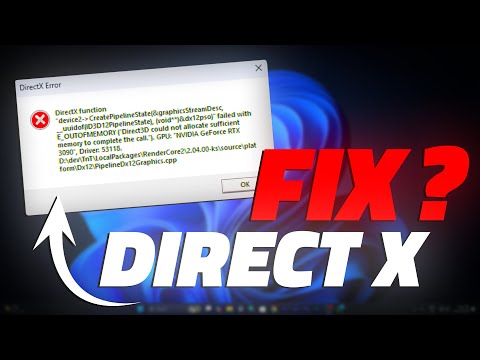
Oh man, DirectX errors on Windows 7, right? What a nightmare! You’re just trying to relax and enjoy some gaming or maybe get some work done, and suddenly boom—errors popping up everywhere. Ugh, it can be so frustrating!
I remember this one time I was gearing up for an epic gaming night with friends. We had snacks ready, tunes playing, the whole shebang. And then… bam! My PC decided to throw a DirectX tantrum. Talk about a buzzkill!
But hey, don’t sweat it too much. These things are usually fixable with a little patience and know-how. Sometimes it’s as simple as updating your drivers or tweaking some settings.
So grab your favorite snack and let’s tackle these pesky DirectX issues together—it won’t be nearly as bad as it seems!
Checking for a Corrupted DirectX Installation
DirectX is like this little backstage hero that helps your games and graphics run smoothly on Windows. But sometimes, things can go a bit haywire, you know? Let’s say you’re getting some graphics issues and suspecting DirectX might be corrupted. Here’s how you can check and fix it.
1. Check Your Installed Version
First off, you’ll want to know which version of DirectX you’ve got. It’s really simple:
- Hit the Windows + R keys on your keyboard.
- Type in “dxdiag” (without the quotes) and press Enter.
- This opens up the DirectX Diagnostic Tool. The version number is right there at the bottom of the window.
It’s handy to have this info before diving into any fixes because, hey, knowledge is power!
2. Running the Built-in Troubleshooter
Windows has a pretty handy troubleshooter for when things aren’t working as they should:
- Click on Start, go to Control Panel.
- Select “Troubleshooting” from there.
- Select “View All” from the left pane and find the one related to hardware or video playback.
- The tool will walk you through some checks to see if there’s anything amiss with DirectX’s operation or its components!
Sometimes, just doing this can highlight what’s going wrong and help steer us toward fixing it.
3. Reinstalling DirectX Components
Alright—so if you’re still having issues, you might need to reinstall certain components:
- You could download Microsoft’s latest updates for DirectX applicable to your Windows 7 version directly from their website (avoids unwanted software bundled in downloads).
- If specific games are acting up due to errors like “d3dx9_43.dll missing,” downloading those specific missing components makes a huge difference!
You know how sometimes plugging something back into place makes it work again? This step acts kind of like that.
4. Updating Graphics Drivers
It’s important not just focusing solely on DirectX; drivers have an impact too!
- I mean visit your graphic card manufacturer’s site—usually NVIDIA AMD—or use Windows Update ensure drivers being current matching system requirements mapped accurately present build OS utilized daily!
- Update Your Graphics Drivers: Head over to your PC manufacturer’s website and look for the latest graphics drivers. Just download and install them, reboot your computer, and see if that helps! It’s like giving your computer a fresh pair of eyes.
- Scan for System Errors: Use the built-in System File Checker tool. Just open Command Prompt as an administrator (fancy way of saying “with extra powers”), type
sfc /scannow, and hit Enter. This will check for any corrupted system files and try to fix them. - Reinstall DirectX: Sometimes DirectX itself gets a bit wonky. Download it from Microsoft’s site; they’ll have the latest version waiting for you (even if Windows 7 isn’t their favorite child anymore).
- Troubleshoot Programs: If a particular program triggers the error, try updating or reinstalling it first. You might discover it’s just not playing nice because it’s out-of-date or missing parts!
- Select the System tab (it should be open by default).
- Look down toward the bottom of this window where it says *DirectX Version*. There you’ll find which version is installed.
Listen: You’d surprised difference updated driver was ignored overlooked—but real heroes silently perform background duties while unnoticed bliss distracted gameplay activities textures rendered incorrectly… cleanup time followed repairs successful restart machine seeing crisp visuals motion fluid once more ah relief made worth effort don’t think?
/ul>
So hope these tips prove useful uncovering solving frustrations rare encountering made easier enjoy immersive games downtime free technical worries just fair reward glad helping line future needs arise honestly reached out here assistance thanks tuning good luck adventures ahead cheers battling progresses additional aspirations listening immediate heed sound voice previously offering closure presented occasions regarded happy digest suffice…
Fixing Bad Image Error in Windows 7
Oh, the good old days of Windows 7 when everything was smooth sailing—until you suddenly run into a pesky “Bad Image” error. It’s like trying to read an old book with missing pages, right? Now, if this nasty message is tied to some DirectX errors, your graphics might be acting up too!
Here’s the thing: these errors usually pop up when there’s a hiccup with system files or incompatible software. But don’t worry! You can get it sorted out with some steps that are pretty easy to follow.
Remember my friend Tom? He had this very issue during a game night on his old reliable laptop. After updating his graphics driver and running those system checks—voilà—the problem vanished like magic!
Sometimes it’s just small tweaks you need to keep things running smoothly again. Keep these steps handy in case any gremlins decide to crash another Windows 7 party!
Checking DirectX Version on Windows 7
Checking the DirectX version on your Windows 7 machine can sometimes feel, well, like a scavenger hunt. But don’t worry, it’s simpler than you might think! Here’s how to do it and why it’s important.
What is DirectX?
DirectX is like the translator between your computer and video games or applications that use advanced graphical or multimedia features. It’s what helps your favorite game look awesome on screen!
Now if you’ve ever stumbled upon *graphics issues* while playing games on Windows 7, there’s a chance it could be related to DirectX. So let’s find out which version you have.
Steps to Check DirectX Version:
1. You need to press the Windows Key + R. This opens up something called the “Run” dialog box.
2. Inside that tiny box, type in “dxdiag”, then hit Enter.
3. After a few seconds (don’t worry if it’s slow), you’ll see the DirectX Diagnostic Tool pop up.
This tool has loads of info about your system – pretty cool, right? Now for finding out the version:
Troubleshooting Graphics Issues
If you’re facing graphics glitches in games or apps, knowing your DirectX version can help figure out what’s wrong. Sometimes an update might fix things pronto! Always consider checking if there’s an updated driver available for your graphics card too—that can make all difference.
And there you have it! By regularly ensuring you’ve got an up-to-date version of DirectX compatible with games or software you want runnin’ smoothly on Windows 7; believe me—it saves headaches down road.
Hope this helps clear up any confusion!
Oh, DirectX errors on Windows 7—such a classic headache, right? I remember a time when I sat down to enjoy my favorite game after a long day, only to be greeted by an irritating error message. Talk about disappointing! It felt like being all geared up for a movie night and having the power go out.
So, here’s the deal with DirectX on Windows 7. It’s this essential part of your system that helps your computer handle things like video games and high-end graphics programs. But sometimes things just go wrong. You press play or open your graphics software, and boom—error messages appear out of nowhere.
First off, make sure you’ve got the latest version of DirectX that Windows 7 can handle. You know how those updates are—it’s easy to miss one now and then. Head over to the Microsoft website and check it out.
Then there’s updating your graphics card driver. Imagine having an old map while trying to navigate a new city—yep, that’s what outdated drivers are like for your system. Go on over to the manufacturer’s site, look for driver updates that match your card model, and follow their instructions.
And here’s a tip: Sometimes you might need to tweak some settings in-game or in your software if they’re being too demanding on an older machine. Dropping down some fancy settings might ease up on those pesky errors.
One more thing! Running built-in troubleshooting tools can also do wonders; they’ve saved my skin more than once by resetting settings that went awry without reason.
In any case don’t forget patience is key because these tech issues can really test it sometimes! You’ll figure it out with some perseverance though—just takes some trial-and-error sometimes!