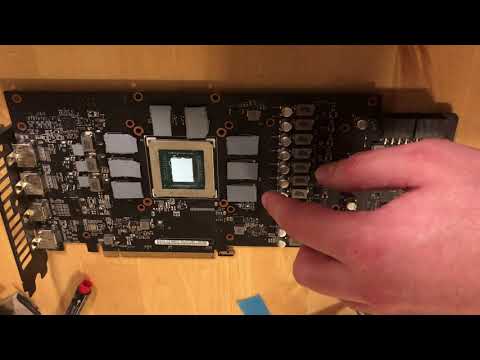
Oh man, overheating graphics cards can be such a bummer, right? You’re all set for some epic gaming or maybe diving into a project, and then—bam! The performance takes a nosedive. That dreaded heat monster strikes again.
I know the Radeon RX 5700 is supposed to be a beast. But sometimes even beasts need a little cooling off. You ever hear your PC fan going nuts and feel like it’s about to take off? Yeah, not fun at all.
But don’t sweat it! There are quite a few things you can try to cool that bad boy down. And honestly, once you figure out what’s causing the issue, you’ll feel like some kind of tech ninja.
Whether it’s tweaking settings or getting hands-on with the hardware (carefully!), there’s usually something that does the trick. So if you’re tired of dealing with crashes and overheats, stick around! We’ll chat about some fixes that’ll hopefully save your gaming sessions—and your nerves.
Fixing GPU Overheating Issues
Oh, dealing with an overheating GPU can be such a nuisance, right? Especially if you’re using something like the Radeon RX 5700. But don’t fret too much. There’s a few simple steps you can take to keep it cool and happy.
- Check Your Drivers: Outdated drivers can really mess with your GPU’s efficiency. Head over to AMD’s website and grab the latest driver for your RX 5700. You’ll notice sometimes just updating the driver solves a lot of problems.
- Adjust Fan Settings: The default fan settings might not cut it. Look into software like MSI Afterburner or Radeon WattMan. These tools allow you to tweak fan speeds manually. You can set a more aggressive fan curve so fans start working harder earlier as temperatures rise.
- Improve Case Airflow: Seriously, sometimes it’s all about how your case breathes! Make sure those intake and exhaust fans are in good shape—clear out any dust bunnies lurking around there too!
- Dust Matters!: Over time, dust build-up acts like a blanket on your GPU. Gently clean the card with some compressed air; remove that grimy layer that could be causing heat traps.
- Add More Cooling: Is your current cooling setup doing enough? You might consider adding an extra case fan or even investing in aftermarket coolers, especially if you’re overclocking.
- Pasting It Right: Thermal paste degrades after years of use.. If you’ve had this card for a while and never reapplied thermal paste between chip and cooler—it might be worth doing! And for something more advanced, liquid metal pastes offer great conductivity but need careful handling.
Funny enough my friend once almost cooked his motherboard because he had one of these graphic cards packed inside this tiny computer case without proper ventilation—it was as if her PC turned into an oven! Always makes me chuckle remembering how we fixed everything by simply rearranging some cables!
Anyway back on track: remember keeping tabs on temperature helps too; programs like HWMonitor give real-time metrics so no surprises there-you know what’s going on under hood while gaming away!
Maintaining coolness means longevity—not only extends lifespan also enhances performance plus stability crucial for smooth computing experience whether rendering videos playing AAA games alike…
Maximum Operating Temperature for RX 5700
Hey! So, you’re curious about the maximum operating temperature for the RX 5700, right? It’s an important topic, especially if you’ve been dealing with overheating issues. Let’s take a look at what you need to know.
First off, when we talk about graphics cards like the RX 5700, we’re dealing with some seriously powerful hardware. And all that power can generate a lot of heat. The typical maximum temperature range for this card is around 85°C to 95°C. This means under heavy load or intense gaming sessions, it’s not unusual for temperatures to creep up there.
- Normal Range: Ideally, you want it to run at lower temperatures—like between 60°C and 75°C—especially during casual use.
- Slightly High: If it goes near 85°C during gaming or demanding tasks, that’s generally okay.
- Pushing Limits: When it gets close to or above 95°C consistently—that’s where you might hit trouble.
Here’s why it’s crucial: Extreme heat can reduce the lifespan of your graphics card and even lead to random shutdowns or performance throttling.
Now let’s think back to that time when your laptop felt like it was gonna blast off into space because of how hot it got during gameplay… Sounds familiar? Such situations are worth avoiding!
To keep those temps in check:
- Check ventilation: Make sure your PC case has good airflow. Sometimes just organizing cables or cleaning dust from fans helps a lot.
- Tweak fan speeds: Using software tools provided by AMD (Radeon settings), adjust fan curves so they’re more active under load.
- Avoid overclocking:: If you’re doing any overclocking on this beast—it could be contributing significantly towards extra heat generation.
Remember it ain’t just about keeping cool physically but also digitally! Keep drivers updated since manufacturers often release fixes that optimize performance while addressing potential overheating issues too.
Anyway! Hope all this info gives ya clarity regarding operating temps related directly toward avoiding future mishaps with such valuable tech investments like Radeon RX5700 series GPU model… Stay chill!
5700 XT Overheating Symptoms
Oh, the dreaded overheating issues with your 5700 XT! It’s like having an old car that decides to overheat on a summer road trip. You just don’t want it to happen when you’re in the middle of a game or a big project, you know? So, let’s jump right into this.
First off, how can you tell if your **Radeon RX 5700 XT** is overheating? Well, there are some telltale signs and it’s good to catch them early:
- Performance Drops: Suddenly, your games might begin lagging or stuttering—it’s frustrating!
- Unexpected Shutdowns: The computer could power down out of nowhere. That’s definitely not normal behavior.
- Increased Fan Noise: Your fans might start sounding like they’re about to take off. They’re working overtime trying to cool things down.
- Visual Artifacts: You may notice weird graphical glitches on screen. Things like screen tearing or strange colors can pop up.
So why does this happen? Well, just like when you’re running too fast on a hot day and you start feeling woozy, your **GPU** heats up too when it’s overworked. It’s pushing all those beautiful pixels onto your screen and needs proper cooling.
Here are some ways you can help prevent these overheating woes:
- Ensure Proper Airflow: Make sure nothing’s blocking those vents in your case. It’s crucial for keeping everything cool.
- Cable Management: Tidy up those cables inside the case; they can restrict airflow if tangled around all willy-nilly.
- Pasting Magic: Check if thermal paste is applied correctly between the card and its cooler—this stuff’s essential for heat transfer!
And hey! Updating drivers often helps too because manufacturers sometimes release updates specifically tailored towards improving device performance under stress conditions.
Maybe something happened while fiddling around inside—the other day my friend thought his card was busted but turned out he hadn’t secured it properly after some cleaning…oh dear!
Ah, the Radeon RX 5700—what a good piece of tech for gaming, right? But let’s face it, sometimes it can run hotter than a summer day in Arizona. If you’ve been tinkering with your setup and suddenly feel like you’re playing games on a toaster, you’re not alone.
I remember when this happened to my friend Jake. He’d been bragging non-stop about his new build. Everything was perfect until his screen went black during one of those intense gaming marathons. It turned out his RX 5700 was overheating like crazy.
Now, if you find yourself in a similar situation, there are some things you might want to check out. First off, ensure your computer has good airflow. It’s amazing how dust can sneak its way into your system and clog up those fans. Give them a nice clean-up with some compressed air.
Another thing that might save the day is controlling those fan speeds manually using software like MSI Afterburner or similar programs. Sometimes setting them to kick in earlier at lower temperatures can help keep things cool.
And hey, don’t forget about thermal paste! Over time it can dry up and stop doing its job effectively. Reapplying some fresh paste between your GPU and its heat sink can make quite a difference.
If all else fails you could even look into upgrading your cooling system with something meatier—a bit of an investment but cheaper than replacing the whole card!
Anyway, good luck taming that fiery beast! It’s worth sticking with because when it’s running well the RX 5700 really delivers some fantastic performance for its price range!