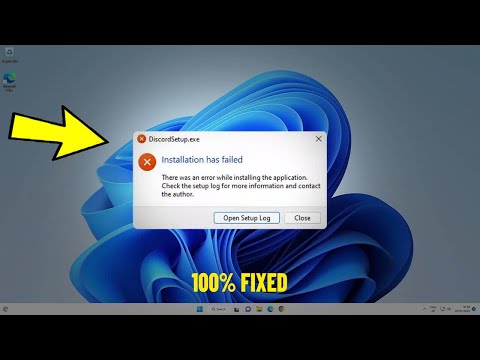
Oh man, installing software on a PC can be such an adventure, right? I mean, one minute you’re all excited about using this cool new program. Next thing you know, bam! You’re face-to-face with some mysterious error message. Ugh!
I remember this one time I was just trying to install a simple photo-editing app. Everything seemed fine until—surprise! An error code popped up that made no sense whatsoever. It felt like my computer was speaking another language.
Don’t you just hate it when that happens? But hey, don’t panic yet. Most of these issues have pretty straightforward fixes if you know where to look. Sometimes it’s just a small tweak here or there.
So let’s dive into some common installation hiccups and figure out how to get past them together! We’ll have your PC running smoother in no time—promise!
Resolving Windows Software Installation Errors
Alright, let’s face it. Installing software on Windows can sometimes feel like trying to solve a mystery novel. You think you’ve got all the pieces in place, but then—bam! An error message out of nowhere. It’s frustrating, right? But don’t sweat it. Let’s break down some common hiccups and how to deal with them.
1. Insufficient Permissions
Gosh, permissions can be a headache! These occur when your user account lacks the rights to install software.
- Solution: Right-click on the setup file and choose “Run as administrator.” This gives you elevated privileges for that installation.
2. Incompatible Software Version
Have you ever tried fitting a square peg into a round hole? That’s what happens when incompatible versions clash—it just doesn’t fit!
- Solution: Make sure the software version matches your Windows version (32-bit vs 64-bit .
- If an application requires an older OS version, consider compatibility mode by right-clicking and selecting “Properties,” then navigating to the “Compatibility” tab.
3. Corrupt Installation Files
Sometimes files get corrupted during download or transfer. It’s like expecting to eat your favorite pie but finding it’s gone bad!
- Solution: Redownload the installation file from a trusted source.
- You might also want to clear temporary files using Disk Cleanup—search for it in your start menu!
4. Background Conflicts (Antivirus or Other Software
Imagine trying to hear your favorite song over loud chatter—the background noise makes listening impossible! This is similar when other programs interfere with installations.
- Solution: Temporarily disable antivirus software during installation (but remember to turn it back on afterward .
- You could also try closing unnecessary applications running in the background via Task Manager.
5. Lack of Disk Space
It’s like trying to stuff too many clothes into one suitcase—you need enough space for everything!
- Solution:: Check available disk space and free up if necessary by removing unused programs or large files.
So next time those pesky errors pop up during an install, remember these tips might save ya! You got this—soon enough everything will be clicking into place smoothly again.
(And hey if one approach doesn’t work don’t lose hope try another!
Incomplete Software Dependencies
Oh, software dependencies! You know, they’re like those little pieces of a puzzle that need to fit together perfectly before an application can run. So, when you encounter incomplete software dependencies during installation, it’s kind of like baking without all the ingredients—you’re not going to get that delicious cake you were hoping for!
What are software dependencies? Imagine your new app is a child who needs certain toys (libraries or modules) before it’s happy and runs smoothly. These pieces are bits of code or other applications that your main program requires to function correctly. And if any piece is missing? Uh-oh—time for some troubleshooting!
Now, what usually causes these dependency issues?
- Missing Packages: Sometimes while installing the main software, certain packages don’t come along for the ride.
- Outdated Dependencies: Maybe one part’s version isn’t playing nice with others.
- Mismatched Versions: Some components require specific versions to work correctly together.
Tackling these issues can feel overwhelming!. But don’t worry—you’ve got this. Here are some steps you might try:
- Check Documentation: Look at the application’s official guide. It often lists necessary dependencies and specific versions needed.
- Error Logs: Seriously handy things! They often tell exactly which package is causing trouble.
- Aptitude Commands (for Linux):If you’re dancing with Linux and using something like Ubuntu, commands such as `sudo apt-get install -f` might identify and fetch missing parts automatically.
Once—way back when—I was trying a new graphics software but kept hitting walls with errors about “lib-something.” Turns out my version was ancient in computer years! A simple update fixed everything. Remembering such hiccups helps me be more patient now.
Finally, always be cautious about where downloads happen from—stick with reputable sources so you don’t pick up any unwanted bugs along too . Stay curious yet vigilant online; technology should make life easier—not harder!, right?
Doing installations manually gives greater control but also means double-checking all dependencies personally—it’s no biggie once familiar territory because practice makes perfect ,you know?!
Windows 11 Software Installation Error Causes
Trying to install new software on Windows 11 and things aren’t going as expected, huh? It can be a real head-scratcher, especially when all you want is for things to go smoothly. Let’s dig into some common causes of installation errors and how you might work around them.
1. Compatibility Issues:
Windows 11 is relatively new, and not all programs are fully compatible yet. If your software isn’t playing nice with the system, that might be the culprit right there! Double-check if there’s an updated version of the app or look for alternatives designed specifically for Windows 11.
2. Insufficient Permissions:
You know how sometimes your computer feels like it has a mind of its own? Well, it could be a permissions issue. Installing certain apps requires administrative privileges.
- Solution: Right-click on the installer file and choose “Run as administrator.” That small step could make all the difference.
3. Corrupted or Incomplete Files:
Ever tried downloading something only to find out later it’s corrupted? Frustrating, right? A spotty internet connection during download can lead to incomplete files.
- Solution: Try downloading the installer again from a reliable source with stable internet.
4. Conflicting Applications:
If you’ve got too many cooks in the kitchen, some programs may refuse to install or run properly due to conflicts with existing software.
- Solution: Temporarily disable any unnecessary running programs or antivirus software during installation.
5. Outdated Drivers:
Believe it or not, outdated drivers can cause hiccups in installations by not supporting newer features that applications require.
- Advice: Check if updating your device drivers helps resolve this issue.
The thing about technology is it sometimes tests our patience! Hopefully these pointers guide you through troubleshooting those pesky installation errors on Windows 11. If these steps don’t quite do the trick, checking online forums where other folks share their own solutions can sometimes help too!
Oh boy, installing software on a PC can sometimes feel like opening a can of worms, don’t you think? I mean, we’ve all been there. You download something you’re super excited about—maybe it’s that new game everyone’s talking about or a tool you need for work—and then bam! A pop-up says there’s been an error. Frustrating, right?
I remember this one time when I was trying to install a photo editing software. I’d spent hours taking and uploading these amazing pictures from my vacation. There I was eager to touch them up and share with friends; the installation just wouldn’t cooperate! Every time I thought it was finally going to work, another error message appeared. It felt like playing whac-a-mole with pop-ups!
Now, installation errors can happen for all sorts of quirky reasons—missing files, incompatible operating systems or even just running out of disk space without realizing it. It’s kind of like your computer has its own little personality throwing tantrums.
Here’s where patience becomes your best friend. Sometimes it’s as simple as restarting your computer or checking if you’ve got the latest version compatible with your operating system. Other times it might mean diving into tech forums looking for someone who’s had the same problem (thank goodness for those!).
But here’s a fun fact: clearing temporary files can sometimes do wonders too! You’d be surprised how often those little digital dust bunnies get in the way. Also, making sure you’ve run updates on your system is key—it’s like giving your PC its vitamins.
At the end of day, fixing these errors can teach us something about our own persistence—I know I learned mine after trying about ten different solutions before getting that photo editor up and running! Remember though: there’s always someone else who’s faced that exact error message already—it’s like having an invisible team rooting for you online.
Isn’t technology fascinating? One moment it’s frustrating beyond belief; next thing you know everything works perfectly again—a reminder not take seamless installs for granted when they do go smoothly!