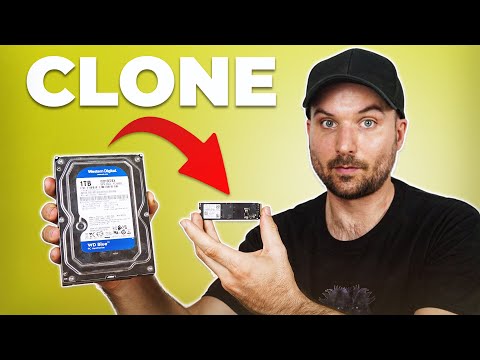
Okay, imagine this: You’ve got this trusty old computer. It’s been with you through thick and thin, you know? But, lately, it’s showing signs of age—like how we all do sooner or later.
And now you’re thinking about upgrading or maybe just creating a solid backup plan. That’s where cloning your disk comes into play! It sounds a bit like something out of a sci-fi movie, right?
But trust me (or at least hear me out), it’s totally doable and frankly a lifesaver if handled properly. I’m gonna guide you through using EaseUS for this task—it’s straightforward and practically hassle-free when it comes down to it.
Stick around! You’ll soon get the hang of things and see just how convenient this whole disk cloning adventure can be.
EaseUS Hard Drive Cloning Capability
Hey there! Let’s chat a bit about EaseUS hard drive cloning. This software is like having a personal assistant for your computer when you need to move or secure data safely. You know, sometimes we all need an extra helping hand with these techy things.
Imagine this: you’ve got a shiny new SSD, and you want everything from your old HDD to move over smoothly. That’s where EaseUS steps in. It supports disk cloning, which means it can make an exact copy of your hard drive files, system data, and even settings if you want.
Here’s why it’s neat:
- User-Friendly Interface: It’s designed for everybody—even if you’re not that tech-savvy. The interface is intuitive, showing you step-by-step what needs doing next.
- Data Safety: The tool ensures that no data is lost during the transfer. Your photos from last summer? Safe and sound.
- Versatile Options: Whether you’re copying the entire disk or just some partitions, you’ve got flexibility here. I mean—who doesn’t love options?
Now let’s talk about how it works in practice:
1. **Connect your new drive:** Plug it into your computer alongside the old one.
2. **Select Source Disk and Target Disk:** Pick which disk will be copied (your current one) and where it’ll go (the new SSD).
3. **Begin Cloning:** With just a few clicks within EaseUS’s simple choices, you’ll be off to the races!
While watching those progress bars inch across can feel like forever (make sure to have some tea or coffee ready), at least knowing there’s minimal possibility of mishaps calms any worries down right away—you follow me?
Something else worth mentioning is compatibility—it covers pretty much all Windows versions plus supports dynamic disks too; people often overlook these little things till they’re needed—as someone who’s migrated systems many times over myself—I’ve learned firsthand their importance.
Oh—and don’t fret if something doesn’t seem right at first glance post-migration because most issues relate directly toward boot order setup mistakes rather than copying itself being faulty: remember changing BIOS/UEFI settings should solve such dilemmas promptly!
Has hard drive swapping ever given more peace before?!
Cloning a Disk with EaseUS on Windows 10
Alright, let’s get into cloning a disk with EaseUS on Windows 10. Now, picture this: you’ve got all your important stuff—photos, documents, maybe some games—on your computer’s hard drive. You want to make sure you have an exact copy in case anything goes wrong. That’s where cloning comes in! And with EaseUS Todo Backup, it’s actually pretty straightforward.
First things first: installing the right software. You’ll need to download and install EaseUS Todo Backup. It’s available online and has a free version that will do just fine for our purpose here.
Once you’re set up:
- Launch EaseUS Todo Backup on your Windows 10 machine.
- Look for the option that says “Clone” on the interface. Click it.
- You’re going to see your current disks displayed here. Pick the one you want to clone from—the one with all your goodies!
- Select the destination disk where you want to clone everything to. Make sure it’s big enough to hold all that’s on the original disk.
A quick reminder: Cloning means it copies everything over—the system files, settings, apps—like an identical twin! So double-check if there’s anything you’d rather not include by accident.
Before hitting that final button:
- I would recommend ensuring that there’s no crucial information already stored on the target disk because yes—it will be wiped out during this process!
Now comes time for decisions:
If there’s a checkbox labeled “Sector by sector clone,” consider what you need. Checking this means every little bit of data is copied over exactly as is—including empty sectors—which takes more space but may be useful when dealing with problem drives or needing precise replication.
When ready:
- Start the cloning process by clicking “Proceed.” Keep any streaming services off while doing this—why risk interruptions?
The length of time depends largely on how much data’s moving and how speedy both disks are—you might even grab some coffee or binge-watch something!
In terms of lifestyle advice? Maybe test newly cloned disk out after completion! Swap connections around so new one boots up—it should look (and function) identically like before without losing quality!
If something feels amiss afterward always reach back into those preferences within original OS menu accessible via boot-up pre-windows screen settings making trustworthy backup solutions easier next occasion arises…because honestly who likes stress right?!
There ya go! Cloning made simple—not bad if tech can actually do wonders handier than previously believed possible since digital age persists innovatively huh?!
Full Disk Cloning with EaseUS on Windows
You know, sometimes you just need to make a perfect copy of your computer’s hard drive. Maybe it’s because you’re upgrading to a bigger disk or you want a backup in case things go south. That’s where EaseUS comes into play, helping you clone a disk on Windows like it’s no big deal.
First things first, make sure you’ve got EaseUS installed. It’s crucial because, without it, you’re just staring at your screen and hoping for magic to happen!
Step One: Launch and Prepare
Once you’ve got the software running, you’ll find an option called “Clone.” Clicking on that will get the ball rolling. Make sure that both your source (the one you’re copying from) and target disks (the one you’re copying to) are connected properly.
Selecting Your Source Disk
This is like picking which book you want to photocopy. You’ll have options laid out in front of you; choose your current hard drive—the one with all your precious data.
Selecting The Target Disk
Next up is selecting where this clone will live. Ensure it has enough space; otherwise, it’s like trying to fit an elephant into a bathtub! A little reminder here: any data on this target disk will be wiped clean.
Customization Options
EaseUS gives some neat features for those who love tweaking things:
- Edit Partition: Resizing partitions if needed.
- Sector-by-Sector Clone: It clones everything—every nook and cranny!
- SSD Alignment: Perfect for speeding up solid-state drives.
After making these choices (or leaving them as they are if that suits), hit ‘Proceed’. It’s like starting the countdown for blast-off!
The Waiting Game
While cloning happens behind the scenes, go grab yourself coffee or binge-watch an episode—it might take some time depending on how much stuff you’re moving over.
And voilà! Your new disk should now be an exact replica of your old one—all files neatly transferred over without breaking a sweat.
There was this one time I had my entire family memories saved on an ancient laptop whose death was imminent. Backing up everything using EaseUS felt like rescuing those memories right before disaster struck—you know?
Just remember—check twice then clone once! This process is pretty forgiving unless interruptions happen midway through—can’t stress enough how peace-of-mind inducing having that cloned backup really feels!
Oh, cloning a disk! That’s a topic that might sound a bit intimidating at first, but don’t worry. It’s not as complicated as it seems. You know how sometimes your computer’s hard drive can feel like an old attic? Full of important stuff you don’t want to lose, but it’s getting cramped and creaky? That’s where disk cloning comes in handy.
Think of EaseUS software like the van you hire when you’re moving houses. It helps you take everything from your old home (that’s your current disk) and transport it safely to a new place (the shiny new disk). And the best part? You won’t lose any data along the way!
I remember once helping a friend who was panicking because her laptop was on its last legs. She had all her college papers and zillions of photos stored there. We used EaseUS to clone her dying hard drive onto a new SSD, and voila! No more panic about lost memories or work.
Here’s the thing: when you clone with EaseUS, it’s kinda like copying everything—operating system, files, settings—the whole shebang—just as it is. It’s one smooth ride with all features included to ensure nothing gets left behind.
And speaking of features, isn’t it neat how some tools are so user-friendly nowadays? I mean, just following simple prompts on screen can save hours compared to manually transferring data piece by piece.
Anyway, if you’re ever in that situation where your hard drive’s on borrowed time or you’re just upgrading for speedier performance, cloning might be an excellent solution for giving all that important data safe passage from old tech territory to fresh digital pastures.