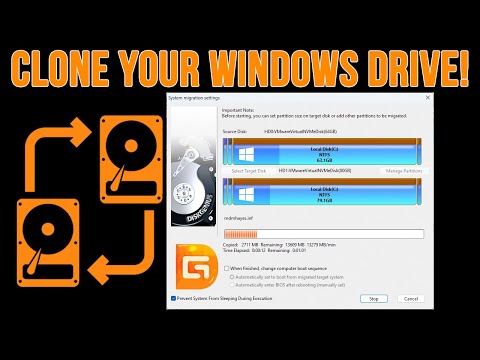
Hey, you ever had that moment when your computer just starts acting up, and you’re like… “Oh no, not today!”? I’m telling you, those days are the worst. But guess what? There’s a way to kind of… “back-up” your whole setup. You know? Keep everything safe and sound.
So here’s the deal: you’re gonna clone your Windows 10 hard drive. Sounds fancy! Like something out of a sci-fi movie or something. But trust me, it’s not as tricky as it sounds. And you don’t have to spend a dime—yep, there are free ways to do it!
Imagine this: all your files, settings, and apps exactly where they should be, even if your current drive decides it’s done with life. It’s like making an identical twin of your computer’s brain! Pretty cool right?
You’ll thank yourself later when life throws one of those unexpected curveballs at ya’. Ready to jump in?
Free Tools for Cloning Windows 10
Cloning a Windows 10 hard drive, huh? It’s like making an identical twin of your current setup, so you can breathe easy. You know, in case one day your main drive decides to take a nap!
Now, you’re probably thinking about the cost. But hang on, because there’s some nifty free tools that can help you do this without burning a hole in your pocket.
- Macrium Reflect Free: This is one of those tools that’s been around for ages and for good reason. It’s reliable and doesn’t try to sneak any surprises under the hood. After installing it, you’ll pretty much follow a straightforward wizard to clone your entire drive. The interface might feel a tad busy at first sight but stick with it; it’s worth it.
- EaseUS Todo Backup Free: The name says backup but cloning’s definitely on its resume! You get clear prompts through the process making sure you’re not left scratching your head. It even lets you clone partitions—just in case you’re only interested in certain parts of your data.
- AOMEI Backupper Standard: Another strong candidate which serves up cloning with both style and substance. It comes with options like ‘System Clone’ if you’re aiming to move your OS alone or ‘Disk Clone’ when going full monty!
- Clonezilla: For those who enjoy rolling up sleeves diving into something more hands-on—Clonezilla gets geeky right out of the gate! This open-source gem can handle complex tasks though it may require booting from external media (like USB) before starting anything serious.
Let me throw in an extra piece here: always double-check that you’re working with the right drives during these operations—losing data isn’t fun trust me!
In essence each tool has its flavor depending what kind simplicity versus control balance feels comfy for ya’. So choose wisely my friend happy cloning journey awaits!
Free Cloning Software Options for Windows 10
Free cloning software can be a real lifesaver when you need to clone your Windows 10 hard drive. But what does it mean to clone a drive? Picture making an exact copy of all your files, programs, and even the operating system itself. It’s like having a replica of your original drive stored safely on another one.
- Macrium Reflect Free: This is often the go-to choice for many users. It’s straightforward and offers great options for both backups and cloning. You just have to download it from their website, install it, and follow the wizard-like prompts to clone your drive.
- AOMEI Backupper Standard: With this software, you can do more than just clone. It allows you to create disk images as well! The interface is user-friendly—think of it like following a recipe step by step.
- EaseUS Todo Backup Free: Here’s an option that’s also really easy on the eyes and usefull too. Not only does it let you clone drives, but it’s also excellent for regular backups (just in case unexpected happens).
- Clonezilla Live: This one’s a bit different because it’s open-source (meaning anyone can contribute to its development). It might not be the prettiest or easiest at first gaze-eye but don’t judge too fast—it gets the job done well.
Now remember: before cloning anything, double-check that all data’s backed up somewhere safe—whether it’s family photos or important work documents! And make sure there’s enough space on the destination drive; otherwise things might not work out so smoothly.
Cloning doesn’t ruin existing data on target drives usually—but better safe than sorry right? Now imagine having these free tools in hand—they’re like your personal tech toolkit waiting patiently whenever needed!
Happy cloning!
Windows 10 Clone Tool Availability
Imagine you’ve just set up your perfect workspace on a shiny new PC. You’ve got everything configured just the way you like it, down to the highest level of detail. And suddenly, you start worrying about what might happen if your hard drive fails or you need to upgrade. No need for anxiety! Cloning your Windows 10 hard drive can save you loads of time and headaches.
What’s Cloning?
Cloning means making an exact copy of your hard drive. It includes everything: the operating system, installed applications, personal files—the whole shebang! So if anything happens to your current drive, you can slap the clone onto a new one without missing a beat.
Available Tools
There are several free tools out there to help you clone your Windows 10 hard drive:
- Macrium Reflect Free: This is a popular option among users looking for reliability without any cost. It’s straightforward with easy-to-follow steps for cloning.
- AOMEI Backupper Standard: Offers versatility with its range of backup options in addition to cloning.
- EASEUS Todo Backup: Known for its user-friendly interface and efficient cloning process.
These tools come with their quirks and perks, but they all get the job done pretty well without having to shell out any cash.
How It Works
Once you’ve chosen a tool that tickles your fancy:
- Select Source Drive: This is simply picking the current hard drive you’re using.
- Select Target Drive: Where do you want all this magic transferred? Choose that disc here!
- Start Cloning Process: Let’s make that twin happen! The software will handle copying every bit from source to target.
The process might take some time depending on how much data you’re moving over―so grab some coffee meanwhile!
Caution!
Before diving head-first into this process:
– Double-check that there’s enough space on the target drive.
– Backup essential data as an extra safety net—just in case things go awry.
– Remember some apps may require reactivation post-clone—software licenses can sometimes get picky when moved around.
In my own experience? Once I cloned mine using Macrium Reflect Free, I felt like Superman minus Kryptonite! Everything was right where I left off even after transitioning onto newer hardware seamlessly.
That’s pretty much it: say goodbye momentarily fretting over potential disasters by feeling empowered knowing backups are handy at any given moment—all thanks cloning tech now within reach free-of-cost!
You know, there’s something quite satisfying about the idea of cloning a Windows 10 hard drive. It’s like making an identical twin of all your digital stuff without paying a single penny. I have this friend, let’s call him Jake, who got so nervous about his laptop dying one day that he decided to create a backup clone of everything. He was so relieved when it worked out and didn’t cost him anything!
So here’s how you can get into this yourself without pulling out your wallet. Imagine having an exact copy of your system—as if each file and program is just lying there in another corner of the universe (well, maybe not “universe,” but on another hard drive).
There are these free tools like Macrium Reflect Free and Clonezilla that really come in handy. They’re kinda like magic wands for this whole process. You just download one on your computer, follow some easy steps to select what you want cloned (basically click here and there), and then you tell it where to put this duplicate world.
And don’t worry, it’s not rocket science—these tools guide you through it quite smoothly—even if you’re not exactly tech-savvy! Make sure you’ve got an external drive or maybe another internal one with enough space ready.
Think about all those times when something goes haywire with technology—it’s more common than we like! Having this clone means peace of mind knowing everything you hold dear digitally is safe somewhere else…sure makes sleeping easier at night!
One thing to keep in mind though: be patient because depending on how much data you’re dealing with, cloning can take some time—grab yourself coffee or go for a walk while it does its thing.
It’s interesting right? Cloning isn’t just for sci-fi movies anymore; now it’s part of our daily lives—and who knew it could be absolutely free? Feels nice knowing there’s always that safety net waiting just for us!