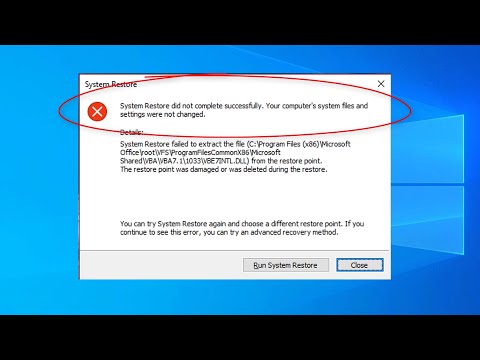
Oh man, system restore errors. They can be so frustrating, right? You’re just trying to get your computer back in shape, and bam! You hit another hurdle. It’s like trying to untangle a bunch of wires—just when you think you’ve got it, things get knotted up again.
I remember once when I was in the middle of an important project (you know those last-minute deadlines?) and my system decided to go on strike. Yep, you guessed it—a system restore error! Talk about bad timing. So if you’re feeling that same panic now, believe me, I’ve been there too.
But don’t sweat it too much—there are some straightforward steps you can try to fix this mess. And boy oh boy, that sense of relief when everything’s working smoothly again? Totally worth it! So let’s jump into what you can do next to tackle this pesky error head-on.
Hang tight. We’ll figure this out together!
Resolving System Restore Error in Windows 10
You know, computers can be tricky sometimes! Imagine you’re working on your Windows 10 PC and suddenly something goes kaboom. That’s when System Restore might become your best buddy, right? But what happens if you get a “System Restore Incomplete” error instead? Oof, frustrating! Here’s how you can handle this hiccup.
- Check Your System Protection Settings: First off, make sure that the System Protection is turned on for your drives. You’ll want to type “System” in the search box and select “System” from there. Then navigate to “System protection.” See if it’s enabled for the drive you’re trying to restore. If not, just click on ‘Configure’ and turn it on.
- Disable Antivirus Temporarily: Sometimes those pesky antivirus programs get too cautious and block system files from being restored. Try disabling yours temporarily to see if that’s what’s causing the trouble.
- Run System File Checker (SFC): Sometimes corrupted files are at fault. To check them out, open Command Prompt as an administrator by typing “cmd” into the search box and selecting ‘Run as administrator’. Type “
sfc /scannow” without quotes and press Enter. - Troubleshoot in Safe Mode: If things still aren’t peachy keen, rebooting into Safe Mode might help. Restart your computer and press F8 (or Shift + F8) before Windows starts loading to hop into Safe Mode where only basic drivers are loaded.
- Create a New Restore Point: Hey! Maybe something funky happened with that last one? Try creating a new restore point by going back under your system settings—just like when you checked system protection—and selecting ‘Create’. After that try using this new point for restoring purposes!
So there you have it! Give these steps a whirl next time Mr.—or Ms.—Computer decides they don’t want cooperate during restoration attempts!
Remember though: patience is key; don’t panic—it’s just part of owning electronics today isn’t it?!
Windows 7 System Restore Error Fix
Dealing with a Windows 7 System Restore error can be pretty frustrating, can’t it? It’s like when you’re all set for a road trip, but your car just won’t start. But don’t worry, we can figure this out together. Hang tight, and let’s explore some steps to help you sort this out.
First things first, why does this error even happen? Well, sometimes your computer might have missing files or there could be issues with the system permissions. If it makes you feel any better, you’re definitely not alone in facing these errors!
Now let’s dive into some steps that might bring your system back on track:
- Boot into Safe Mode: That’s like giving your PC a breather! Restart your computer and keep pressing F8 before Windows starts. Choose ‘Safe Mode’ from the list.
- Run System Restore again: In Safe Mode, head over to ‘Start’, then type “System Restore” in the search box and hit Enter. Follow the wizard instructions.
- Nudge those security programs: Sometimes antivirus software gets a bit too enthusiastic. Temporarily disable them before running System Restore again.
- SFC Scan: This is basically checking if certain files went missing or got corrupted. Open Command Prompt as an admin (search “cmd”, right-click it and select ‘Run as administrator’), then type:
sfc /scannow
Hit enter and let it do its thing!
- If all else fails…Renaming folders might help?: A bit techy but hang in there—go to C:WindowsSystem32ConfigsystemprofileAppData (note AppData might be hidden). Rename folders Temp or LocalTemp by adding “.old”.
And voilà! Hopefully one of these ways leads you closer to fixing that pesky error message—it’s often these little things that make much bigger differences than expected!
Fixing Incomplete System Restore in Windows 11
Alright, let’s jump into that issue of incomplete system restores in Windows 11. Sometimes, trying to get your PC back to an earlier state with System Restore doesn’t go as planned. Instead of smooth sailing, you end up with a pesky error message like “System Restore did not complete successfully.” What a bummer, right? But don’t worry too much—there are some simple ways you can troubleshoot this.
Understand What’s Happening:
When System Restore fails, it can be due to various reasons. Maybe it’s antivirus software blocking some actions, or perhaps the restore point is corrupted. Sounds technical? Kinda is! But let’s break down what you can do.
Steps to Fix Incomplete System Restore:
Here’s what you might try if you’re facing this headache:
- Disable Your Antivirus Temporarily: Some security programs might interfere with system changes. Just disable real-time protection for a bit and see if that helps.
- Use a Different Restore Point: If one restore point isn’t doing the trick, choose another and give it a whirl.
- Run System Restore in Safe Mode: Safe Mode loads only essential drivers and services, potentially making restores smoother.
- Press and hold the Shift key while selecting Restart from the Power menu.
- Select Troubleshoot > Advanced Options > Startup Settings > Restart.
- Your computer restarts again with different options—select Safe Mode from there.
- Check for Disk Errors: Disk errors can disrupt operations.
- You can use the Command Prompt: type “chkdsk /f” and hit enter. It asks permission to run after restart; say yes!
Among these methods, many folks find running System Restore in Safe Mode particularly useful. I remember helping my niece with her laptop about two months ago where nothing seemed to work till we booted using safe mode—it was like magic when it finally completed successfully!
A Few Extra Tips:
- If things still seem rough after trying those steps above (and believe me they happen), consider restoring your Windows files using SFC (System File Checker). This command checks any corrupted system files that could be causing trouble: ‘sfc /scannow’.
The process takes some time but helps quite often!
Remember though that no method works every single time! Computers are tricky critters by nature! Still having issues even now? At times reevaluating saving important data elsewhere then performing fresh installs become necessary evils—but hey start small before moving big guns around 🙂
That should help iron out the creases somewhat., Got stuck or need clarification anywhere here given it’d seem overwhelming without technical chops—they’ll answer based same fields etc., Give troubleshooting trial & error approach batting average fair shake first though alright?
You know that moment when you’re all set to roll back your computer using System Restore? Maybe you’re just trying to undo a change or fix a nagging issue. But then, instead of the smooth sailing you’d hoped for, you get hit with that dreaded “System Restore Incomplete” error message. Oh man, it can feel like the universe is just messing with you sometimes.
It’s like planning a picnic and having rain come out of nowhere. Not exactly what you’d wanted, right? Anyway, this kind of thing can happen for several reasons: maybe there’s some software conflict or your antivirus decided it wants to play boss and blocked the process. Sometimes it’s even due to missing files or corrupted ones hogging up the system.
So here’s what you might want to try: First off, reboot that computer – yeah, I know it’s basic advice but it helps more often than you’d think. Then take a peek at your antivirus; temporarily disabling it during the restore could be just what the doctor ordered. Remember to turn it back on later though! Also consider trying an alternate restore point if one’s available; these things can be finicky.
Ever heard of Safe Mode? That magical place where only essential stuff runs which means fewer chances something messes with System Restore. Booting into Safe Mode could give you a better shot at success here! Plus running Check Disk might catch any pesky file corruptions lurking about.
I’ve been there myself… caught off guard by technology’s quirks yet determined not let them win without putting up my own fuss first!