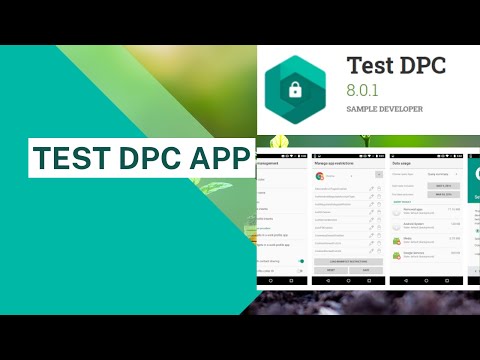
You know how it is when an app just decides to misbehave? Like, you tap the icon, expecting it to work as usual, and then boom! It’s like hitting a brick wall. That’s been happening with the Test DPC app on Android lately.
Picture this: you’re about to test something important, thinking everything’s good to go. Suddenly, all you’re seeing is crashes or errors. Super frustrating, right? Almost makes you want to throw your phone across the room.
But wait—before resorting to drastic measures—there might be some ways around it. Just need a little patience and maybe a bit of tinkering.
Let’s see how we can make peace with this rebellious app!
Understanding DPC in Android
Oh, Android devices! They’re great when they’re doing their thing without hiccups. But then, sometimes you run into a pesky issue like the DPC malfunction. Like, what even is that? Ever heard of “Device Policy Controller”? That’s what DPC stands for. It’s kind of like this hidden manager in your phone, ensuring that all the apps and settings align with company policies or rules when you’re using a device provided by your workplace.
Why is the Test DPC app important?
Look, if you’re developing or testing Android apps for enterprise environments, Test DPC acts like a simulation tool. It’s designed to mimic what an actual device managed by a company would do.
Here’s the deal:
- Testing Policies: Want to see how different security or work-related policies work on an Android device? Boom! Use Test DPC.
- App Behavior: Observing how apps behave under specific policy sets — that’s where it shines.
But sometimes people face issues with Test DPC, like it just doesn’t want to cooperate. Frustrating right?
The common malfunctions with Test DPC:
- Installation Issues: You might have problems while trying to install it on some devices.
- Crashed App: Uh-oh! It suddenly crashes or freezes when executing certain operations.
- Lack of Response: The app might not respond well to certain inputs or changes in settings.
Okay, so let’s say you’ve encountered one of these issues; what might be causing them? Several things could be at play here!
First and foremost—you gotta check compatibility. Not every version of Android plays nice with every version of Test DPC out there.
Here’s something relatable: Imagine setting up a new TV but only having old cables and connectors lying around. Some connections just won’t fit right!
Other culprits can include corrupted installation files—sometimes downloads get funky due to network glitches—and even conflicts between multiple management tools installed on one device.
Now here’s where patience becomes your best friend; often simply uninstalling then reinstalling the problematic application does wonders!
Remember those times dad used unplugging stuff only to plug ‘em back as his universal fix? It sure has its merits especially when apps misbehave!
If that doesn’t work either—you may need update OS itself since newer versions tend receiving bug fixes optimizing overall system performance thereby indirectly fixing such app-specific anomalies too!
Hope this clears things up little bit and helps smooth sailing ahead with managing/testing applications via trusty steed called “TestDpc.” Keep calm keep tapping away!
Test DPC App Malfunction on Samsung Android Devices
Oh, the infamous Test DPC App. If it’s acting up on your Samsung Android device, it can be more than a bit annoying, right? This little guy is designed for developers to test their apps under different configurations in a controlled environment. But sometimes it throws a tantrum itself!
Now, here’s a quick rundown on what you might be dealing with:
- App Not Responding: It could just freeze, leaving you staring at your screen in frustration.
- Crashes: Oh yes, that’ll make the situation even better — sudden shut downs mid-test.
- Error Messages: You might see cryptic messages that leave you more confused than informed.
Here are some simple steps to check things out and possibly fix them:
- Start With a Restart: The good old turn-it-off-and-on-again trick. No kidding, it often does wonders!
- Clear App Cache: Head over to your settings > Apps > Test DPC > Storage > Clear Cache. This can refresh things nicely.
- Update the App or Device: Sometimes outdated software is at fault. Check if there’s an update waiting for either Test DPC or your Samsung device.
- Check Permissions: Sometimes permissions aren’t set properly. Make sure it’s got all it needs under Settings > Apps > Test DPC > Permissions.
- If all else fails: Reinstall. Uninstalling and reinstalling can help clear any corrupted files that are causing trouble.
If you’ve tried everything and that pesky app still misbehaves, maybe it’s time to reach out for help from other users online or tech forums specific to Samsung devices—sometimes shared wisdom can provide new solutions!
Hope this helps clear up some of those headaches!
Android Device Compatibility with Test DPC App
Oh, wow, Android device compatibility can be a bit of a puzzle sometimes, right? Let’s unravel the mystery of the Test DPC app when it seems to be misbehaving on your Android gadget. If you’re scratching your head over this one, don’t worry—you’re definitely not alone.
First things first: Test DPC (Device Policy Controller) is mainly used by developers to test how their apps behave in a managed profile environment. Pretty neat if you’re into app development! But if you’re just using it casually and suddenly facing hiccups, there might be a few reasons for that.
- Software Versions Matter: The version of Android running on your device plays a big role. Not all versions play nice with certain apps, especially when we’re talking about something as specific as Test DPC. A newer or older version might lead to compatibility issues. Just like wearing mismatched shoes—looks awkward and feels weird!
- Device Manufacturer Differences: Did you know that different manufacturers tweak Android in their own ways? This means an app like Test DPC could perform beautifully on one brand but struggle on another. It’s kind of like how your favorite dish tastes different at each restaurant.
- User Permissions & Settings: Sometimes it’s all down to settings and permissions—those little switches in your settings menu can hold mighty power! Double-check if the necessary permissions are enabled for Test DPC.
If you’ve tried checking these aspects and things are still wonky, perhaps try reinstalling the app. Reinstallation is like hitting refresh on a confused web page—it often clears out minor glitches.
And hey, something else you could try involves reaching out through developer forums or community spaces where folks love sharing tips about such problems. They’ve had lots of “aha!” moments from shared experiences!
So whether you’re dealing with mismatched software versions or quirky manufacturer tweaks—or any other gremlins—just remember: every problem has its solve time!
Ah, Android devices! They’re such handy companions, aren’t they? Now, let’s talk a bit about the hiccups when it comes to the Test DPC app malfunctioning. Imagine you’re all set to test your apps in a managed context and then boom! The app starts acting up. Quite frustrating, isn’t it?
I remember when I first tried setting up an Android device with this tool. There was so much excitement in the air because I was eager to see how different policies would affect my app’s behavior. But things didn’t go as planned. Suddenly, the app decided it wasn’t in the mood to cooperate—freezing right when I needed it most.
Now, if you’re facing this issue, breathe easy because you’re not alone. One common trouble could be related to permissions not being properly granted. You might want to double-check those settings. Sometimes toggling them off and then on again does the trick.
Another thing? Device compatibility can also throw tantrums every now and then! If you’re using a version of Android or hardware that isn’t playing nice with Test DPC, that could explain why it’s misbehaving.
And hey, updates are crucial too! Occasionally an outdated version of either your operating system or the app itself is what’s causing all that fuss. Checking for updates might save your day!
Of course sometimes despite our best efforts nothing seems to work (trust me; been there!). In such scenarios reaching out to forums or online communities can be pretty helpful since others might’ve experienced similar setbacks.
So yeah keep experimenting—and remember technology loves surprises… just hope they’re pleasant ones next time around!